
Online Tools
How to Convert 3GP to MP4 Without False Promises
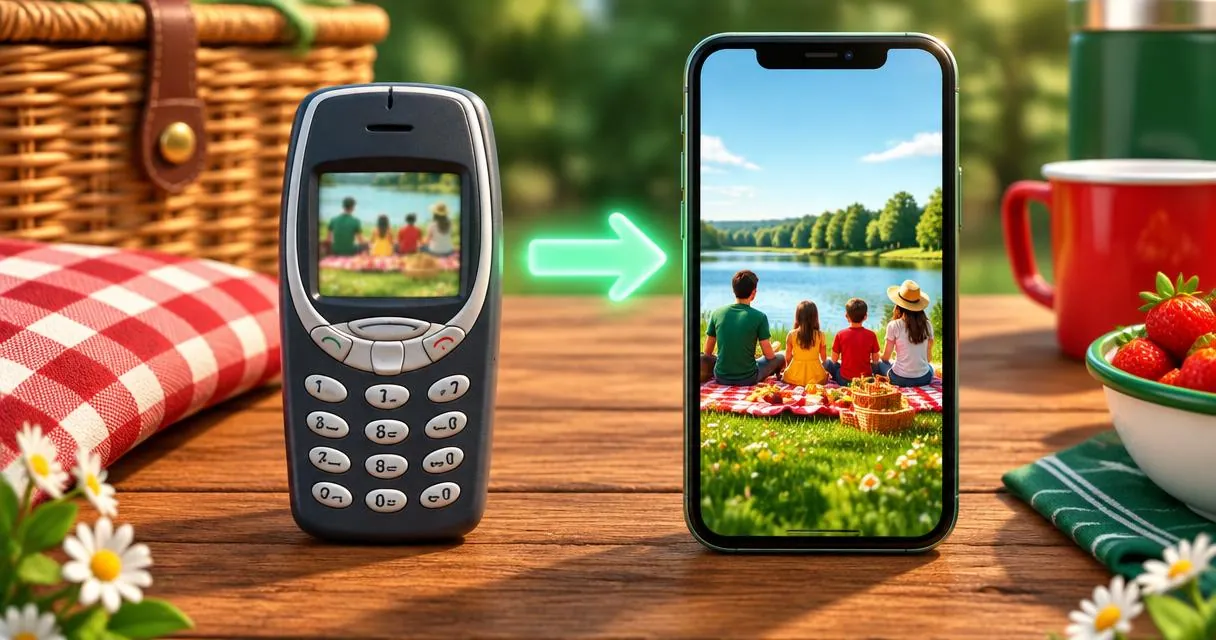
Convert 3GP to MP4 from an old phone recording. Learn the correct output setting, browser limits, and why conversion cannot restore lost detail.
To convert 3GP to MP4, open your local recording in MayreDukaan’s 3GP converter, change the output to MP4, and start conversion. That output selection matters: this page defaults to making 3GP, not MP4.
An old keypad-phone recording of a family gathering or school event can be worth preserving even when the picture is small. Conversion gives you a different file format; it does not recreate details that the original camera never recorded. Keep the source as well as the converted copy.
What 3GP to MP4 conversion actually does
3GP and MP4 are media container formats. A container holds streams such as picture and sound, while codecs determine how those streams are encoded. Support depends on both layers, not just the extension after the filename.
MayreDukaan’s MP4 output re-encodes video with H.264 and audio with AAC. It is not simply changing the wrapper or renaming the extension. The configured MP4 workflow uses a fixed video quality setting and audio bitrate; these controls are not adjustable in the component.
This distinction matters when a clip looks blurry. A format change can help a workflow accept a recording, but it cannot turn a low-detail source into a newly filmed high-resolution scene. Avoid services or instructions that promise recovered facial detail merely from selecting MP4.
| Choice on the page | What it is for | What to remember |
|---|---|---|
| MP4 | Convert the old recording to MP4 | Select it manually |
| 3GP | Produce a small 3GP version | This is the default output |
| Rename the extension | Change the visible filename | Does not convert media streams |
The 3GP output’s resize and frame-rate settings do not describe the MP4 output. Do not assume that every conversion on this page uses the same dimensions simply because both buttons appear together.
Prepare an old phone recording
First copy the original recording into a place you can access through the browser’s file chooser. Keep a second copy before experimenting, especially if the clip is the only surviving version of an event.
Try playing it in an application that already supports it. Make a note of existing issues: perhaps the sound begins late, the camera rotates midway through, or the ending is cut off. Those observations help you separate a source problem from a conversion problem later.
For a family recording in Pakistan, ask before sharing identifiable voices or private scenes beyond the intended audience. A more convenient format does not change the people’s expectations about where their recording will appear.
Convert the file step by step
- Open the 3GP converter.
- Tap the file area and choose the local recording, or drag one file into the area on a computer.
- Under Convert to, press MP4. Check that MP4 is the selected output before continuing.
- Press Convert to MP4. The first conversion requires the browser to load its conversion engine.
- Let the processing finish and use the result button to download the generated file.
- Open that MP4 in your intended player and check the complete recording.
There is no batch queue, subtitle editor, or cropping panel in this component. For a different format, the video converter provides another starting point; inspect its available outputs rather than assuming every page offers identical options.
A practical example: preserving a school event
Suppose a relative finds a 3GP clip of a school prize ceremony on an old memory card. Save the original in an archive folder, then select it in the converter and choose MP4. Give the converted copy a useful name describing the event instead of overwriting the original.
After conversion, check the announcement at the beginning, a section of applause in the middle, and the ending. Listen for whether sound remains aligned with the action. Compare any visible blockiness with the source before blaming the new format.
If you want to make an edited family compilation later, keep the archive copy untouched and use a separate working file. Repeatedly converting one already-converted version is not a preservation strategy.
Privacy and browser limitations
The converter runs FFmpeg in the browser. The selected media is read locally into the conversion engine and the finished file is created as a browser download. This component does not send your recording to a conversion server.
The engine itself is loaded over the internet. Browser-side conversion therefore does not mean that no network access is needed initially. Long or unusual recordings may also fail because of available memory or codec support in the bundled engine. There is no stated universal input-size ceiling enforced by this component.
If the phone struggles, try the same source on a computer. If the source itself will not play, locate another copy rather than repeatedly renaming it. See the video and audio directory for other conversion pages, not for a promise that damaged files can be repaired.
Common mistakes to avoid
- Leaving 3GP selected and expecting an MP4 result.
- Deleting the only source before checking the converted copy.
- Treating a bigger file as proof of a sharper picture.
- Assuming every possible internal codec is supported because the extension is accepted.
- Expecting noise removal, stabilisation, or upscaling from a format converter.
Start with the original file in the 3GP converter, select MP4 explicitly, and verify the result. The useful outcome is an accessible copy of your recording, with its original limitations understood.
Frequently asked questions
Why does the page initially show 3GP?
The converter defaults to 3GP output. Select MP4 before starting a 3GP-to-MP4 conversion.
Will MP4 restore a blurry recording?
No. Format conversion cannot recreate missing source detail.
Are the MP4 and 3GP settings identical?
No. They use different encoding settings. The 3GP output resize settings should not be attributed to MP4.
Useful on MayreDukaan
Sources
Facts last checked against these sources on 15 Nov 2026, 07:43 Pakistan time.
Images: Illustration created for MayreDukaan (not a photo)
More trending articles
 EntertainmentWatch Pakistani News Live Through Official Links15 Nov 2026 · 4 min read
 Pakistani DramasWatch Pakistani Dramas Online on Official Channels15 Nov 2026 · 5 min read
 Shopkeeper GuidesTake Your Shop Online in Pakistan: Setup Guide15 Nov 2026 · 4 min read
 Shopkeeper GuidesInstall the MayreDukaan APK on Android: A Guide15 Nov 2026 · 4 min read