
Online Tools
Convert HEIC photos to JPG while keeping your originals
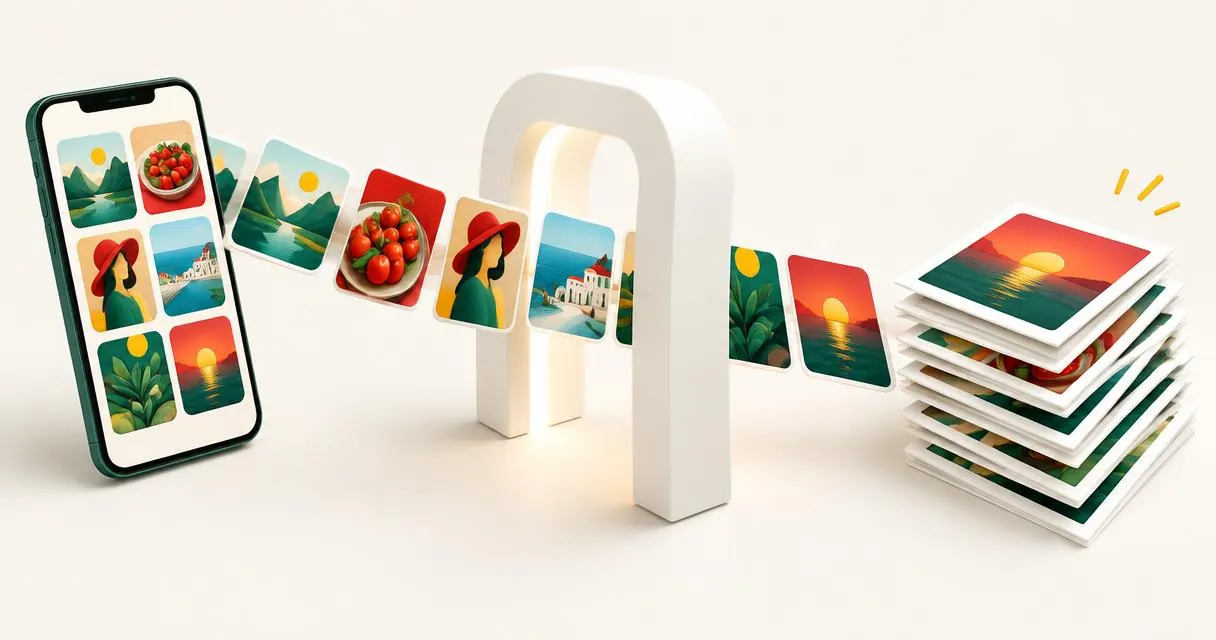
Convert HEIC to JPG in your browser, export photos on a Mac, or change iPhone camera settings. Learn what happens to quality and photo details.
To convert HEIC to JPG, create a JPEG copy with a converter or export the photo from a compatible app. Do not simply rename the file. The MayreDukaan HEIC to JPG converter accepts HEIC and HEIF files and processes them inside your browser, without sending the photos to our servers.
Keep the original if it matters to you. This conversion creates an ordinary still image, not an archival replacement for every feature or piece of information stored in the source.
Why an iPhone photo may need conversion
Apple documents HEIF as a space-saving image format used by supported devices. JPEG is an older, more broadly compatible alternative. A receiving app or upload form may accept JPEG while rejecting the original HEIF photo; its own accepted-file list is what matters.
HEIC is a filename extension you may encounter on these photos. JPG and JPEG refer to the same image format, so a request for a JPEG does not necessarily require a file ending specifically in .jpeg.
Conversion is useful when a document editor, printing workflow, or form rejects the source file. It is unnecessary if your existing app already handles it correctly. Avoid converting an entire photo library just because one destination has a restrictive upload rule.
Convert HEIC to JPG in your browser
- Open the HEIC converter on the device holding your files.
- Tap the file area or drag in the HEIC or HEIF photos. You can add several files.
- Review the JPG quality slider. The initial setting is 90%; use it as a starting point, not a guarantee of a particular file size.
- Select Convert to JPG and wait for each item to finish.
- Download individual results, or use Download ZIP when several conversions have completed.
- Open a downloaded JPG and check it before deleting or moving anything.
The code decodes HEIC locally, draws the result to a canvas, and exports JPEG. Large photos may be demanding on a phone, so try a small group first if processing feels slow. The quality setting controls the JPEG export, not the amount of detail in the original capture.
To retry a completed photo at another quality setting, clear the list and add the original again. Completed items are skipped by the converter, so moving the slider alone does not regenerate them.
Convert an existing photo on a Mac
Apple provides a built-in alternative: open an HEIF image in Photos or Preview, choose File, then Export, and choose JPEG as the destination format before saving. This is useful when the photo is already on your Mac and you prefer an installed application.
Whichever route you choose, save the copy somewhere distinguishable from the original. For example, keep source photos in one folder and converted images for a particular application in another. That avoids submitting the wrong file by mistake.
Apple also notes that sharing through some methods may automatically use a more compatible format when needed. Do not assume this always happens: check the actual file you are about to submit.
Make future iPhone photos more compatible
On a supported iPhone or iPad, Apple's documented path is:
- Open Settings.
- Select Camera, then Formats.
- Choose Most Compatible.
New photos then use JPEG. This setting changes future captures; it does not convert the HEIC photos you already have. Choose High Efficiency again if you want to return to Apple's space-saving capture formats.
This is a preference rather than an essential repair. If your normal editing and sharing tools support HEIF, keeping that workflow and converting only when necessary may be simpler.
What changes during conversion?
| Item | What to expect from this tool |
|---|---|
| File format | A new JPG copy is created |
| Pixel dimensions | The converter uses the decoded image dimensions |
| Multiple-image HEIC content | Only the main photo is retained |
| Photo metadata | Details such as location are not copied |
| Quality | JPEG export can introduce compression changes |
JPEG is lossy. Even a high quality setting is not a promise of mathematically identical pixels. Nor does a higher slider value restore detail missing from a blurred or poorly exposed original.
Practical example: a photo rejected by a form
Suppose a form accepts JPG but rejects your iPhone photo. First confirm whether it also specifies width, height, or a file-size ceiling. Convert one original and inspect the result. If the JPG is still too large, use the image compressor. If the dimensions are excessive, use the image resizer separately.
Check small details such as faces, text, and straight edges. A successful conversion only proves a file was produced; it does not prove the destination's rules have been met.
Common mistakes to avoid
- Renaming .heic to .jpg instead of decoding and exporting the image.
- Deleting the original before checking the downloaded copy.
- Expecting a still JPG to preserve all multi-image content.
- Assuming photo metadata will accompany the export.
- Repeatedly converting the previous JPG rather than returning to the original.
For one rejected photo or a small batch, start with the HEIC to JPG tool, inspect the output, and keep the original safely stored.
Frequently asked questions
Does renaming HEIC to JPG work?
No. Renaming changes the filename, not the image encoding. Export or convert the image to create a genuine JPEG.
Are photos uploaded to MayreDukaan servers?
This converter processes files in your browser on your device; it does not send the photos to our servers.
Does Most Compatible convert old iPhone photos?
No. Apple’s setting affects new captures. Existing HEIC photos still need to be exported or converted.
Will the JPG retain location information?
The converter does not copy photo metadata such as location. Keep the original when that information matters.
Useful on MayreDukaan
Sources
- Apple Support: Using HEIF or HEVC media on Apple devices
- MDN: Image file type and format guide
- MDN: HTMLCanvasElement toBlob method
Facts last checked against these sources on 15 Nov 2026, 07:42 Pakistan time.
Images: Illustration created for MayreDukaan (not a photo)
More trending articles
 EntertainmentWatch Pakistani News Live Through Official Links15 Nov 2026 · 4 min read
 Pakistani DramasWatch Pakistani Dramas Online on Official Channels15 Nov 2026 · 5 min read
 Shopkeeper GuidesTake Your Shop Online in Pakistan: Setup Guide15 Nov 2026 · 4 min read
 Shopkeeper GuidesInstall the MayreDukaan APK on Android: A Guide15 Nov 2026 · 4 min read