
Online Tools
Turn JPG document photos into one PDF in Pakistan
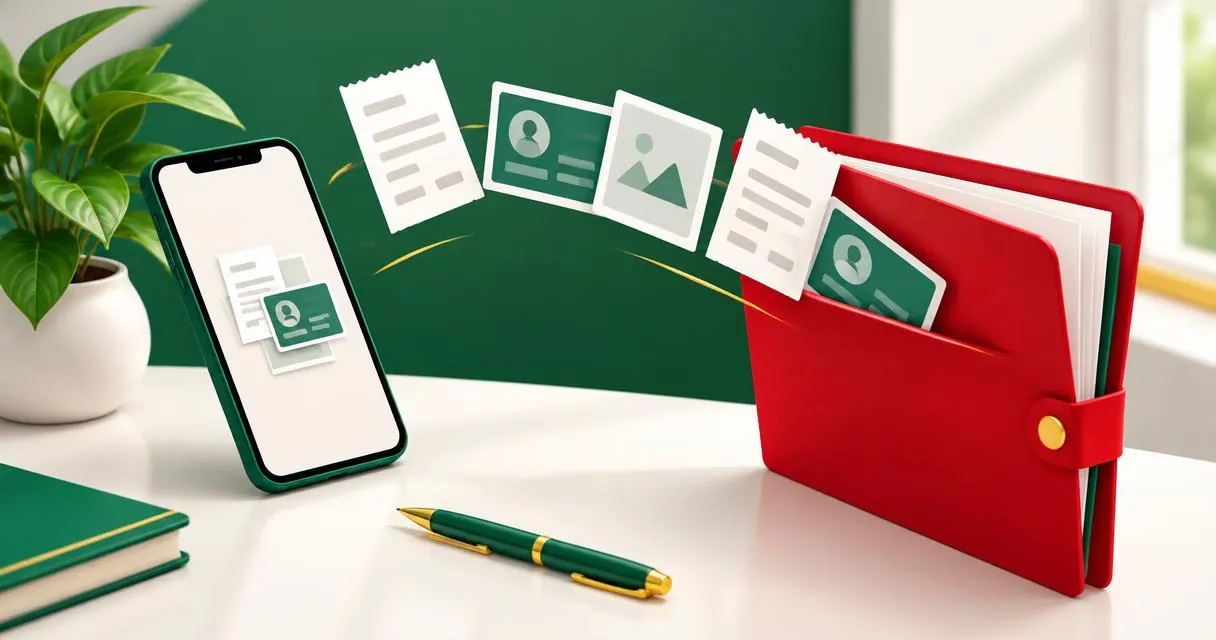
Convert JPG to PDF in your browser for receipts, assignments or office documents in Pakistan. Check page order, readability and upload requirements.
To convert JPG to PDF, open the image to PDF converter, add your document photos in the intended page order, press Create PDF, and download the result. The converter places one image on each page and combines them into one file.
For a Pakistani student sending an assignment, or a shopkeeper sharing receipts with an accountant, this is a straightforward way to prepare one attachment. It does not automatically satisfy a college, employer or government portal's requirements: check that destination's current instructions before submitting.
Prepare clear document photos first
Place the document on a flat surface and photograph it with all required information visible. Check names, dates, amounts and stamps at a readable zoom level. A PDF container cannot repair an unreadable photograph.
Keep a separate original of every image. Give the working files clear names so you can identify the first page, supporting pages and any receipts. Do not rely on your phone's gallery thumbnail order to establish the final document sequence.
Use the rotate and flip tool to fix sideways pages before conversion. If the picture contains unnecessary table or floor space, prepare a crop, but avoid cutting off signatures, page numbers or other required information.
Convert the photos step by step
- Open the image to PDF converter on the device holding your photos.
- Add the JPG or PNG files in the order the pages should appear.
- Review the displayed list. This version has no page-reordering controls, so start a fresh selection if the sequence is wrong.
- Press Create PDF and wait for processing to complete.
- Download the PDF and open it to inspect every page.
- Rename the saved file descriptively before attaching or submitting it.
Image processing and PDF creation run in the browser. The implementation reads local image files and builds the downloadable document on your device; it does not send the pictures to a remote conversion service.
Do not confuse this with editing an existing PDF. If you already have several PDFs, use the PDF merger instead of turning their pages into photographs.
What the converter does and does not change
Each image becomes a separate page sized to that image. The implementation draws the source onto a white canvas, encodes it as JPEG, and embeds it in the PDF. It does not provide an A4 page selector, adjustable margins, a print-resolution control or OCR.
| Requirement | What to do |
|---|---|
| One image per PDF page | Use the converter directly |
| A particular paper size or margin | Prepare the document in a tool with explicit page-layout controls |
| Searchable text from a photographed document | Use a separate OCR workflow |
| A strict upload-size limit | Check the finished file and the receiving portal's instructions |
Adobe's scanning documentation distinguishes image scanning from text-recognition options. Converting a photo into a PDF does not, by itself, turn the photographed words into editable text.
There is also no reason to promise a particular DPI merely because the output is a PDF. If an office explicitly asks for a print specification, use a workflow that lets you set and verify that specification.
Practical example: share a receipt bundle
Suppose a shopkeeper in Lahore has three receipt photos for a Rs 12,500 purchase: the invoice, a payment receipt and a delivery note. These are example documents and an illustrative amount, not a rule about accounting or tax records.
Add the invoice first, payment receipt second and delivery note third. Create the PDF, then check that the invoice amount and receipt reference are readable. Save a descriptive copy for your own records and send only the intended document to the accountant.
If one image was selected twice, recreate the bundle without the duplicate. If a finished PDF needs pages removed, the PDF splitter can extract the ranges you want to retain. Keep the source images until you have checked the final attachment.
Common mistakes before submission
- Assuming conversion reduces file size. Check the actual downloaded file rather than expecting compression.
- Treating all portals alike. Follow the specific destination's format, size and naming instructions.
- Missing an unreadable page. Open every page, not just the first thumbnail.
- Uploading unrelated personal information. Review every image for details the recipient does not need.
- Expecting standard paper pages. This converter uses image-sized pages, so sources with different proportions can produce different page shapes.
If the browser struggles, try a smaller set of photos or work on a computer. Check the resulting PDF again after any change; do not assume a successful download proves the contents are correct.
Finish with a checked attachment
Good preparation matters more than the conversion button. Arrange the images, inspect the text and verify the receiving organisation's requirements. Open the JPG to PDF tool to create a single attachment, then review the saved document before sharing it.
Frequently asked questions
Can I combine several JPG files into one PDF?
Yes. Each image becomes a page in the order you added the files.
Does the converter make A4 pages?
It uses image-sized pages and does not offer an A4 layout setting.
Will Urdu text become searchable?
Not through this converter. It embeds page images and does not run OCR on Urdu or other photographed text.
Useful on MayreDukaan
Sources
- PDF-LIB: Create and modify PDF documents, including copying pages
- Adobe Acrobat: Scan documents to PDF
Facts last checked against these sources on 15 Nov 2026, 07:42 Pakistan time.
Images: Illustration created for MayreDukaan (not a photo)
More trending articles
 EntertainmentWatch Pakistani News Live Through Official Links15 Nov 2026 · 4 min read
 Pakistani DramasWatch Pakistani Dramas Online on Official Channels15 Nov 2026 · 5 min read
 Shopkeeper GuidesTake Your Shop Online in Pakistan: Setup Guide15 Nov 2026 · 4 min read
 Shopkeeper GuidesInstall the MayreDukaan APK on Android: A Guide15 Nov 2026 · 4 min read