SEO and Website Guides
Create a favicon, install it and check your website
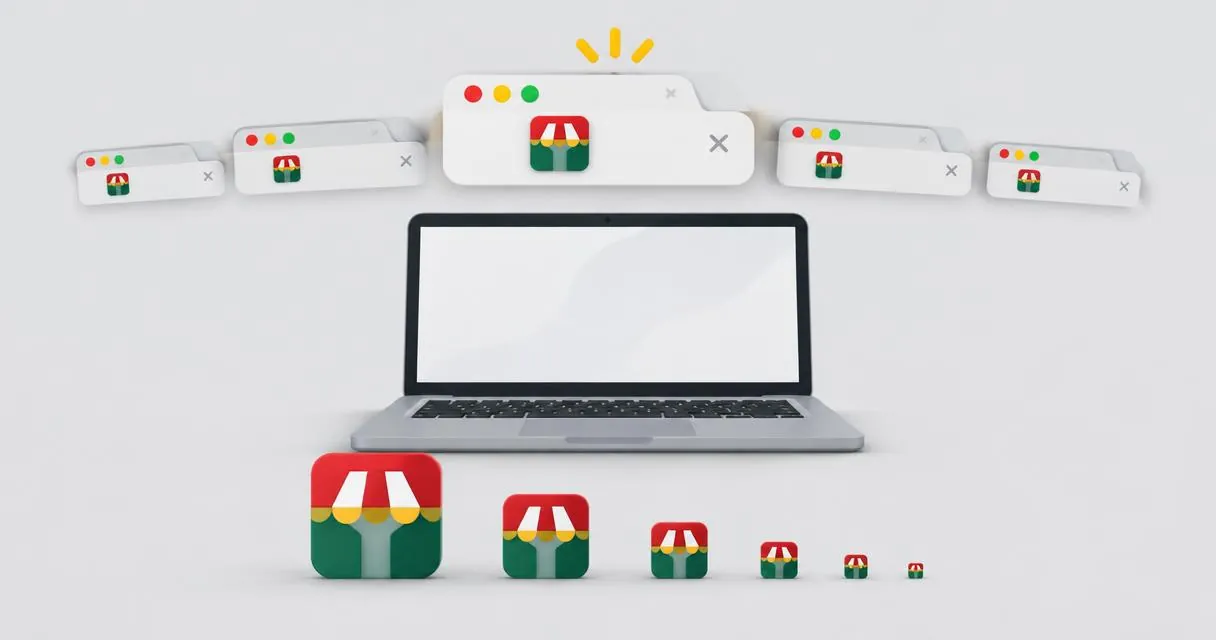
Make a favicon from your logo, download PNG sizes, and learn how to install and check your website icon without promising search-result changes.
A favicon is a small website icon used to help people recognise a site. To create one, add a simple square image to the favicon maker, generate the available PNG sizes, then install the appropriate file through your website's settings or template. Downloading the icon alone does not add it to your website.
MayreDukaan creates square PNG files at 16, 32, 48, 180, 192 and 512 pixels. It does not generate an ICO file or install the results on your server. Treat creation and installation as two separate tasks.
Start with a simple, recognisable image
A detailed banner rarely works well as a tiny icon. Choose a compact symbol with a clear outline and enough contrast to remain recognisable when reduced. Avoid relying on a full business name: the smallest output has little room for detail.
Use a square source where possible. The generator centre-crops non-square images, so a wide logo can lose its left and right edges. Prepare a separate square symbol rather than expecting the entire banner to shrink into the output.
The image cropper can help you test a centred square crop, while image info lets you inspect source dimensions. Do this before generating the full set.
Generate the PNG files step by step
- Open the favicon maker and add your source image.
- Press Make favicons and wait for the outputs.
- Download the individual sizes you need or collect the outputs with the ZIP download option.
- Open the smallest and largest files to inspect both readability and cropping.
- Keep the source image alongside the generated files for future updates.
The generator performs its image processing in the browser. It uses the same central square area for every output, so a missing edge in one size is not repaired in another.
| Output | What to check |
|---|---|
| 16 and 32 pixels | Whether the symbol remains readable at tiny sizes |
| 48 pixels | Whether fine details become noisy |
| 180 and 192 pixels | Whether the larger icon has clean edges |
| 512 pixels | Whether the source was detailed enough for the large output |
These files are available assets, not a complete website manifest or a guarantee that every platform will choose a particular size. Follow your framework or content-management system's installation instructions.
Install the favicon on your website
If your site has a site-icon setting, upload the chosen asset there and save or publish the change. Check whether the setting expects an original image or an already prepared icon. Avoid changing templates unnecessarily when the platform provides a supported control.
For a manually maintained site, place the PNG at a stable public URL and reference it from the document head using an HTML link element with the icon relationship. MDN documents this relationship, and Google's favicon guidance provides implementation examples. Use the official examples when editing your actual template rather than pasting markup into a visible page paragraph.
After deployment, open the icon URL directly. Then visit the home page and check the browser tab. Make sure you are testing the published site, not just an unpublished local preview.
Google Search has separate favicon guidelines
Google says a favicon can be included in search results; it does not promise to show every submitted icon. Its current guidance requires a square image of at least 8 × 8 pixels and recommends a size larger than 48 × 48 pixels. PNG is among the supported formats.
The home page must be crawlable, and Googlebot-Image must be able to fetch the icon. Google also asks for a stable favicon URL and a symbol representative of the website's brand. Search supports one favicon per hostname, rather than a different search icon for each subdirectory.
Use an appropriate larger generated PNG if you are following the recommendation for an asset above 48 pixels. Do not assume the smallest file in the ZIP is automatically the right search asset. Google needs to recrawl and process changes, so a successful browser-tab update does not mean search results change immediately.
Practical example and common mistakes
Suppose a bakery has a wide logo showing a loaf beside its full name. Create a square source featuring the loaf alone, generate the sizes, and test the 16-pixel output. If it becomes an indistinct shape, simplify the artwork before installing it.
Common mistakes include renaming a PNG to ICO without conversion, uploading the ZIP instead of an image, referencing a private preview URL, and repeatedly changing the asset address while troubleshooting. Also check that your publishing process actually includes the generated file.
A favicon is an identification asset, not a ranking shortcut. Create a clear symbol, install it correctly and check the published result. Begin with the favicon maker, then follow your website platform's installation workflow.
Frequently asked questions
Does this tool create favicon.ico?
No. It generates six square PNG sizes, not ICO files.
Will a new favicon appear in Google immediately?
Not necessarily. Google must recrawl and process the change, and inclusion is not guaranteed.
What happens to a rectangular logo?
The generator centre-crops it to a square. Prepare a square version first if important details would be lost.
Useful on MayreDukaan
Sources
Facts last checked against these sources on 15 Nov 2026, 07:42 Pakistan time.
Images: Illustration created for MayreDukaan (not a photo)
More trending articles
 EntertainmentWatch Pakistani News Live Through Official Links15 Nov 2026 · 4 min read
 Pakistani DramasWatch Pakistani Dramas Online on Official Channels15 Nov 2026 · 5 min read
 Shopkeeper GuidesTake Your Shop Online in Pakistan: Setup Guide15 Nov 2026 · 4 min read
 Shopkeeper GuidesInstall the MayreDukaan APK on Android: A Guide15 Nov 2026 · 4 min read