
Online Tools
Combine PDF files into one document in the right order
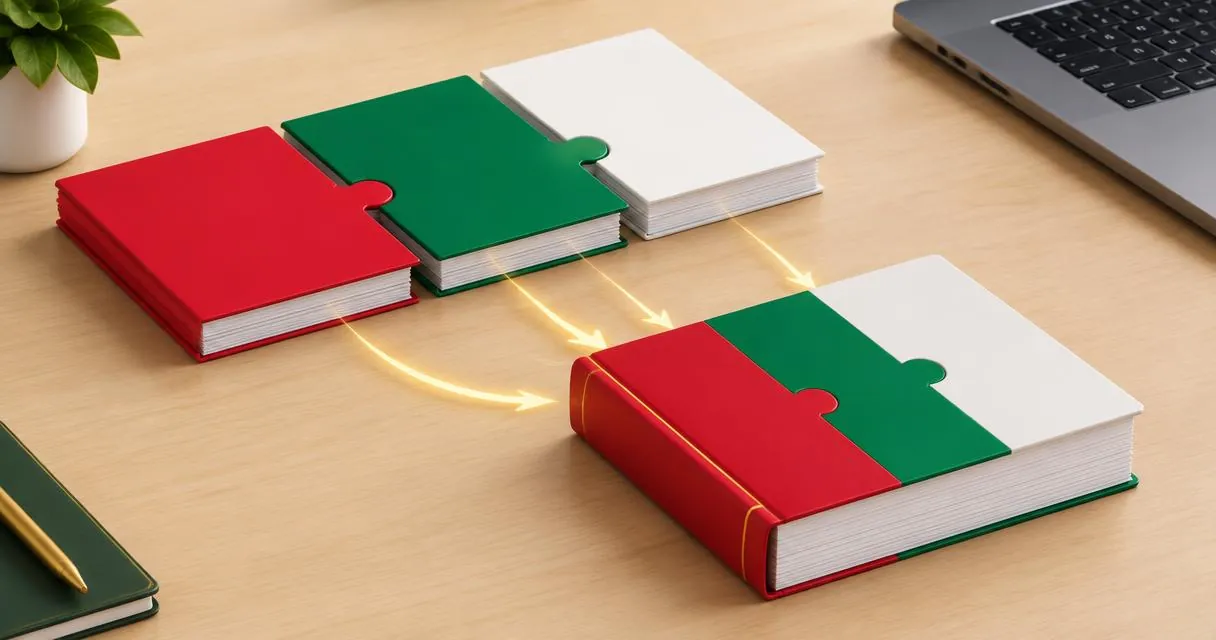
Learn how to merge PDF files in your browser, reorder documents, handle common errors and check the combined PDF before sharing the final attachment.
To merge PDF files, open the PDF merger, choose two or more PDFs, arrange them with the up and down arrows, and press Merge PDFs. The browser creates a new file named merged.pdf containing the pages from each selected document in sequence.
This is useful when a recipient wants one attachment rather than several separate files. The tool combines existing PDFs; it is not a document editor, page scanner or file-compression service. Keep your source documents so you can correct the bundle later.
Decide the document sequence first
Write down the intended reading order before selecting files. For an application packet, that might be a cover letter followed by supporting documents. For an invoice bundle, it might be chronological order. Use whatever sequence the receiving organisation actually requests.
Open each source PDF and check its first and last pages. Remove accidental duplicates from your selection, and make sure you are not including an old draft with a similar filename. Meaningful filenames help, but you should still inspect the contents.
If the sources are photographs rather than PDF files, use the image to PDF converter first. Renaming a JPG with a PDF extension does not create a PDF document.
Merge PDFs step by step
- Open the PDF merger and choose at least two PDF files.
- Review the selected filenames and displayed file sizes.
- Use Move up and Move down to place each document in the intended position.
- Remove any file that does not belong in the bundle.
- Press Merge PDFs, wait for completion and save the downloaded file.
- Open merged.pdf and review the full sequence before renaming or sharing it.
The arrows move whole documents, not individual pages inside them. Within each source file, pages remain in their existing order. If one document needs to be divided first, prepare the relevant pages with the PDF splitter, then merge the resulting parts.
The implementation loads the PDFs and copies their pages into a new document on your device. It does not upload the selected documents for remote merging.
Understand the result before relying on it
The merger creates a new PDF from copied pages using PDF-LIB. The library's documentation demonstrates loading documents, copying pages and adding them to a new file. This is different from joining editable source documents such as word-processing files.
| Task | Appropriate workflow |
|---|---|
| Join whole PDFs in a chosen order | Use the PDF merger |
| Extract selected pages first | Split the source, then merge the required parts |
| Combine JPG or PNG photos | Create a PDF from the images first |
| Rewrite text or alter page design | Edit the original document or use an appropriate PDF editor |
Do not assume that every non-page feature is carried over exactly. This tool exposes no controls for bookmarks, attachments, forms or digital signatures. If those features are important, verify them in the result and keep the untouched originals. For signed records, use your organisation's approved workflow rather than assuming the new bundle serves as an unchanged signed original.
Practical example: combine a project packet
Suppose you have a two-page brief, a five-page proposal and a one-page approval sheet. Add the files, place them in that order with the arrows, and merge. The expected result has eight pages: brief first, proposal next and approval sheet last.
Check the transitions at pages two to three and seven to eight. Those boundaries are useful places to spot ordering mistakes. Then inspect the entire bundle for blank pages, sideways scans and unintended duplicates.
If the approval sheet must come first instead, move that whole source document before merging. If you need to insert it halfway through the proposal, split the proposal into the required parts first. The merger itself does not provide page-by-page insertion controls.
Common errors and sensible troubleshooting
Password-protected documents cannot be processed by this tool as-is. Obtain an authorised unprotected copy or remove protection through an approved process when you have permission. The merger is not a password-recovery tool.
If a document cannot be read as a PDF, open it independently and confirm it is a valid, complete file. Try a fresh export from its source application if available. A filename extension alone does not establish that the contents are readable PDF data.
Large collections can strain the device running the browser. If merging fails, close unnecessary tabs, reduce the selection or try a computer. There is no need to invent a universal file-size limit: practical capacity depends on the documents and device.
Check the attachment before sending
Combining files does not automatically shrink them or remove confidential information. Review the actual output, confirm the expected page count and choose a descriptive filename. Keep the sources until the recipient has the right version. When your files are ready, use the PDF merger to create one ordered attachment, or browse the other PDF tools for page preparation.
Frequently asked questions
Can I reorder pages inside a selected PDF?
The merger arrows reorder whole files. Split a source into parts first if you need a different internal page sequence.
Are the PDFs uploaded?
No. The merging implementation reads and combines the documents in your browser.
Does merging compress the PDF?
The tool has no compression setting. Check the actual output size rather than expecting a smaller file.
Useful on MayreDukaan
Sources
- PDF-LIB: Create and modify PDF documents, including copying pages
- Adobe Acrobat: Combine files into one PDF
Facts last checked against these sources on 15 Nov 2026, 07:42 Pakistan time.
Images: Illustration created for MayreDukaan (not a photo)
More trending articles
 EntertainmentWatch Pakistani News Live Through Official Links15 Nov 2026 · 4 min read
 Pakistani DramasWatch Pakistani Dramas Online on Official Channels15 Nov 2026 · 5 min read
 Shopkeeper GuidesTake Your Shop Online in Pakistan: Setup Guide15 Nov 2026 · 4 min read
 Shopkeeper GuidesInstall the MayreDukaan APK on Android: A Guide15 Nov 2026 · 4 min read