
Online Tools
How to pick a colour from an image and reuse its code
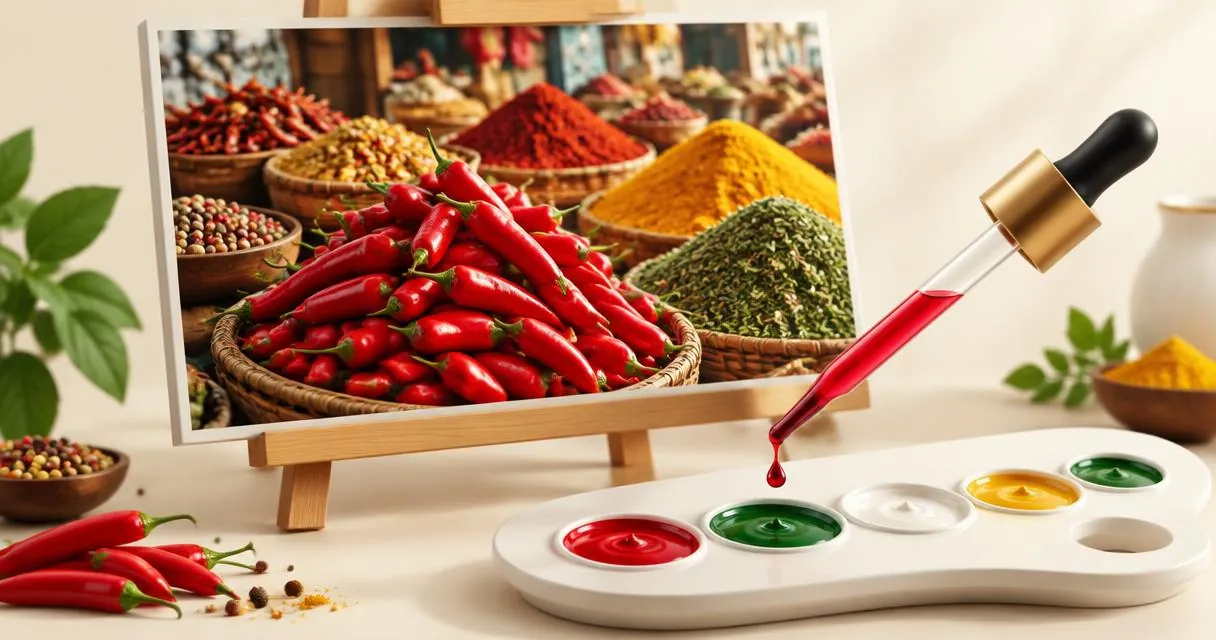
Sample a colour from a local image, copy its HEX code and read RGB values. Understand the picker’s preview, sampling and transparency limits.
Use a color picker from image tool to select a point in a picture and read its colour code. With MayreDukaan’s colour picker, choose a local image, tap or click the area you want, then copy the HEX value. The tool also displays RGB values, so you can reuse the sampled colour in a design or stylesheet.
The important distinction is what you are measuring: a pixel in the displayed image, not a guaranteed original brand colour or the physical colour of a photographed object. Choose the source and sampling point carefully.
Pick a colour from an image: step by step
- Open the colour picker.
- Drop an image into the upload area, or tap the area to choose a file. Start with a browser-readable JPG, PNG or WebP.
- Click or tap a solid-looking part of the displayed picture. A swatch appears with a HEX code and an RGB value.
- Use the copy button beside the swatch to copy its HEX code. The button does not copy the RGB line.
- Select more points to compare nearby shades. The list keeps the latest 12 samples, newest first.
- Paste your chosen code into your design tool or stylesheet and check it in its intended context.
The image is loaded and sampled inside your browser; it is not sent to MayreDukaan’s servers for processing. This is a file-based picker, not a tool for sampling any open window or automatically reading the entire screen. Save an image first when that is the source you need to inspect.
Understand HEX and RGB before copying
HEX and RGB can describe the same sRGB colour in different notations. The W3C CSS Color specification defines six-digit HEX as pairs of hexadecimal digits for red, green and blue. The integer RGB form uses red, green and blue components from 0 to 255.
| Value | What it represents | Example |
|---|---|---|
| Six-digit HEX | Red, green and blue as hexadecimal pairs | #E31837 |
| RGB | The same channels as decimal numbers | rgb(227, 24, 55) |
| Swatch | A visual preview of the sampled value | Compare it with nearby samples |
In the example above, E3 corresponds to 227, 18 to 24, and 37 to 55. These are two representations of the same example colour, not two alternative shades. HEX letter case does not change the value.
For a stylesheet, the example declaration background-color: #E31837; uses the HEX value. background-color: rgb(227, 24, 55); expresses the same colour using RGB. The picker displays RGB for reference, but you must select that text manually if you want that version rather than the copy button’s HEX output.
Choose a representative point, not an edge
For a flat logo or graphic, sample well inside the coloured area. Avoid borders, fine lettering and places where the colour blends into its background. If you need a dependable starting file, use the original artwork rather than an unnecessarily compressed copy.
MDN explains that JPEG uses lossy compression and can be unsuitable where sharp reproduction matters, such as diagrams. A JPEG version of a flat graphic is therefore not the ideal reference for recovering an official colour. If an organisation provides a brand specification, prefer its published value over a measurement from a downloaded preview.
Photographs need a different approach. A fabric, leaf or painted surface may contain many visibly different patches. Sample several points in the area you care about and choose the one that serves your design goal. Do not treat one sample as a measurement of the object under every lighting condition.
Know the picker’s accuracy limits
The picker draws the loaded image onto a browser canvas and reads one pixel at the selected position. MDN’s canvas documentation describes this pixel-reading operation. This tool does not average a region, identify a colour name or automatically extract a dominant palette.
There is also a resizing detail worth knowing: images wider than 1200 pixels are drawn at a canvas width of 1200 pixels, with height scaled proportionally. Narrower images are not enlarged in the canvas. On-screen layout can scale the preview again, and the click position is mapped back to that canvas.
Consequently, the result is a sample from the rendered canvas, not a promise of an untouched pixel from a very large original. For tiny details, a tighter source image may be easier to sample. You can prepare a separate copy with the image cropper, but remember that its crop is centred and based on preset shapes rather than a freely draggable selection.
The picker reports red, green and blue only. Although CSS supports colour notations with an alpha component, this tool does not show an alpha value or produce an eight-digit HEX transparency code. Avoid relying on it to recover the intended appearance of a partly transparent graphic over different backgrounds.
Practical example: build a small accent palette
Suppose you have a landscape image and want a page accent inspired by its foliage. Load the image, sample one darker patch, one mid-tone patch and one lighter patch, then compare the three swatches. This is manual palette building: the tool records your selections rather than choosing a palette for you.
Copy the preferred HEX code and test it on the actual page background. Keep the other candidates in a separate note if you need them later; the on-page sample list is limited to the latest 12 selections and has no palette-download control.
A pleasing colour is not automatically readable as text. W3C’s WCAG guidance specifies a contrast ratio of at least 4.5:1 for ordinary text and 3:1 for large text, subject to the criterion’s definitions and exceptions. Check the foreground-background pair with a dedicated contrast checker. This colour picker does not calculate contrast or certify accessibility.
Common mistakes
- Expecting automatic palette extraction: click each area you want to include yourself.
- Sampling a boundary: try an interior point and compare nearby selections before committing.
- Confusing copy outputs: the copy button copies HEX, even though both HEX and RGB are displayed.
- Assuming a screenshot reveals an official brand value: consult the original brand specification when exact identity matters.
- Compressing the source unnecessarily: keep the cleanest available reference, especially for small flat graphics. The image tools directory can help you choose a preparation tool only when one is needed.
Copy a colour, then test its use
Open the colour picker, select a clear area and compare a few samples. Copy the HEX value you need, then check the result in your real design. A useful sample is one you understand and can apply—not simply the first pixel you happen to click.
Frequently asked questions
Does the copy button copy HEX or RGB?
It copies the HEX code. The RGB value is displayed beneath it and can be selected manually if needed.
Can the tool automatically generate a colour palette?
No. You select points manually, and the tool keeps the latest 12 samples. There is no automatic dominant-colour extraction or palette download.
Why do nearby points give different codes?
The picker reads individual pixels from its rendered canvas. Different parts of an image can contain different shades, so compare several points inside the area you want.
Can it read transparency or check contrast?
The picker outputs HEX and RGB without an alpha value. It does not calculate contrast; use a dedicated contrast checker for foreground-background pairs.
Is the sampled value an untouched original pixel?
Not necessarily. Images wider than 1200 pixels are scaled down before sampling, so the result comes from the rendered canvas.
Useful on MayreDukaan
Sources
- W3C: CSS Color Module Level 4
- MDN: CanvasRenderingContext2D.getImageData()
- MDN: Image file type and format guide
- W3C: Understanding SC 1.4.3 Contrast (Minimum)
Facts last checked against these sources on 15 Nov 2026, 07:42 Pakistan time.
Images: Illustration created for MayreDukaan (not a photo)
More trending articles
 EntertainmentWatch Pakistani News Live Through Official Links15 Nov 2026 · 4 min read
 Pakistani DramasWatch Pakistani Dramas Online on Official Channels15 Nov 2026 · 5 min read
 Shopkeeper GuidesTake Your Shop Online in Pakistan: Setup Guide15 Nov 2026 · 4 min read
 Shopkeeper GuidesInstall the MayreDukaan APK on Android: A Guide15 Nov 2026 · 4 min read