Online Tools
Extract PDF pages or split a document into separate files
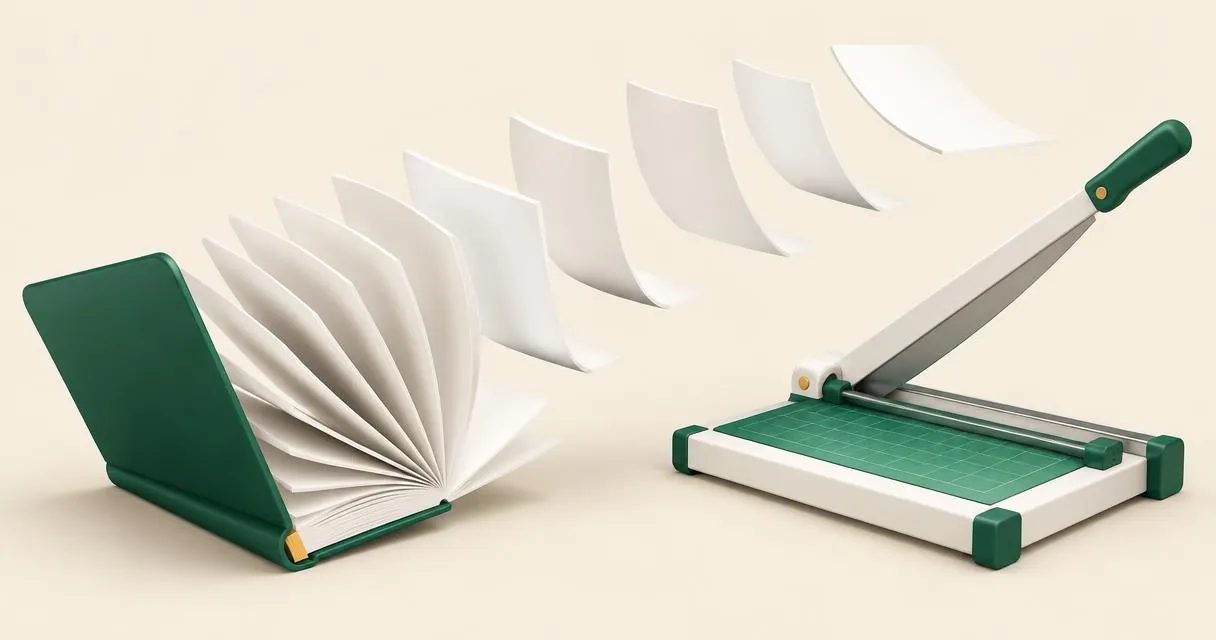
Learn how to split PDF pages into separate files or custom ranges, understand range notation, and download individual PDFs or a ZIP in your browser.
To split PDF pages, open the PDF splitter, choose a document and select either Every page separately or Custom ranges. Generate the parts, then download individual PDFs or, when there are multiple outputs, a ZIP containing them.
Use this when you need one page from a report, separate documents from a scanned bundle, or a shorter set of pages to share. Splitting selects whole pages. It does not erase private text within a page or edit the wording of the document.
Choose the right split mode
Every page separately produces one PDF for each source page. Custom ranges produces one PDF for each comma-separated page or range you enter. This distinction matters: a list of three ranges does not become one combined PDF.
The tool displays the page count after loading the source and initially fills the range box with the complete document range. Change that default if you want only part of the file.
| Selection | Example for a ten-page document | Outputs |
|---|---|---|
| Every page separately | No range needed | Ten one-page PDFs |
| One page | 5 | One PDF containing page five |
| One continuous range | 2-4 | One PDF containing pages two through four |
| Several groups | 1-3, 5, 8- | Three PDFs: pages one to three, page five, and pages eight to ten |
The open-ended form 8- means page eight through the last page. Use ordinary page positions in the file, not a printed chapter number that happens to appear on the paper.
Split the document step by step
- Open the splitter and choose the PDF you want to process.
- Confirm the displayed page count matches the source you intended to use.
- Choose Every page separately, or select Custom ranges and type your selection.
- Press Split PDF and wait for the list of output files.
- Download the parts you need. If several parts were created, use Download all (ZIP) when convenient.
- Open each saved PDF and check its contents before sharing.
The document is read and processed in the browser. The implementation copies selected pages into new PDFs on your device rather than uploading them to a remote splitting service.
Retain the original separately. A shortened copy is useful for sharing, but it is not a replacement for your full source document.
Understand page numbers and range errors
Suppose a report starts with a cover, followed by two introductory pages, and its printed numbering begins afterward. The page labelled “1” inside the report is not necessarily the first page in the PDF. Count its actual position using your PDF viewer before entering a range.
The splitter checks whether ranges fit the document. A reversed range such as 5-2 is invalid, as is requesting page twelve from a ten-page source. Commas separate output groups; hyphens describe continuous ranges.
Do not use a comma list expecting one combined file. If you need pages one to three and page five in a single PDF, split them into two outputs and then join those outputs with the PDF merger.
Practical example: share only the relevant report pages
Imagine a ten-page project report. The recipient needs the opening summary on pages one to three and the conclusion on page eight. Enter 1-3, 8 in Custom ranges. The tool creates two PDFs, one with the summary and one with the conclusion.
Inspect both outputs. If the recipient accepts two attachments, send them separately. If one attachment is required, merge the two outputs in that order and check the resulting four-page file.
If you selected Every page separately instead, you would get ten files, not just those four pages. Selecting the correct mode avoids downloading and sorting unnecessary parts.
Common mistakes and limitations
- Confusing page extraction with redaction. Keeping a page also keeps its visible content. Use a proper redaction workflow for information that must be removed within that page.
- Expecting OCR. Splitting copies pages and does not make photographed words searchable.
- Treating a ZIP as the final PDF. The ZIP is a package containing separate PDF files; extract it to use the individual documents.
- Assuming document-level features are unchanged. The tool has no controls for preserving signatures, bookmarks or attachments. Verify important features and keep originals.
- Trying a protected source without authorisation. Obtain a permitted unprotected copy before processing; this is not a password-recovery service.
PDF-LIB documents the page-copying workflow used here. If your starting materials are separate photographs instead of a PDF, the image to PDF converter is the more appropriate first step.
Download only what you need
A good split is easy to verify: the selected pages are present, unwanted pages are absent, and each output opens correctly. Check the source positions, choose the appropriate mode and review the downloads. Open the PDF splitter to extract a first test range, or browse the PDF tools for the rest of your document workflow.
Frequently asked questions
Does 1-3, 5 create one PDF?
No. It creates one PDF for pages one to three and another for page five. Merge those outputs afterward if you need one document.
What does 8- mean?
It means page eight through the end of the source document.
Can I download every page in one ZIP?
Yes. Choose Every page separately, generate the parts and use Download all (ZIP) when multiple outputs are available.
Useful on MayreDukaan
Sources
- PDF-LIB: Create and modify PDF documents, including copying pages
- Adobe Acrobat: Combine files into one PDF
Facts last checked against these sources on 15 Nov 2026, 07:42 Pakistan time.
Images: Illustration created for MayreDukaan (not a photo)
More trending articles
 EntertainmentWatch Pakistani News Live Through Official Links15 Nov 2026 · 4 min read
 Pakistani DramasWatch Pakistani Dramas Online on Official Channels15 Nov 2026 · 5 min read
 Shopkeeper GuidesTake Your Shop Online in Pakistan: Setup Guide15 Nov 2026 · 4 min read
 Shopkeeper GuidesInstall the MayreDukaan APK on Android: A Guide15 Nov 2026 · 4 min read