
Online Tools
JPG, PNG or WebP: which image format should you use?
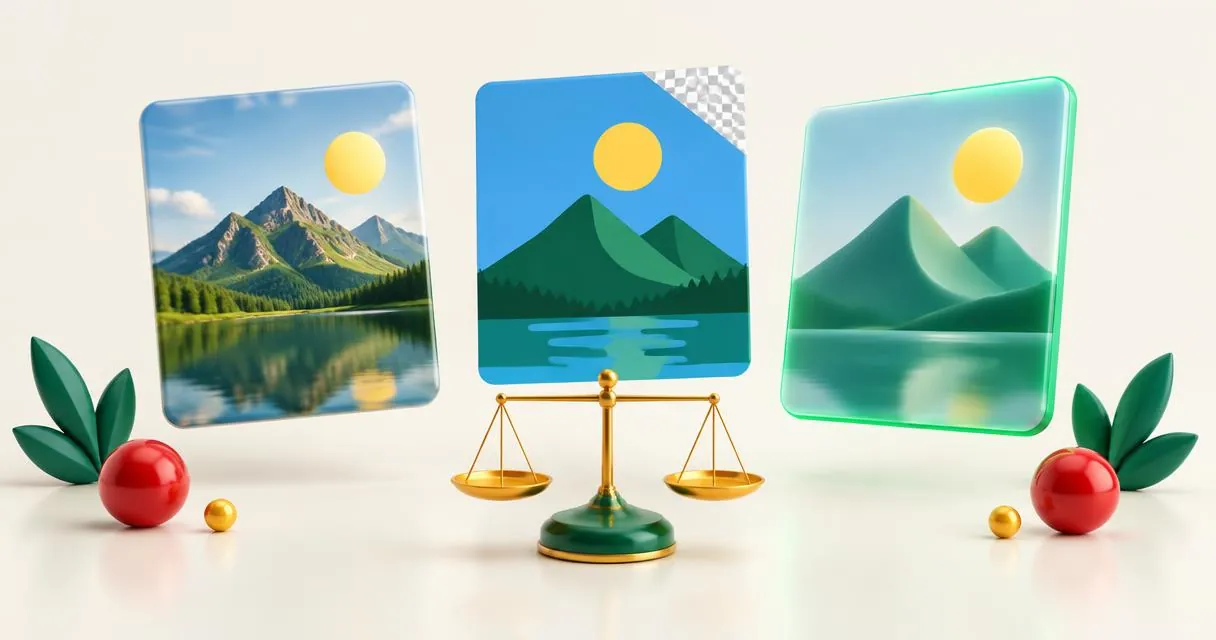
Compare PNG vs JPG and WebP for photos, logos, screenshots and websites. Understand transparency, compression and when converting helps.
The practical answer to PNG vs JPG is to choose JPG for many ordinary photographic copies and PNG when lossless storage or transparency matters. WebP adds another option: it supports lossy and lossless compression, transparency, and animation. The right choice depends on the picture and the app receiving it, not on a universally superior extension.
If you already know the destination requires JPEG, the PNG to JPG converter makes that copy. If you are still deciding, compare the formats before discarding an original.
What the three formats actually offer
MDN's image format guide describes JPEG as a lossy format well suited to photographs, PNG as a lossless format useful for precise reproduction, and WebP as supporting both compression approaches. Google's WebP documentation also confirms support for transparency and animation.
Lossy compression discards some image information when encoding. Lossless compression preserves the image information represented by that encoding. Those descriptions concern the format and settings; they do not mean converting a damaged JPG to a lossless format repairs it.
| Requirement | JPG | PNG | WebP |
|---|---|---|---|
| Ordinary photographs | Often a practical choice | Possible, but compare size | A useful web delivery option |
| Transparent backgrounds | No | Yes | Yes |
| Lossless image compression | Not in ordinary JPEG exports here | Yes | Supported by the format |
| Lossy compression | Yes | Not the standard PNG approach | Supported by the format |
| Destination compatibility | Check the receiving app | Check the receiving app | Check the receiving app |
Do not confuse format capability with a specific converter's controls. A format can support a feature that an individual tool does not expose.
Choose JPG for a photographic delivery copy
Photographs contain gradual changes in colour and brightness. JPEG is a useful option when you need to balance visible detail against file size and the destination accepts it. It does not preserve transparent backgrounds.
For example, a full-background furniture photograph for a document may not need PNG's transparency support. Try converting PNG to JPG, then inspect upholstery texture and object edges. The converter fills transparent areas white, so check the background as well as the main subject.
Do not judge by extension alone. An unnecessarily large photo may also need smaller pixel dimensions. The image resizer changes width while keeping proportions; changing format is a separate decision.
Choose PNG for sharp graphics and transparency
PNG is a sensible working copy for screenshots, diagrams, and graphics where exact edges matter. It also supports transparent backgrounds, useful when a logo must sit over different page colours.
A screenshot of an interface has different priorities from a landscape photograph. Small text and thin lines are worth inspecting closely because JPEG's lossy compression can introduce visible artifacts around them. Export both when unsure and compare the actual results.
The JPG to PNG converter provides a PNG copy when your next workflow needs one. It cannot reconstruct details already removed by earlier JPEG compression. Likewise, a JPG with a white background will not become a clean transparent cut-out just because its new extension is PNG.
Choose WebP when the destination supports your workflow
WebP supports both lossless and lossy encoding as well as transparency. It is often worth testing for website images, but do not assume a fixed saving for every file. Image content and encoding choices determine the result.
MayreDukaan's JPG to WebP tool provides adjustable-quality conversion. The PNG to WebP tool also keeps transparent backgrounds. Their quality controls are not a dedicated lossless-mode switch, so avoid describing these exports as guaranteed pixel-identical conversions.
If an app rejects a WebP, convert a delivery copy to the format it requests. Keep the original transparent or animated image if those features still matter elsewhere.
A practical three-image example
Suppose you are preparing a small website with a product photo, a transparent brand mark, and an instructional screenshot. There is no reason to force all three into the same format.
- Test a JPG or WebP copy of the product photograph at the required display dimensions.
- Keep the logo in a transparent format such as PNG or a suitable WebP.
- Start with PNG for the screenshot and compare an alternative only if the file size warrants it.
- View every candidate in its intended layout, not only in a file manager.
- Choose a file that meets the size and compatibility requirements without unacceptable changes.
Record the accepted dimensions and export choices for the next set. Consistency in a workflow is useful, but it should follow a test rather than an assumption that one extension suits every image.
Common mistakes when comparing formats
Treating larger as better. A larger PNG converted from an existing JPG may contain no additional photographic detail. The file size alone does not establish quality.
Confusing conversion with restoration. Missing detail, blur, and a flattened background are not reversed by a new format.
Ignoring the receiving app. A technically capable format is no use if the submission system rejects it. Read accepted types before exporting.
Optimizing from the previous export. Return to the best original for each trial rather than repeatedly re-encoding a lossy copy.
For a useful decision, check transparency first, then compatibility, dimensions, visible quality, and actual file size. Explore the image converters and choose the specific conversion your destination needs.
Frequently asked questions
Is PNG always better quality than JPG?
PNG uses lossless compression, but a PNG created from a JPG cannot restore detail already lost in that JPG. Choose according to the source and intended use.
Which formats keep transparency?
PNG and WebP support transparency. Ordinary JPG does not; MayreDukaan’s JPG converters fill transparent areas white.
Is WebP always smaller?
No fixed saving applies to every file. Compare actual exports at suitable dimensions and visible quality.
Does JPG to PNG remove the background?
No. Format conversion does not identify or remove a background. A solid background in the JPG remains part of the PNG image.
Useful on MayreDukaan
Sources
- MDN: Image file type and format guide
- Google Developers: An image format for the Web
- MDN: HTMLCanvasElement toBlob method
Facts last checked against these sources on 15 Nov 2026, 07:42 Pakistan time.
Images: Illustration created for MayreDukaan (not a photo)
More trending articles
 EntertainmentWatch Pakistani News Live Through Official Links15 Nov 2026 · 4 min read
 Pakistani DramasWatch Pakistani Dramas Online on Official Channels15 Nov 2026 · 5 min read
 Shopkeeper GuidesTake Your Shop Online in Pakistan: Setup Guide15 Nov 2026 · 4 min read
 Shopkeeper GuidesInstall the MayreDukaan APK on Android: A Guide15 Nov 2026 · 4 min read