
YouTube Creator Guides
YouTube Thumbnail Size: Dimensions and File Limits
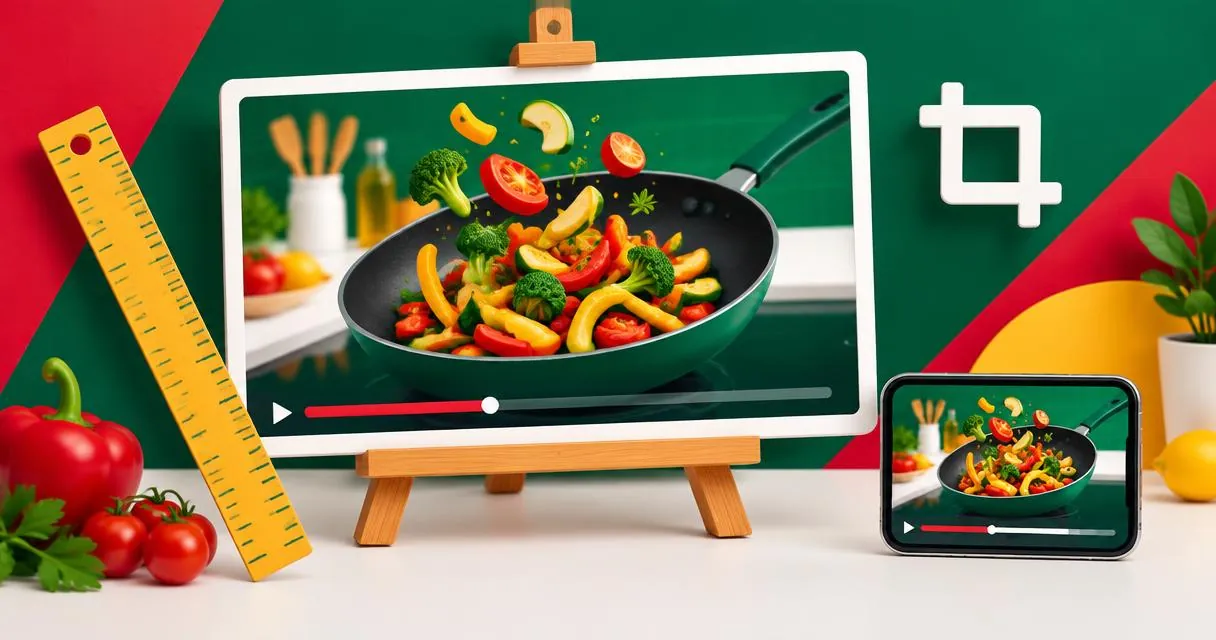
Check current YouTube thumbnail size guidance for videos and Shorts, file limits by upload device, and how to preview an image before publishing.
The current YouTube thumbnail size recommendation is 3840 × 2160 pixels for videos, with a 16:9 aspect ratio. YouTube’s Help page recommends 2160 × 3840 pixels for Shorts, with a 9:16 ratio. These are recommendations, not a reason to enlarge a poor-quality original and expect new detail.
Upload limits also depend on the device. YouTube currently lists a 2 MB mobile limit for video thumbnails and a 50 MB desktop limit for video, Shorts, and podcast thumbnails. Check the official page when preparing an upload, because older size guides may describe different guidance.
Dimensions, ratio, and file size mean different things
Pixel dimensions describe the width and height of the image. Aspect ratio describes its shape. File size describes how much storage the saved image uses. Meeting one requirement does not automatically meet the others.
For example, a wide image can have the correct ratio but still be too large in bytes for a mobile upload. Conversely, a very small file might be visibly soft. Treat composition, pixel dimensions, and compression as separate checks.
| Use | Current YouTube recommendation | Additional guidance |
|---|---|---|
| Video thumbnail | 3840 × 2160, 16:9 | Minimum width 640 pixels |
| Shorts thumbnail | 2160 × 3840, 9:16 | Minimum height 640 pixels |
| Podcast playlist | Square, 1:1 | Do not assume the video shape applies |
| Image format | JPG or PNG are listed examples | Confirm upload size for your device |
For mobile podcast thumbnails, YouTube lists 10 MB. The desktop guidance covers video, Shorts, and podcast thumbnails together at 50 MB. Keep those contexts separate rather than calling one number the universal limit.
Design the image around one clear idea
Start with a frame or illustration that accurately represents your video. YouTube recommends avoiding overly complex thumbnail designs and using readable text if you add wording. A clear focal subject is easier to judge than a crowded composition full of competing labels.
Think of the title and thumbnail as a pair. If your video teaches a camera setup, the picture might show the arrangement while the title names the intended result. Repeating an entire long title inside the image is rarely necessary as an editorial choice.
Use the thumbnail preview to inspect your own image alongside a title and channel name. The component provides approximate layouts, not a live YouTube result or a prediction of clicks. Any decorative view count shown there is mock interface content, not your channel data.
Prepare and preview a thumbnail step by step
- Choose the correct shape for the content: landscape for a standard video or portrait for a Short.
- Create or export the image using the relevant dimensions, with the main subject clearly visible.
- Check the actual saved file type and byte size against the device you will upload from.
- Open the thumbnail preview tool and select your local image.
- Enter the actual video title and channel name, then examine how the image and wording work together.
- Make any design changes in your image editor and preview the revised file again.
- Upload the final image through YouTube Studio and check the saved result.
The preview is not a thumbnail designer and does not upload your image to your channel. For the wording beside the image, the title generator provides editable starting ideas rather than guaranteed performance improvements.
Uploading through YouTube Studio
YouTube’s current desktop instructions are to sign in to Studio, open Content, choose the video, and use Upload file beneath Thumbnail, then save. Your account must be verified to use custom thumbnails.
The current Help page also documents custom Shorts thumbnail uploads in Studio on a computer. It recommends a 9:16 image for uploaded Shorts files. Avoid relying on old blanket advice that every Short must use the same thumbnail workflow as a standard video or can never accept an uploaded custom image.
Changes may take time to appear. Check the relevant Studio controls rather than assuming a preview on another page confirms that the upload has succeeded.
A practical example: a desk-lighting tutorial
Suppose your video demonstrates a simple desk-lighting arrangement. Use a landscape composition that shows the light and the resulting workspace, rather than unrelated dramatic imagery. Export a JPG or PNG and inspect both its dimensions and file size.
In the preview, pair it with a title such as “Desk Lighting Setup for Small Workspaces.” If the main object disappears at a smaller display size, simplify the design. This is a readability review, not evidence that a particular version will get more views.
For a Short cut from the same project, prepare a portrait composition separately. Merely squeezing a wide design into a vertical space can make its subject harder to see.
Common mistakes and final checks
- Confusing a recommended pixel size with an upload-byte limit.
- Repeating outdated guidance without checking YouTube Help.
- Treating a mock preview as an exact rendering on every device.
- Using an image that promises something absent from the video.
- Assuming successful upload means every surface displays the same crop.
YouTube notes that some surfaces replace 16:9 custom thumbnails on vertical videos with an automatically generated 4:5 image. The platform context matters as much as your exported canvas.
Finish by reviewing your title and image together in the thumbnail preview. Browse the YouTube tools for the rest of your publishing checklist, then confirm the final upload in Studio.
Frequently asked questions
Is 1280 × 720 the current recommended size?
The official Help page fetched for this guide recommends 3840 × 2160 for videos, with a minimum width of 640 pixels. Check the current page rather than relying on older recommendations.
Is the upload limit always 2 MB?
No. Current guidance lists 2 MB for video thumbnails on mobile and 50 MB for video, Shorts, and podcast thumbnails on desktop.
Does the preview tool publish my thumbnail?
No. It approximates layouts so you can inspect an image and title. Upload the final image separately in YouTube Studio.
Useful on MayreDukaan
Sources
Facts last checked against these sources on 15 Nov 2026, 07:43 Pakistan time.
Images: Illustration created for MayreDukaan (not a photo)
More trending articles
 EntertainmentWatch Pakistani News Live Through Official Links15 Nov 2026 · 4 min read
 Pakistani DramasWatch Pakistani Dramas Online on Official Channels15 Nov 2026 · 5 min read
 Shopkeeper GuidesTake Your Shop Online in Pakistan: Setup Guide15 Nov 2026 · 4 min read
 Shopkeeper GuidesInstall the MayreDukaan APK on Android: A Guide15 Nov 2026 · 4 min read