
Online Tools
Convert WebP images to JPG for a compatible still copy
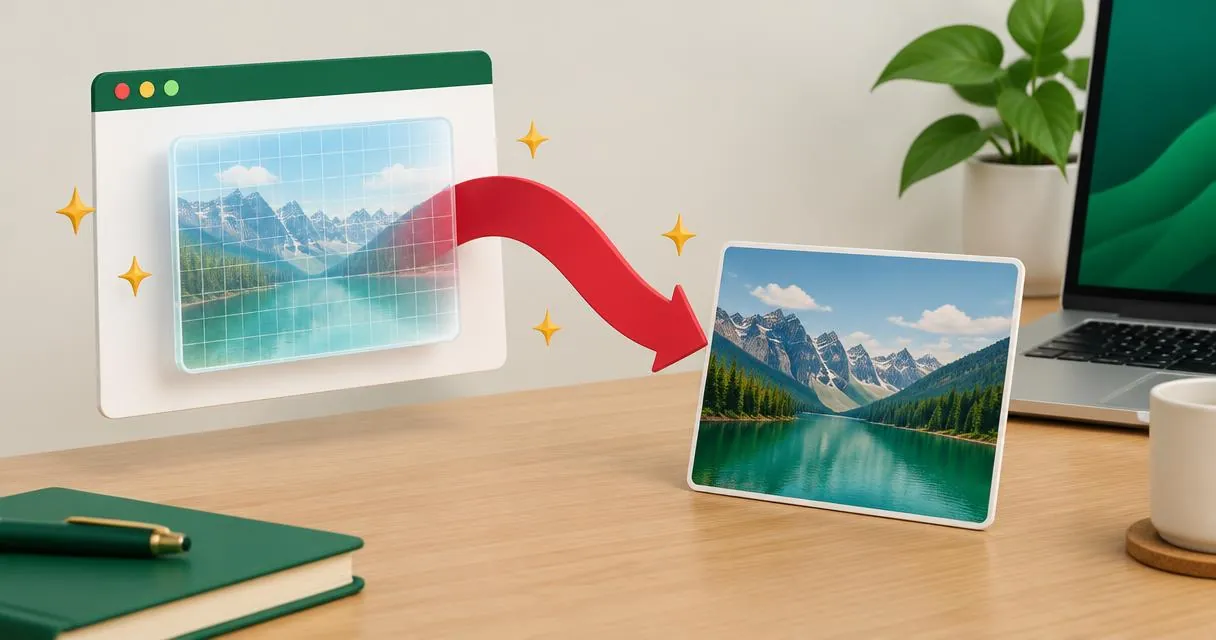
Convert WebP to JPG in your browser with adjustable quality and batch downloads. Check transparency, animation and file size before sharing.
To convert WebP to JPG, open the image in a converter and export a JPEG copy. Changing the filename extension is not conversion. The MayreDukaan WebP to JPG tool handles files inside your browser and offers a quality slider, individual downloads, and a ZIP option for multiple completed results.
The key trade-off is simple: JPG makes a still image without transparency. If you need a transparent background or a moving image, do not replace your only WebP copy with a JPG.
Why images download as WebP
WebP is an image format designed for the web. Google's documentation describes both lossy and lossless compression, transparency, and animation. A WebP file is not inherently broken or suspicious just because its extension is unfamiliar.
You may need a JPEG when a particular editor, print workflow, or submission system will not accept WebP. Check the destination before converting: if it accepts the original, conversion may add work and another lossy encoding step without solving a real problem.
Do not assume JPEG will be smaller. Output size depends on the source image, dimensions, and export settings. A WebP already optimized for delivery can become larger as JPEG.
Step-by-step: convert a WebP image
- Open the WebP to JPG converter.
- Select one or more WebP files, or drag them into the file area.
- Set JPG quality. The tool starts at 90%; treat this as a trial setting.
- Press Convert to JPG.
- Wait for the completed status beside each image.
- Download each JPG, or choose Download ZIP when multiple files are ready.
- Open the results in the app where you intend to use them.
The converter decodes each image, draws it onto a white-backed canvas, and exports JPEG. Your files are not sent to our servers for that work. This is local processing within the page, not a requirement to install a browser extension.
If you change the quality after a file has completed, clear the list and re-add the original before converting again. Finished items are skipped, so the setting change alone will not replace the existing download.
What happens to transparent backgrounds?
WebP can contain transparent pixels; JPEG cannot preserve that transparency. This converter fills the background white before drawing the image. A cut-out product photo therefore becomes a white-background photograph rather than a cut-out you can place over any colour.
This matters for logos, stickers, and product images intended for coloured layouts. Keep the WebP original when transparency is required. PNG also supports transparency, but the WebP-to-JPG page produces JPEG, not PNG.
Converting the white-background JPG into PNG afterward will not recover the removed transparency. The format comparison guide explains when to keep a transparent format rather than flattening the picture.
What happens to animated WebP?
WebP can store animation. The MayreDukaan converter is intended for still output, and its tool guidance states that only the first frame is retained from an animated WebP. It does not export a video or provide a frame-selection control.
If motion conveys essential information, such as a product demonstration, a JPG is not an equivalent replacement. Keep the animation and ask the recipient which moving-image formats they accept. Check the downloaded still rather than assuming it shows the most useful moment.
Practical example: a product image for a document
Imagine you have permission to reuse a supplier's WebP product photograph, but your document workflow rejects that format. Add the file, convert at the initial quality setting, and insert the JPG into a test document.
Inspect the product edges and any small printed packaging text. If a transparent source now has a white rectangle around it, that is expected from this conversion. Decide whether the document's background makes it acceptable before preparing the rest of the images.
For a collection, try one representative file before processing everything. A batch download is convenient, but it does not remove the need to check different types of source images.
Choose the right next step
| Problem after conversion | Sensible action |
|---|---|
| JPG is above the upload limit | Try the image compressor and check the result |
| Pixel dimensions are too large | Resize a copy to the destination's requirements |
| White background is unwanted | Return to the transparent original |
| Animation disappeared | Keep the animated source; JPG is a still format |
| Image looks soft | Return to the original and try a higher quality |
The image compressor and image resizer solve different problems. Compression changes the encoding settings; resizing changes pixel dimensions. Neither can recover detail that was absent from the source.
Common mistakes
Avoid converting an image repeatedly through several formats. Use the original WebP for each new attempt, and compare downloads at the size they will actually be viewed. A very high quality value does not promise a smaller file or lossless conversion.
Also remember that format conversion does not grant permission to reuse a website image. Work with your own images or material you are entitled to use.
When a still JPEG is what the destination needs, open the WebP to JPG tool, convert a test file, and check the background, detail, and actual file size before sharing.
Frequently asked questions
Can I convert WebP to JPG by renaming it?
No. The underlying encoding remains WebP. Use an exporter or converter to create a JPEG file.
Will transparency remain?
No. This converter places the image on white because JPEG does not support transparency.
Can this tool preserve WebP animation?
No. Its documented output is a still JPG, retaining only the first frame from animated WebP.
Is the JPG always smaller?
No. It may be larger than the WebP. Compare the downloaded file size against your destination’s requirements.
Useful on MayreDukaan
Sources
- Google Developers: An image format for the Web
- MDN: Image file type and format guide
- MDN: HTMLCanvasElement toBlob method
Facts last checked against these sources on 15 Nov 2026, 07:42 Pakistan time.
Images: Illustration created for MayreDukaan (not a photo)
More trending articles
 EntertainmentWatch Pakistani News Live Through Official Links15 Nov 2026 · 4 min read
 Pakistani DramasWatch Pakistani Dramas Online on Official Channels15 Nov 2026 · 5 min read
 Shopkeeper GuidesTake Your Shop Online in Pakistan: Setup Guide15 Nov 2026 · 4 min read
 Shopkeeper GuidesInstall the MayreDukaan APK on Android: A Guide15 Nov 2026 · 4 min read