Online Tools
How to create a strong, unique password
Generate a long, unique password, match the account’s requirements, and store it securely. Learn what current NIST guidance actually recommends.
A password generator is useful when you need a new login that is long, unpredictable and different from every other password you use. Generate the secret, save it in a password manager, and use it for just one account. Adding a symbol to an old favourite is not the same as creating a fresh password.
The MayreDukaan password generator creates random character passwords in your browser. It provides length and character controls, a refresh button and copying. It is a generator, not a password vault or an account-security audit.
What makes a password strong?
Length and unpredictability matter, but uniqueness is essential too. NIST explains that distinct passwords help prevent an exposed password from being used against accounts on other services. A complicated password reused everywhere still creates that shared point of failure.
Current NIST SP 800-63B-4 guidance requires verifiers to set a minimum of 15 characters when a password is the sole authentication factor. For passwords used only within multi-factor authentication, the minimum can be eight. These are requirements for systems following that guidance, not a claim that every website uses identical rules.
NIST also says services should permit maximum lengths of at least 64 characters. It rejects mandatory character-mixture rules and routine periodic changes, while requiring a change when there is evidence of compromise. This does not mean symbols are harmful; it means forcing a symbol is not a substitute for stronger overall password design.
Generate a password step by step
- Open the password generator on a device you trust.
- Set the length. The visible slider supports 6 to 64 characters and starts at 16. Keep a long value that the destination account accepts.
- Choose lowercase, uppercase, digits and symbols according to the destination’s permitted characters.
- Enable the look-alike option if you expect to type the password manually.
- Use the refresh button to create another result if needed.
- Copy the final result and save it against the correct account in your password manager.
- Complete the password change and confirm that the saved login works.
Changing the settings regenerates the displayed password. Save the final version rather than a result you saw before adjusting a checkbox. At least one character type must remain selected.
For example, imagine an account accepts up to 32 characters but rejects symbols. You could choose 20 characters and leave letters and digits enabled. Generate a fresh result rather than adapting a published example or reusing the password from your email account. The numbers here describe a possible workflow, not a universal site requirement.
What the generator does behind the controls
The implementation uses the browser’s crypto.getRandomValues API, which MDN documents as providing cryptographically strong random values. It selects characters from your chosen sets, includes a character from each selected set, and shuffles the result.
The tool can exclude look-alike characters such as O, 0, l and 1. That is a usability option when manual entry is likely. It does not make a password immune to theft, phishing or a compromised device.
Generation happens locally in the component and its browser-safe logic. The tool does not provide a saved password list, password-manager synchronisation or a breached-password lookup. Avoid interpreting a locally generated result as proof that an account is secure in every other respect.
Treat the strength display as an estimate
The displayed strength label comes from a formula using length and the size of the available character pool. It is not a measured cracking time, an independent security certification or a check against previously exposed credentials.
| Feature | Useful for | Does not establish |
|---|---|---|
| Length slider | Choosing a longer random result | Whether a website accepts it |
| Character checkboxes | Matching allowed characters | Compliance with every account policy |
| Strength label | Comparing generator settings | Resistance to phishing or malware |
| Copy button | Transferring the final result | Safe long-term password storage |
For general text checks, the character counter can help with non-secret drafts. You do not need to paste an existing account password into another tool merely to inspect its length.
Common mistakes to avoid
Do not publish your generated password in a screenshot, support ticket or shared document. Do not use any password printed in an article. Keep the generated result in the intended password manager rather than a public note or conversation.
Do not shorten a password simply to make it resemble something memorable. If manual memorisation is necessary, consider a suitable passphrase workflow; this particular tool generates character strings, not random word passphrases.
Use additional authentication where the service offers it. NIST notes that passwords are not phishing-resistant. A longer password cannot by itself determine whether the page requesting it is genuine. If you believe a secret has been exposed, replace it and address any reuse on other accounts.
Make the next login unique
Choose a fresh password for the specific account, save it carefully, and check that the final stored version works. Start with the MayreDukaan password generator, or browse the generator tools for other separate tasks.
Frequently asked questions
How long should a generated password be?
Use a long value the service accepts. NIST’s current verifier guidance requires at least 15 characters for single-factor passwords; the tool starts at 16.
Does the generator save my passwords?
No password vault is implemented. Generation runs in the browser; save the result in your own password manager.
Does a strong label mean my account cannot be hacked?
No. The label is a length-and-pool estimate, not protection against phishing, reuse or a compromised device.
Useful on MayreDukaan
Sources
Facts last checked against these sources on 15 Nov 2026, 07:43 Pakistan time.
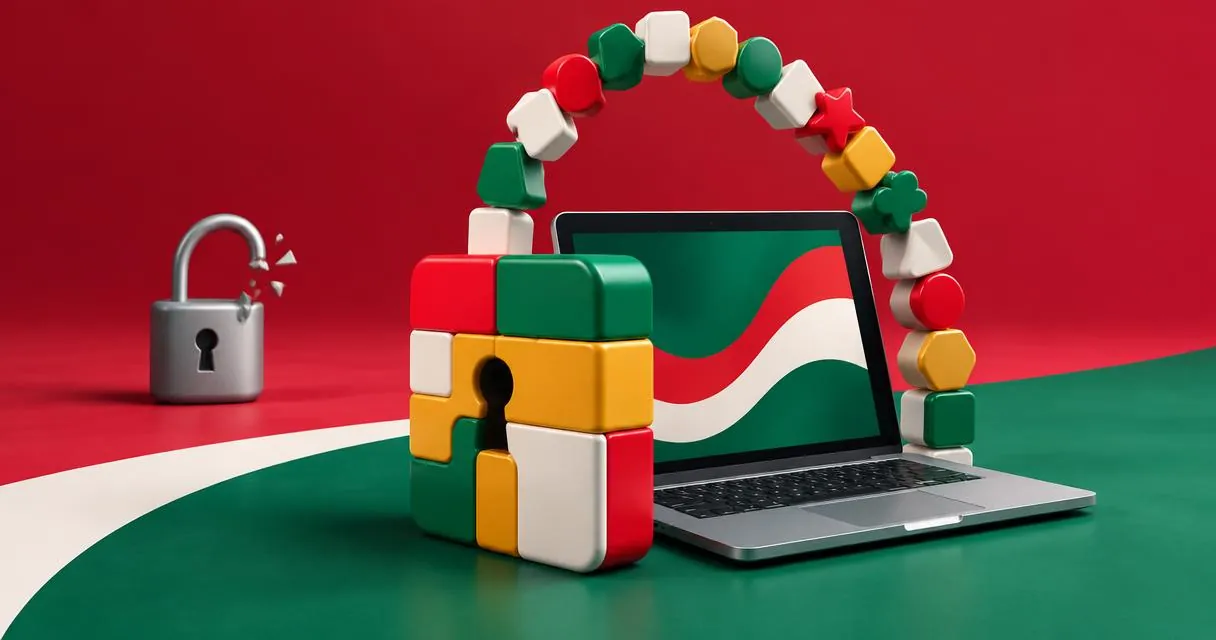
Images: Illustration created for MayreDukaan (not a photo)
More trending articles
 EntertainmentWatch Pakistani News Live Through Official Links15 Nov 2026 · 4 min read
 Pakistani DramasWatch Pakistani Dramas Online on Official Channels15 Nov 2026 · 5 min read
 Shopkeeper GuidesTake Your Shop Online in Pakistan: Setup Guide15 Nov 2026 · 4 min read
 Shopkeeper GuidesInstall the MayreDukaan APK on Android: A Guide15 Nov 2026 · 4 min read