Shopkeeper Guides
Barcode Generator Guide for Pakistani Shopkeepers
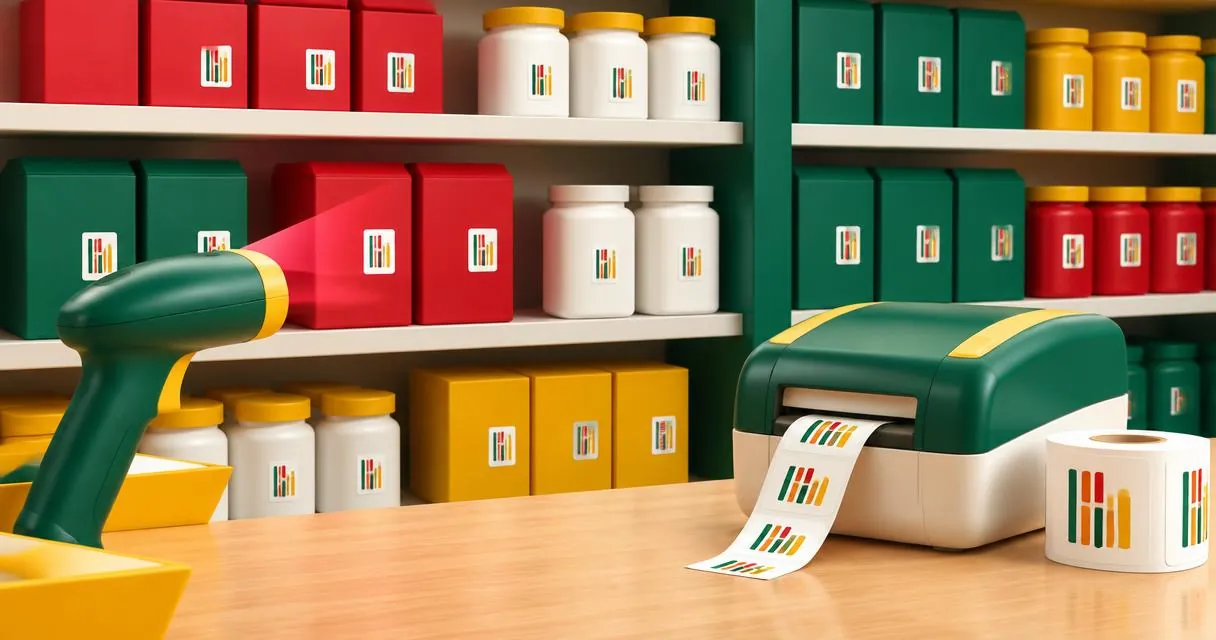
Use a barcode generator to label shop products, choose an appropriate format, export PNG or SVG, and understand when GS1 registration matters.
A barcode generator turns a value into a scannable symbol. For a Pakistani shop, that can mean an internal stock label or a barcode representing an officially assigned retail identifier. These are different jobs: drawing bars does not register a product number. Start with the barcode generator, but decide what the code must identify before printing it.
MayreDukaan’s tool supports Code 128, EAN-13, EAN-8, UPC-A, Code 39 and ITF. It creates one barcode from the value you enter and offers PNG and SVG downloads. It is not a bulk-label system or a GS1 registration service.
Decide between internal and external identification
If an item already carries its manufacturer’s barcode, use that existing identifier in your product record where appropriate. Do not cover it with a different number merely to make the label look like your shop’s own branding.
For a product used only within your own stock system, create a consistent internal identifier. For example, a shop might reserve SHOP-001 for one particular notebook variant and SHOP-002 for another. Those are illustrative internal references, not internationally assigned product numbers.
For products entering external retail supply chains, ask the receiving retailer what identification and symbol requirements apply. GS1 Pakistan explains obtaining a company prefix and assigning identification numbers as part of its barcode process. A freely generated image does not replace that process or grant ownership of an arbitrary EAN or UPC number.
| Your task | Sensible starting point |
|---|---|
| Record an existing packaged product | Preserve its existing identifier |
| Label an internal shop item | Choose a consistent internal reference |
| Supply a retailer with your own product | Confirm its requirements and consult GS1 Pakistan |
| Test a scanner | Use a clearly labelled test record |
Make a barcode step by step
- Open the barcode generator.
- Choose the symbol type required for your use.
- Enter the exact value associated with the product.
- Correct any validation error before downloading.
- Choose whether to show the readable value beneath the bars.
- Download PNG or SVG and print a test label.
- Scan the printed result in the system that will actually use it.
For an internal Code 128 example, enter SHOP-001 and associate that same value with the intended item in your inventory. Scan the label and confirm that the correct product appears. A barcode that scans successfully but selects the wrong product is still a failed setup.
The tool builds the symbol in your browser. It does not contact GS1 to check ownership, create product records in your shop automatically or determine whether a retailer will accept the result.
Follow the selected format’s input rules
The input hints change with the chosen format. EAN-13 accepts 12 digits with the check digit added, or 13 digits. EAN-8 accepts seven or eight digits, while UPC-A accepts eleven or twelve. ITF is presented as an even-digit option. Invalid input produces an error and disables downloads.
These checks concern the symbol’s data requirements, not commercial registration. Passing validation does not prove that the number belongs to you. Avoid copying a sample value into a real product simply because the preview looks correct.
Keep any letters, leading zeros and punctuation consistent between your label value and stock record. If you transfer identifiers through a spreadsheet, review the saved result before printing; the exact identifier is what matters, not whether it looks like a familiar number.
Test the final printed label
GS1 Pakistan’s guidance covers scan environment, symbol choice, size, placement, colour and quality checks. Use black bars on white as a straightforward starting point and retain clear space around the symbol. Do not stretch the artwork unevenly or crop away its margins.
Test on the actual packaging, not only on the screen. Curves, folds, glossy surfaces and damaged labels deserve particular attention during your own checks. Print a small sample first, try the intended scanner and confirm the product name and price in your billing system before making a larger batch.
Common mistakes to avoid
- Treating a barcode image as an officially registered product number.
- Reusing one internal code for two different products.
- Ignoring validation errors or altering bars in an image editor.
- Printing many labels before testing one on the actual package.
- Expecting a one-at-a-time generator to import a spreadsheet of products.
Keep an allocation list showing each internal reference, product variant and status. When a product is discontinued, retain enough history to understand earlier transactions rather than casually reassigning its reference.
Connect the label to your shop routine
MayreDukaan’s shop overview describes product and billing records, while its features page explains barcode scanning. Keyboard-mode USB and Bluetooth readers are supported by the app’s product and POS workflow; there is no separate in-app Bluetooth pairing process. Generate a test label, connect it to the right product and verify a complete scan-to-bill workflow before relying on it at the counter.
Frequently asked questions
Does generating an EAN register my product?
No. Image generation and format validation do not assign ownership. Consult GS1 Pakistan and the receiving retailer about official identification.
Can I download SVG labels?
Yes. The generator offers PNG and SVG exports for valid input.
Does the tool create bulk labels?
No. This interface creates one barcode from the value you enter.
Useful on MayreDukaan
Sources
Facts last checked against these sources on 15 Nov 2026, 07:43 Pakistan time.
Images: Illustration created for MayreDukaan (not a photo)
More trending articles
 Shopkeeper GuidesTake Your Shop Online in Pakistan: Setup Guide15 Nov 2026 · 4 min read
 Shopkeeper GuidesInstall the MayreDukaan APK on Android: A Guide15 Nov 2026 · 4 min read
 Shopkeeper GuidesWhatsApp QR Code for Your Shop: Setup and Testing15 Nov 2026 · 4 min read
 Shopkeeper Guides11.11 Sale Discount Maths: Check the Real Price15 Nov 2026 · 4 min read