Shopkeeper Guides
WhatsApp QR Code for Your Shop: Setup and Testing
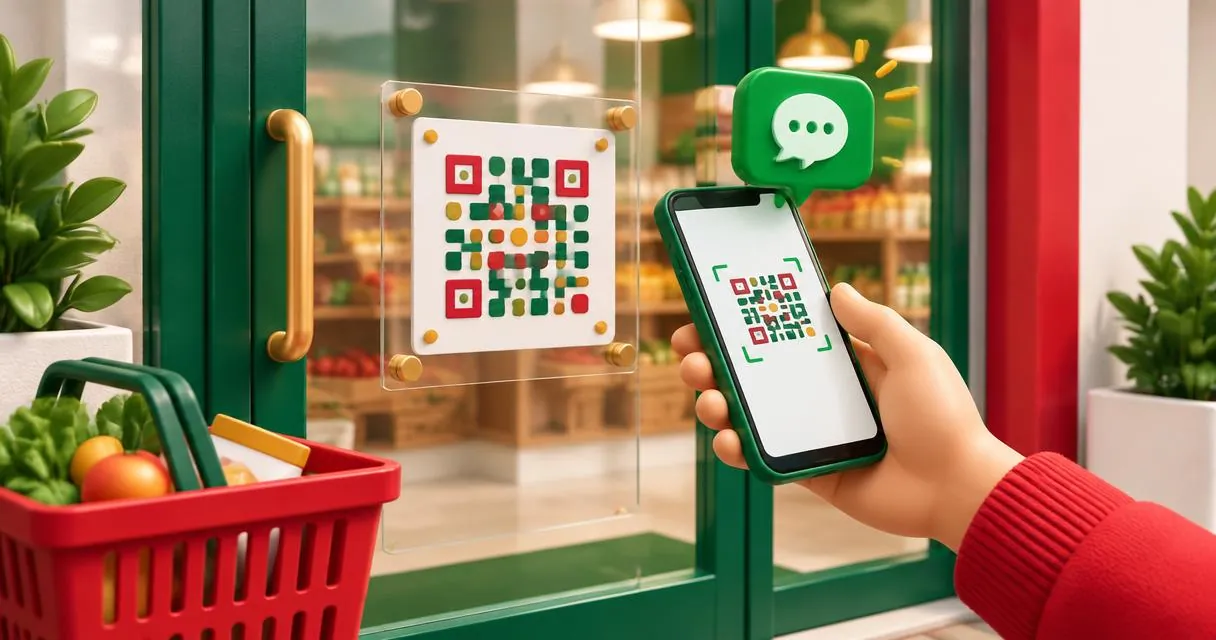
Create a WhatsApp QR code for your Pakistani shop, add an optional message, export a printable image, and test the number before sharing it.
A whatsapp qr code can give customers a simple route from a printed sign to your shop’s chat. MayreDukaan’s QR code generator builds a WhatsApp chat link from your phone number and an optional ready-made message, then turns that link into a downloadable QR image. It does not send a message automatically or create an order-management system.
For a Pakistani shop, the most important checks are practical: use the correct business number, include the country code, and scan the finished print before displaying it. A neat-looking code that opens the wrong conversation is not ready for customers.
Choose what customers should open
Select WhatsApp chat, not Website link, Phone call or Wi-Fi. These are separate modes in the generator. In WhatsApp mode, the tool constructs a wa.me link using the digits you enter. If you provide a message, it adds that text to the link as an optional draft.
Use a number that your shop controls and intends to publish. The resulting image represents a link containing that number, so do not treat it as private contact information. Decide who will check incoming messages and how you will handle enquiries before putting the sign on a busy counter.
For a simple first version, use a general greeting such as “Assalam o Alaikum, I would like to ask about an item.” Avoid placing customer names, addresses or order-specific information in a public code.
Enter a Pakistani number carefully
The tool asks for a phone number with country code and gives a Pakistani example without the domestic leading zero. Follow that input pattern with your own number. Review every digit rather than assuming that removing spaces makes a number correct.
The implementation removes non-digit characters when building the link. That is formatting cleanup, not verification that the number belongs to your shop or has a working WhatsApp account. The generator cannot establish ownership from the value you type.
If you are unsure about the final destination, test it from another device and have the shop’s phone available to confirm the conversation. Do not print a real customer’s number as a practice example.
Create and export the code
- Open the QR code generator.
- Choose WhatsApp chat.
- Enter your shop’s number with its country code.
- Add a short ready-made message if useful.
- Keep a dark foreground on a light background for an uncomplicated design.
- Choose a PNG size, or download SVG for a print workflow that accepts it.
- Scan the downloaded result and confirm the destination before sharing.
The available PNG choices are 256, 512, 1024 and 2048 pixels. These describe image dimensions, not a guaranteed physical printing size or scanning distance. The generator also offers foreground and background colour controls. Treat decoration as secondary to a reliable test of the final artwork.
Generation happens in the browser using the entered link data. Opening the finished link is a separate action that takes the customer to WhatsApp’s service; do not confuse local image generation with a promise about how an external chat service processes information.
Test the customer journey, not just the image
Imagine a customer wants to ask whether a Rs 1,200 item is available. Your code opens the correct shop chat with a general enquiry ready to edit. The customer can then identify the item and send their own message. The QR image has not checked stock, reserved the item or confirmed its price.
Test these points before publishing:
- The intended shop conversation opens.
- Any ready-made text is readable and appropriate.
- The customer is not led to believe a message has already been sent.
- The printed version works in its actual position and lighting.
- Staff know how to confirm availability and the final rupee total.
If you need organised product and billing records behind the conversation, review the shop management overview. A public contact code and a shop’s internal records serve different purposes.
Separate an enquiry from an order
Use a consistent manual response routine. Confirm the product variant, quantity, agreed price, delivery or collection arrangement and any additional charges in the conversation. Do not assume that scanning a code means the customer accepted a basket or paid a bill.
Keep public signage clear about its purpose. “Message the shop” is a different invitation from a payment request. This generator’s WhatsApp option is a chat link, not a JazzCash or Easypaisa payment QR. It does not reconcile payments or confirm transfers.
Common mistakes and maintenance
Avoid using a personal number by accident, printing an untested preview or adding a long, overly specific message to a general-purpose sign. Keep a record of where you have displayed the code so you can replace those copies if the shop changes its number.
Because the destination is encoded into the image, creating a new code does not update old printed copies. Replace the artwork wherever necessary and test again. Explore the other free tools only when they match a separate task; for this job, start with WhatsApp mode, verify the number and publish a tested contact code.
Frequently asked questions
Does scanning send a message automatically?
No. The generated link opens a chat destination with optional ready-made text; the customer still decides what to send.
Is this a payment QR code?
No. WhatsApp mode creates a chat link, not a payment request or payment confirmation.
Will a new number update my old printed code?
No. Replace the printed image with a newly generated and tested code.
Useful on MayreDukaan
Sources
Facts last checked against these sources on 15 Nov 2026, 07:43 Pakistan time.
Images: Illustration created for MayreDukaan (not a photo)
More trending articles
 Shopkeeper GuidesTake Your Shop Online in Pakistan: Setup Guide15 Nov 2026 · 4 min read
 Shopkeeper GuidesInstall the MayreDukaan APK on Android: A Guide15 Nov 2026 · 4 min read
 Shopkeeper GuidesBarcode Generator Guide for Pakistani Shopkeepers15 Nov 2026 · 4 min read
 Shopkeeper Guides11.11 Sale Discount Maths: Check the Real Price15 Nov 2026 · 4 min read