Online Tools
How to share your Wi-Fi network with a QR code
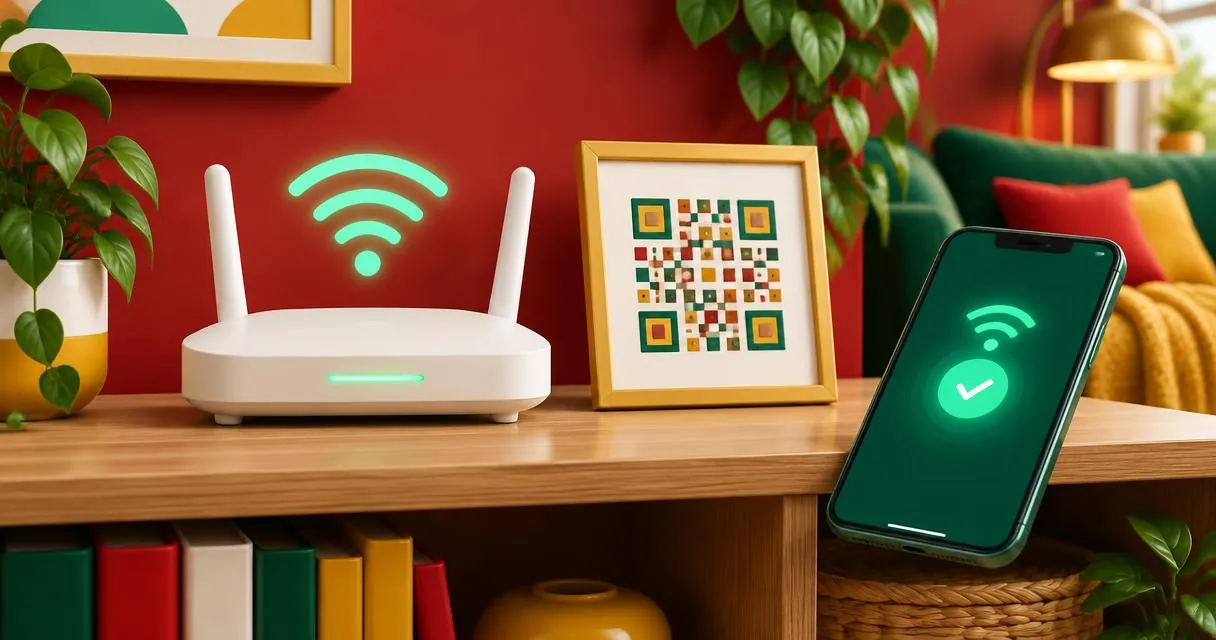
Share guest Wi-Fi through a scannable code, verify the details, and treat the resulting image as a copy of the network credentials.
A WiFi QR code lets a compatible device read network details without someone typing the name and password. Create one with the correct network name, security setting and password, then scan-test it on the devices your guests actually use. The image is a way to share credentials, not a way to hide them.
Use the Wi-Fi mode in the MayreDukaan QR code generator, or use your phone’s built-in sharing option where available. Google documents a QR-based sharing route in Android Settings. Device menus and scanner support can differ, so avoid promising identical behaviour on every phone.
Choose the network before making the code
Prefer a guest network when that matches your router setup and access policy. The generator cannot create a guest network, change a router password or configure access restrictions. Make those decisions in your networking equipment first.
Write down the network name exactly as configured. A near-match is not enough: include intended spaces, punctuation and letter case. Use the current password rather than the password printed on an old note. If you are unsure of the security type, check the network configuration instead of guessing from its name.
The code generator offers a security choice labelled WPA/WPA2/WPA3, a WEP choice and a No password choice. These labels describe its input modes, not a guarantee that every scanner supports every network configuration. Its protected-network payload uses the WPA type field. It does not expose an enterprise-authentication setup or a hidden-network checkbox.
Make a Wi-Fi QR code step by step
- Open the QR code generator and choose Wi-Fi.
- Enter the Network name (SSID).
- Select the security option matching the intended network.
- Enter the password for a protected network. No password mode omits that field from the payload.
- Keep a dark code on a light background.
- Download a PNG or SVG image.
- Scan it with a separate device and confirm that the intended network connection succeeds.
Do not test only by scanning on a phone that is already connected. A separate device without saved credentials is a better practical check of the information you have entered. You may need to confirm the connection on the scanning device; scanning should not be described as a universal, silent connection process.
Share from Android without making a separate image
Google’s Android Help describes this route:
- Open Settings.
- Open Network and internet, then Internet.
- Tap your Wi-Fi network and then Share.
- Let the other person scan the QR code displayed by your device.
Use the instructions applicable to your device and software. Google notes that some steps in its guide work only on certain Android versions. A manufacturer may arrange settings differently. If you cannot find the option, consult that device’s official help rather than installing an unfamiliar scanner solely to follow a generic tutorial.
The built-in route is convenient for occasional sharing. A downloaded code can be more convenient for a guest card, but it creates another copy of the credentials that needs appropriate handling.
What is inside the image?
ZXing documents a Wi-Fi barcode format containing fields for the network name, authentication type and password. The MayreDukaan implementation constructs that kind of WIFI payload and escapes special characters in the entered values.
| Item | What it means for sharing |
|---|---|
| Network name | Identifies the intended network |
| Security type | Tells a compatible scanner how to interpret access details |
| Password | Carries the credential for a protected network |
| Downloaded image | Becomes a portable copy of those details |
The tool generates the image locally in the browser. That does not make the downloaded image secret from anyone you send it to. Do not publish a home-network code on a public social profile or shared document unless you intentionally want that audience to have the information.
For example, a guest room might have a card for a dedicated visitor network. After changing that network’s password, regenerate the code and replace every displayed card. The old card still contains the old information; it does not update itself.
Common mistakes and print checks
DENSO WAVE specifies a four-module quiet zone around QR codes. The MayreDukaan generator includes a four-module light margin in the exported image, so keep that border intact when you print it. Avoid cutting the border away or placing patterned decoration beside the code.
Keep a manual fallback for visitors whose devices cannot interpret the payload. Verify the network name and connection policy alongside the image, and do not assume that a successful scan proves the network has internet access.
Use a fresh, suitable network password when needed; the separate password generator creates random character passwords, but it does not change your router settings. For non-network uses, the general QR code guide explains link and text modes.
Share access deliberately
A Wi-Fi code is convenient precisely because it carries usable connection details. Create it for the intended audience, test it and store it accordingly. Open the QR code generator, choose Wi-Fi, and verify the final image before displaying it.
Frequently asked questions
Does a Wi-Fi QR code hide the password?
No. It carries connection details in a machine-readable format and should be treated as a copy of the credentials.
Will it work on every phone?
Not necessarily. Scanner support and network configurations differ; test with the devices your guests use.
What happens after I change the network password?
Generate and distribute a new code. The old image still contains the old password.
Useful on MayreDukaan
Sources
- Google Android Help: Connect to Wi-Fi networks
- ZXing: Wi-Fi network configuration barcode format
- DENSO WAVE: QR code quiet zone
Facts last checked against these sources on 15 Nov 2026, 07:43 Pakistan time.
Images: Illustration created for MayreDukaan (not a photo)
More trending articles
 EntertainmentWatch Pakistani News Live Through Official Links15 Nov 2026 · 4 min read
 Pakistani DramasWatch Pakistani Dramas Online on Official Channels15 Nov 2026 · 5 min read
 Shopkeeper GuidesTake Your Shop Online in Pakistan: Setup Guide15 Nov 2026 · 4 min read
 Shopkeeper GuidesInstall the MayreDukaan APK on Android: A Guide15 Nov 2026 · 4 min read