
How to Scan QR Codes Safely and Avoid Phishing
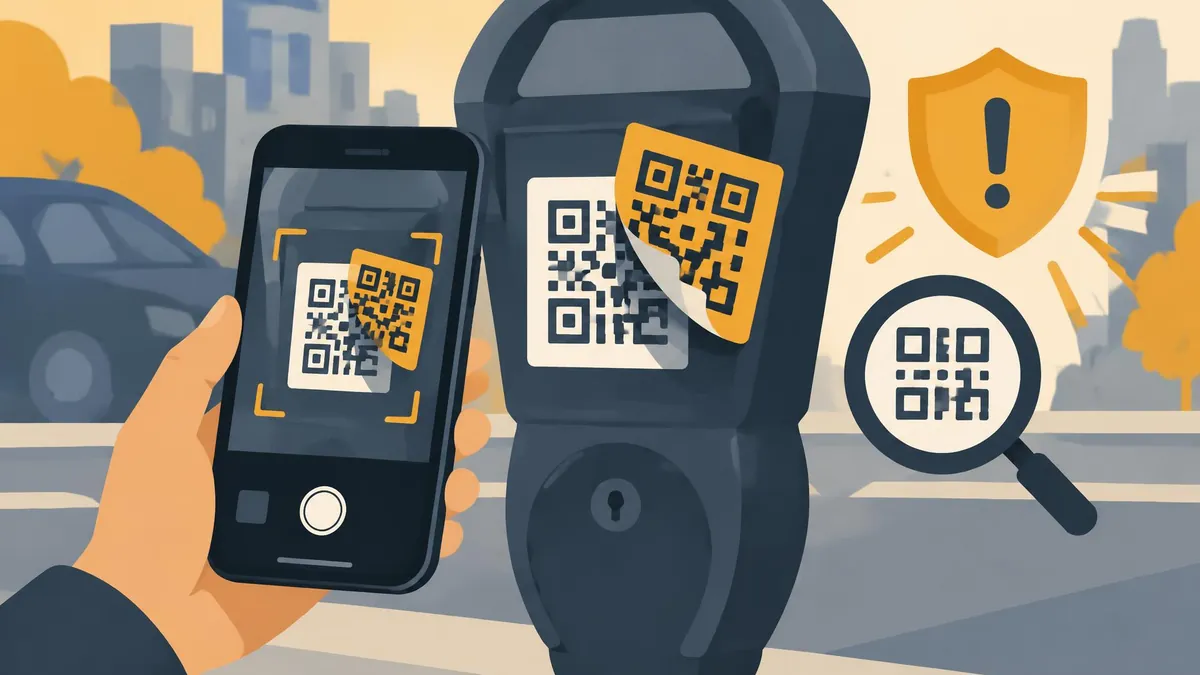
To scan QR codes safely, use your phone's built-in scanner, inspect the destination before opening it, and stop if the site asks for unexpected passwords, payments, or personal information. When a code arrives in an unsolicited message or appears on a tampered public sign, open the organization's trusted app or website yourself instead.
To scan QR codes safely, use your phone's built-in scanner, inspect the destination before opening it, and stop if the site asks for unexpected passwords, payments, or personal information. When a code arrives in an unsolicited message or appears on a tampered public sign, open the organization's trusted app or website yourself instead.
A QR pattern is a convenient way to carry information, not a guarantee that its destination is genuine. This guide uses national cyber-security guidance checked on November 16, 2026, and separates the act of reading a code from the risk of trusting the page or instructions it leads to.
What QR phishing actually does
The UK's National Cyber Security Centre describes QR-based phishing as “quishing.” A criminal can use an image to disguise the malicious link in an email, then encourage the recipient to scan it with a personal phone. Not all email security tools inspect image destinations, and that phone may not have the protections of a work computer. (NCSC)
The practical danger is familiar: a website or follow-up contact persuades you to reveal information or authorize an action. The square pattern changes how you reach the trap; it does not make the request trustworthy.
NCSC distinguishes ordinary restaurant use from potentially riskier codes in open spaces such as stations and car parks. This is a reason to assess the setting, not a reason to declare every public QR code malicious or every indoor one safe.
A safer scanning routine
- Ask why the code is there and whether you expected it.
- Look for signs that a public label has been covered or replaced.
- Use the scanner built into your phone rather than installing an unfamiliar QR app.
- Read the destination preview before opening it.
- If the address or request is unclear, navigate independently to the known service.
- Check the information and payment request again after the page opens.
NCSC specifically recommends the phone's built-in QR scanner instead of a separately downloaded scanning app. Device interfaces differ, so this guide does not promise the same button names or preview behavior on every phone.
If your scanner makes it difficult to inspect the destination, do not treat that inconvenience as a reason to rush. A legitimate business should be able to provide another way to reach its menu, payment service, or information page.
Read the destination, not just the branding
A familiar-looking logo or page design is not enough. Compare the actual website address with a source you already trust, such as a previously installed official app or a bookmark you created earlier.
Watch for a domain that merely includes the organization's name somewhere in a longer address. Do not rely on a page title, a reassuring illustration, or polished spelling as proof of identity. If a shortened link hides the destination and the action is sensitive, use a separate trusted route instead.
After opening a page, pause again before submitting anything. A restaurant menu ordinarily should not need your banking login. A request for information unrelated to the immediate task is a reason to stop and verify. NCSC explicitly warns readers to be suspicious of requests for too much information, including in follow-up calls.
Common situations and sensible alternatives
An urgent account message
An email says your account needs attention and shows a QR code. Rather than scanning it, open the service's official app or type its known address yourself. Check for the same alert inside the account.
Do not let the message's deadline determine whether you verify it. If it is a work account, ask your IT team using an established channel rather than moving the task onto a personal phone.
A payment code on a public sign
Check the physical context before paying. If a sticker looks replaced or the destination is unfamiliar, use the operator's official app, a known website, or another approved payment method.
Verify the merchant and amount before confirming payment. A successful payment to the wrong recipient is not evidence that the original service has been paid. Keep the receipt so you can compare it with the expected transaction.
A follow-up call after scanning
Be wary of someone who calls claiming to be your bank and refers to the transaction. NCSC notes that QR-enabled fraud can involve social engineering beyond the initial scan. End an uncertain conversation and contact the organization through a number obtained independently.
Do not use the caller's instructions as the sole source for how to verify the caller. Verification needs a route that the suspicious contact does not control.
If you already interacted with a suspicious code
First identify what happened. Merely seeing a destination preview is different from entering a password, approving a payment, or following software-installation instructions. Avoid assuming either that nothing matters or that every scan necessarily compromises a phone.
NCSC's phishing response guidance advises contacting your bank if you disclosed banking details, changing passwords on accounts that share a disclosed password, and telling your IT department if a work device was involved. It also gives actions for suspicious software and compromised accounts. (NCSC)
Use a trusted route to reach your bank or service provider. Keep the message, destination address, and transaction details when safe to do so. Report suspicious communications using the relevant service or national reporting channel; NCSC's reporting routes are UK-specific, so readers elsewhere should use their own country's appropriate authorities. (NCSC)
Make your own codes easier to trust
If you publish a QR code for a shop, menu, or event, place a readable destination beside it and provide an alternative way to reach the information. Inspect printed signs periodically and replace damaged or altered copies.
The QR code generator creates static codes for information such as links, text, WhatsApp, and Wi-Fi, with PNG or SVG downloads. It is a generator, not a malicious-link detector. A static code's encoded information cannot be edited later; a functioning code also depends on its linked destination remaining available.
Follow the free QR creation guide for setup and the Wi-Fi QR guide when sharing network access. Test your finished code and its destination before printing. Convenience is valuable, but people should never have to surrender their ability to inspect and question a request.
Frequently asked questions
Do I need a separate QR scanner app?
NCSC recommends the scanner that comes with your phone rather than a separately downloaded app.
Can a QR generator tell me whether a destination is safe?
The MayreDukaan tool creates static codes; it is not a malicious-link detector.
What if I entered banking details?
Contact your bank using a trusted channel and explain what information you disclosed.
Useful on MayreDukaan
Sources
- NCSC: QR codes—what is the real risk?
- NCSC: If you have shared sensitive information
- NCSC: Spot and report phishing
Facts last checked against these sources on Nov 15, 2026, 9:00 PM ET.
Images: Illustration created for MayreDukaan (not a photo)
More trending articles
 Shopping and DealsWinter Outfit Ideas for Women 2026: Smart Layers16 Nov 2026 · 4 min read
 Artificial IntelligenceBest Free AI Image Generators: A Practical Guide16 Nov 2026 · 6 min read
 Shopping and DealsBest Winter Coats for Women: A Smart Buying Guide16 Nov 2026 · 3 min read
 Shopping and DealsChristmas Gifts for Women Under $50: Idea Guide16 Nov 2026 · 4 min read