
Android App Archiving vs Uninstalling: What Stays
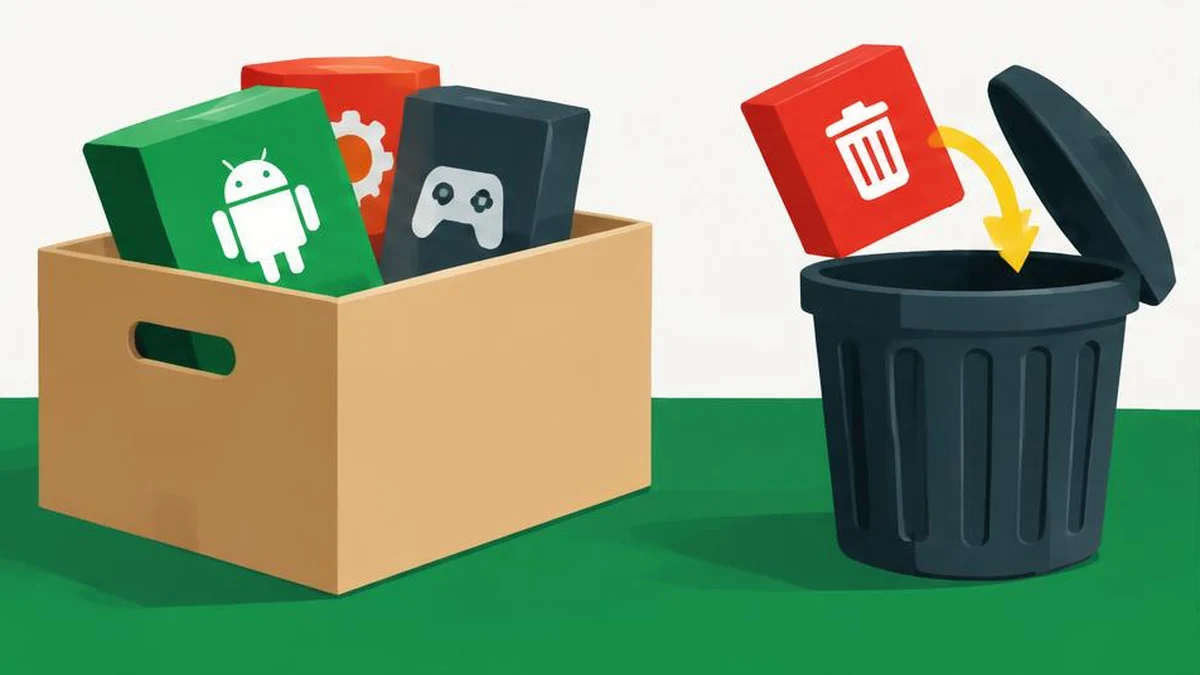
App archiving is a storage-saving compromise: Android removes an app’s software and some associated material while retaining its icon and data. It is not the same as uninstalling, and retained data is not a guarantee that restoration will always be possible.
App archiving is a storage-saving compromise: Android removes an app’s software and some associated material while retaining its icon and data. It is not the same as uninstalling, and retained data is not a guarantee that restoration will always be possible.
Understand what an archive contains
According to the current Android archiving guide, archiving removes app software, permissions, and temporary files. It stops notifications but retains the icon and app data. That combination distinguishes an archive from an app you can immediately keep using.
| Choice | Main purpose | Important caution |
|---|---|---|
| Archive | Remove software while retaining app data and an icon | Restoration depends on the store and available storage |
| Uninstall | Remove an app rather than keep an archive | Check app-specific data and recovery before removal |
| Keep installed | Retain immediate access | Uses storage and needs normal permission review |
Do not treat archiving as a backup, a secure wipe, or a universal answer to every storage problem. The app’s retained data still occupies some space. The guide gives no fixed saving for every app, so avoid promising a percentage reduction.
Check whether the control is supported
Some documented steps work only on Android 15 and later, and some require supporting hardware. Google directs users to the manufacturer for device-specific information. Automatic archiving also depends on a supporting app store. A missing Archive button is not proof that the phone is broken or that a particular undocumented software update will add it.
For manual archiving on a supported device, open Settings, Apps, select the app, and tap Archive. Its icon becomes dimmed with an archiving indicator. That visual state helps distinguish a saved archive from an app that is still installed normally.
Read the app name and profile before acting. If you use separate profiles or private space, do not assume two identical icons refer to the same app instance. The private space guide explains that an app installed there is a separate instance rather than a copy of the main profile’s data.
Check restore conditions before removing software
Restoration requires the relevant app store to remain installed and the app to remain available for download there. You also need enough storage to reinstall it. An archived icon is not a complete copy of the software held in reserve on your phone.
To restore, select the faded app icon and follow the reinstall prompt. You can also use the app’s App info page or its Play Store details page. If storage is insufficient, Android asks you to manage space. If the icon is missing entirely, the app might have been deleted rather than archived.
For an app you will need urgently while traveling or offline, restore it ahead of time and verify access while you have a suitable connection. Check sign-in and essential app functions without assuming every session, offline file, or permission will behave exactly as it did before archiving. The documentation’s retention promise should not be expanded into a guarantee about every app’s own servers or account rules.
Control automatic archiving intentionally
Google says you can opt into automatic archiving through the Play Store. To stop a particular unused app from being automatically archived, open Settings, Apps, select it, and turn off Manage app if unused. The current help says manual archiving remains available.
Review this choice for apps you use infrequently but need without warning. Archiving stops notifications, so consider whether the app supplies an essential alert before treating it as expendable. An app used only occasionally can still matter.
Keep a simple inventory of what you archived and why. Use text compare to review two nonsensitive app lists when cleaning up a phone. The tool does not inspect the device or determine which app data is safe to remove. Avoid pasting recovery codes, passwords, or private app contents into that list.
Compare other storage options honestly
If your storage report shows that personal photos, rather than apps, are the main issue, archiving may address the wrong category. The image compressor can reduce the size of image copies you choose, but it does not clean Android app storage. Keep originals when their quality matters and inspect compressed results before replacing anything.
Use the MB to GB converter when comparing figures in different units, not as a measurement of available device space. Read the actual storage screen before and after a change, and do not invent savings that were never measured.
Before uninstalling instead of archiving, check the app’s supported export, synchronization, and recovery options. Neither archiving nor cloud sign-in should substitute for a deliberate backup of irreplaceable data. Choose the least disruptive action that solves the documented storage problem, and retain a path back before removing software you may still need.
Sources and verification
Official documentation read on November 17, 2026. This is a documentation-based guide, not a device test, channel experiment, or guarantee of availability.
Frequently asked questions
What does archiving retain?
The app icon and app data, according to current Android Help.
What does it remove?
Software, permissions, and temporary files; notifications also stop.
Can I always restore an archive?
No. The app store must be installed, the app must remain available, and sufficient storage is needed.
Is archiving a backup?
No. Retaining data locally is not a complete backup or an unconditional restore guarantee.
How do I prevent automatic archiving for one app?
In its Settings > Apps page, turn off Manage app if unused.
Does every Android device offer manual archiving?
No. The documentation includes Android-version and hardware support limitations.
Useful on MayreDukaan
Sources
Facts last checked against these sources on 17 Nov 2026, 06:44 Pakistan time.
Images: Original AI-generated illustration by MayreDukaan; conceptual, not a product screenshot.
More trending articles
 Android and SmartphonesAndroid Unknown Tracker Alerts: A Safety-First Guide17 Nov 2026 · 5 min read
 Android and SmartphonesAndroid Theft Protection: Check Locks Before a Loss17 Nov 2026 · 4 min read
 Android and SmartphonesAndroid Private Space: Separation Is Not Total Secrecy17 Nov 2026 · 4 min read
 Shopping and DealsUK Fake Online Shops: Check the Seller Before Paying17 Nov 2026 · 5 min read