
Android Theft Protection: Check Locks Before a Loss
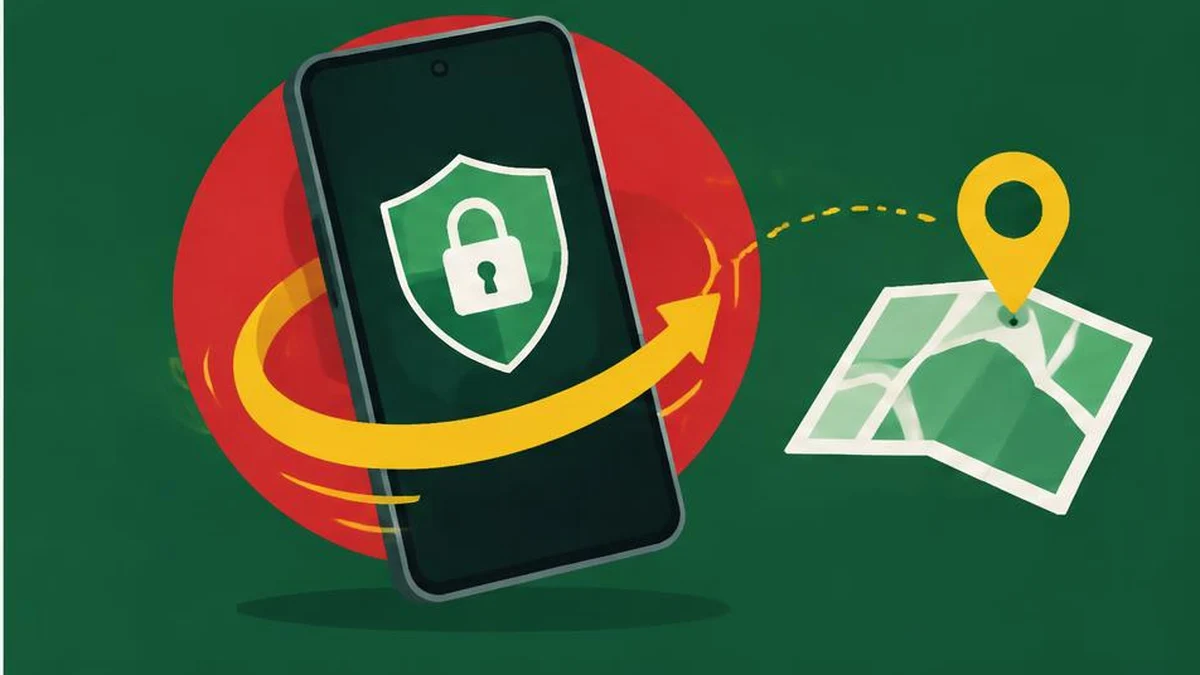
Android theft protection is a collection of safeguards, not a guarantee that theft will be detected or a stolen phone recovered. Configure supported features before a loss and keep account recovery, backups, and personal safety in the same plan.
Android theft protection is a collection of safeguards, not a guarantee that theft will be detected or a stolen phone recovered. Configure supported features before a loss and keep account recovery, backups, and personal safety in the same plan.
Start with the actual support boundary
The current theft protection guide says some steps work on Android 10 and later while others require Android 15 and later. It excludes Android Go devices, tablets, and wearables from the documented theft-protection features, and smartphone-model support varies. Do not use a single Android version number as proof that every feature is available.
Set a screen lock, then open Settings, Google, All services, and Theft protection under Personal & device safety. Some features may already be on by default. A grayed-out Theft Detection Lock means the device does not support that feature; an absent Identity Check entry also indicates lack of support for that feature. Consult the manufacturer when the menu differs.
Separate detection from offline locking
Theft Detection Lock uses motion sensors, Wi-Fi, Bluetooth, and AI to detect a possible snatch-and-run event and lock the screen. Google says it may not trigger with stable Wi-Fi or Bluetooth connections or after repeated locks in a short period. It is not active when the screen is already locked. Do not test it by arranging dangerous snatching scenarios or chasing someone.
Offline Device Lock addresses a different situation: an unlocked phone loses internet connectivity and continues being used offline. After a short period it locks. The documentation limits this screen-lock behavior to twice in a 24-hour period. This is not a promise of immediate offline location tracking.
Failed Authentication Lock is another separate protection for repeated failed authentication attempts. Review the switches actually offered rather than assuming enabling one feature enables the entire group.
Prepare Remote Lock in advance
| Requirement | What to verify before loss |
|---|---|
| Screen lock | A working device PIN, pattern, or password |
| Active SIM | Current service on the device |
| Verified phone number | Verification completed in Remote Lock setup |
| Find Hub | Turned on |
| Internet connection | Needed for the lock request to reach the phone |
Enable Remote Lock under Theft protection and complete number verification. Google documents an optional security question; if configured, it will be required in the locking process. Keep your recovery plan usable if the missing phone is your usual authentication device.
If the phone is lost or stolen, the official route is android.com/lock. Enter the number, complete the requested checks, and request locking. If the phone is offline, the lock applies when it comes online. Remote locking is limited to twice in 24 hours. Afterward, the phone must be unlocked locally using its screen lock.
Treat Identity Check as a separate layer
On supported devices, Identity Check requires biometrics for sensitive actions outside designated trusted places. The current guide includes changes to screen lock, biometrics, Find Hub, theft protection, and certain account settings among protected actions. It does not claim that every device supports the feature.
Review trusted places carefully. The feature’s purpose is to add protection outside those places, not to make an unsafe place safe. Do not assume an ordinary PIN can replace biometrics for every protected action while away from trusted places; the official guide describes stricter requirements and specific exceptions. Follow the current on-device setup prompts for the supported phone.
Build a recovery plan without promising recovery
Use a strong device lock and protect associated accounts. A password generator can help create a unique account password, but does not turn on theft protection. Keep a nonsensitive configuration checklist and use text compare to review changes after a device upgrade.
Record your device identifiers and support contacts securely. If organizing purchase or ownership images into a PDF, protect that document and avoid placing account secrets in it. Enable appropriate backups in advance; a locking feature cannot recover an unbacked-up local file after loss.
Find Hub can help locate, secure, or erase a device under its own conditions, but a displayed location is not an instruction to retrieve it personally. Prioritize safety, contact the carrier and appropriate authorities when needed, and do not confront a suspected thief. The linked 2024 announcement is historical context; the current Help page, your device settings, and manufacturer support determine the features available now.
Sources and verification
Official documentation read on November 17, 2026. This is a documentation-based guide, not a device test, channel experiment, or guarantee of availability. The 2024 Android announcement supplies historical context; current Android Help controls the eligibility described here.
Frequently asked questions
Does Theft Detection Lock always trigger?
No. Google documents conditions where it may not activate.
Are tablets supported?
The theft-protection guide excludes tablets, Android Go devices, and wearables from these documented features.
Can Remote Lock work while the phone is offline?
The request takes effect when the phone comes online.
What does Remote Lock require?
A screen lock, active SIM, verified phone number, Find Hub, and internet connectivity.
Is Identity Check on every phone?
No. It is available on certain devices; an absent entry indicates it is unsupported.
Should I retrieve a located stolen phone myself?
Do not confront a suspected thief. Prioritize safety and seek appropriate assistance.
Useful on MayreDukaan
Sources
Facts last checked against these sources on 17 Nov 2026, 06:44 Pakistan time.
Images: Original AI-generated illustration by MayreDukaan; conceptual, not a product screenshot.
More trending articles
 Android and SmartphonesAndroid Unknown Tracker Alerts: A Safety-First Guide17 Nov 2026 · 5 min read
 Android and SmartphonesAndroid App Archiving vs Uninstalling: What Stays17 Nov 2026 · 4 min read
 Android and SmartphonesAndroid Private Space: Separation Is Not Total Secrecy17 Nov 2026 · 4 min read
 Shopping and DealsUK Fake Online Shops: Check the Seller Before Paying17 Nov 2026 · 5 min read