
Android Photo Permissions: Limit App Photo Access
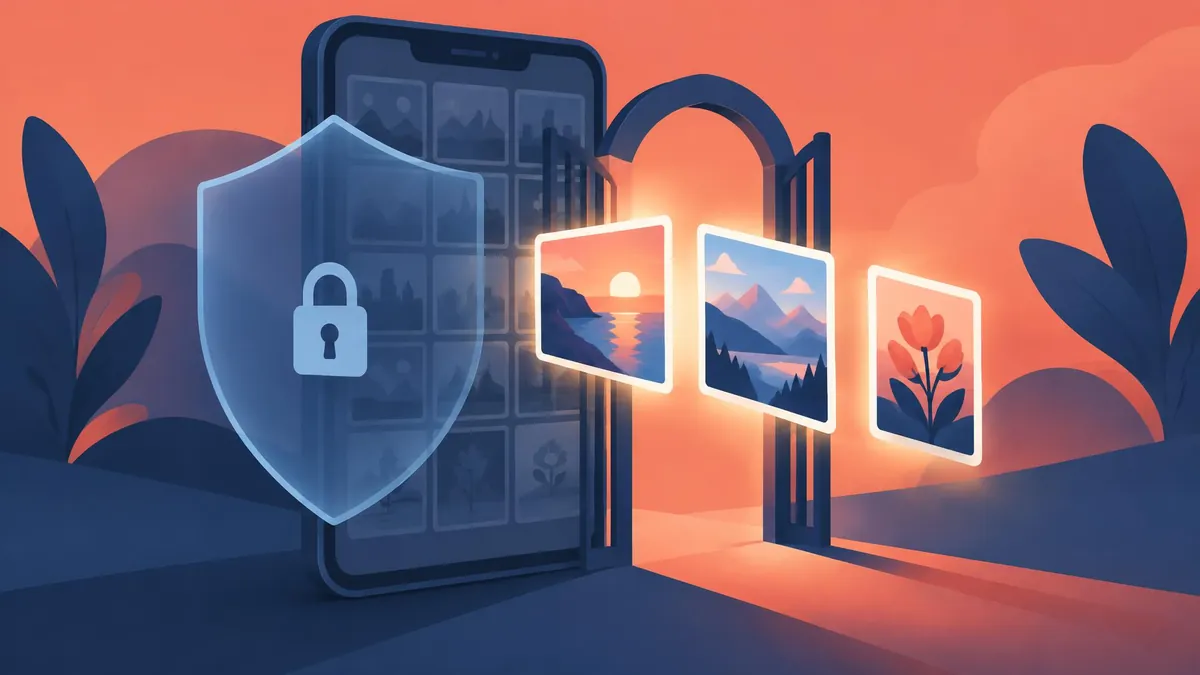
Give an app the photos it needs without opening your entire library. Understand Android 14+ selected access, the photo picker, and permission settings.
Android photo permissions control whether an app can read your photo and video library. On supported Android 14+ app flows, you can allow only selected photos and videos rather than your entire collection. The separate system photo picker also lets you share individual items without granting broad library access. Start with the smallest access level that lets you finish your task.
Understand the three different permissions
A request to use the camera is not the same as a request to read existing photos. Camera permission lets an app use the camera; it does not, by itself, grant unrestricted access to your gallery. Likewise, choosing an existing picture does not necessarily require camera permission.
A library permission request concerns stored photos or videos. A system picker is different again: it presents a selection interface and gives the requesting app access to the items you choose. Seeing your library inside that picker does not mean the app already has permission to read every item.
This distinction matters when an app says it needs access to upload a profile image. Ask whether it can let you choose that image instead of requiring all your holiday pictures, screenshots, and saved documents.
What changed with Android 14?
Android 14 introduced Selected Photos Access. In the relevant permission flow, users can choose specific photos and videos, allow broader access, or deny the request. Android's developer guidance explains that app targeting and implementation affect how this works.
Do not assume that every app on an Android 14 or newer phone shows identical buttons. Apps targeting Android 14 or higher are affected by the change, and developers maintaining their own gallery interface must handle partial access correctly. The documentation also describes an opt-in path for apps targeting Android 13 and compatibility behavior when apps have not fully adapted.
For ordinary users, the important outcome is simple: an empty or incomplete in-app gallery may reflect a deliberate limited selection, not missing files. Check the app's access before reinstalling it or moving your photos.
Change an app's photo access
Google's Android permission instructions use Settings and the app's Permissions screen. Manufacturer labels and available choices vary.
- Open Settings and go to Apps.
- Select the app. You may need to open the full app list first.
- Open Permissions and look for Photos and videos or the equivalent media permission.
- Review the available choices. If offered, select limited or selected access rather than all photos.
- Return to the app and try the action again.
If you cannot find a photo permission, the app may use the system picker instead of asking for broad library access. Launch its attach, upload, or choose-photo action and select the intended file there. Do not grant unrelated permissions just because a gallery looks different from a tutorial.
Before confirming a request, read the actual system dialog rather than only the app's explanation. An app may describe access as essential even when your immediate task only requires one file.
Add more selected photos later
If you initially allowed a single picture, a later upload may require selecting another. Use the app's select-more or manage-access option when provided, or revisit its photo permission in Settings. The exact route depends on the app and device.
Developers must account for changes to the selected set. Android's guidance warns against assuming an earlier permission check will remain valid indefinitely. In compatibility mode, access can also behave temporarily; this is one reason a previously visible item might no longer appear in an app's own gallery.
If an app keeps asking, update it and check whether its upload button can open the system picker. Repeatedly switching to full access is not the only possible solution. If the app cannot complete a task with limited access, decide whether that feature is worth the broader permission.
How the system photo picker differs
The Android photo picker is designed to share selected images and videos rather than the whole library. Supported cloud media providers can also make remote items available through it.
The picker and Selected Photos Access solve related but different problems. The picker is a system selection experience; Selected Photos Access limits what an app with a media-permission flow can read. Apps can use different implementations, so the same phone can present different experiences in different apps.
An app's ability to keep using a picked item also depends on its implementation. Developers can request persistent URI access for suitable longer-running work. Avoid treating the picker as a promise that access always ends the moment you close its window.
What revoking access does not undo
Removing a permission limits future access through that permission. It does not reach into a company's servers and delete a file you already uploaded. Nor should you assume it removes every copy the app legitimately made while it could read the file.
If a sensitive picture was uploaded, check the service's own deletion and privacy controls as a separate step. For a simple privacy habit, choose the final intended image before opening an upload flow, and inspect the selection before confirming.
Preparing the file is another separate task. If an attachment is rejected for size, the photo-size guide explains dimensions and file limits. If a receiving service does not accept an iPhone-originated file, see HEIC-to-JPG conversion. Neither problem is fixed by granting broader gallery access.
A quick troubleshooting checklist
- Only some pictures appear: review your selected-photo list first.
- No permission entry appears: try the app's upload flow; it may use a picker.
- Taking a new picture fails: review Camera separately from Photos and videos.
- A file is visible but will not upload: check format, size, and connection rather than assuming a permission failure.
- Access keeps changing: update the app and review its help documentation before widening access.
The safest default is not to deny every request blindly. It is to match permission to purpose: individual selection for an occasional attachment, selected library access for a limited ongoing task, and broader access only when you understand why the feature needs it.
Frequently asked questions
Does Android 14 let me share only selected photos?
Yes, supported permission flows offer Selected Photos Access; app targeting and implementation affect the experience.
Is camera permission the same as photo access?
No. Camera access and permission to read existing photos and videos are separate.
Why does an app show only some photos?
It may have access only to selected items. Review its photo permission or choose more items through its picker.
Does revoking permission delete uploaded pictures?
No. Use the receiving service’s deletion controls for files already uploaded.
Useful on MayreDukaan
Sources
- Android Developers: Grant partial access to photos and videos
- Android Developers: Photo picker
- Google Android Help: Change app permissions
Facts last checked against these sources on 16 Nov 2026, 06:47 Pakistan time.
Images: Illustration created for MayreDukaan (not a photo)
More trending articles
 Android and SmartphonesGalaxy S27 Ultra: What Is and Is Not Confirmed16 Nov 2026 · 5 min read
 PDF and Document ToolsAdd Page Numbers to a PDF Without Covering Content16 Nov 2026 · 5 min read
 PDF and Document ToolsExtract Images from PDFs Without Saving Whole Pages16 Nov 2026 · 5 min read
 PDF and Document ToolsPDF to JPG: Convert Pages Without Losing Detail16 Nov 2026 · 5 min read