
Extract Images from PDFs Without Saving Whole Pages
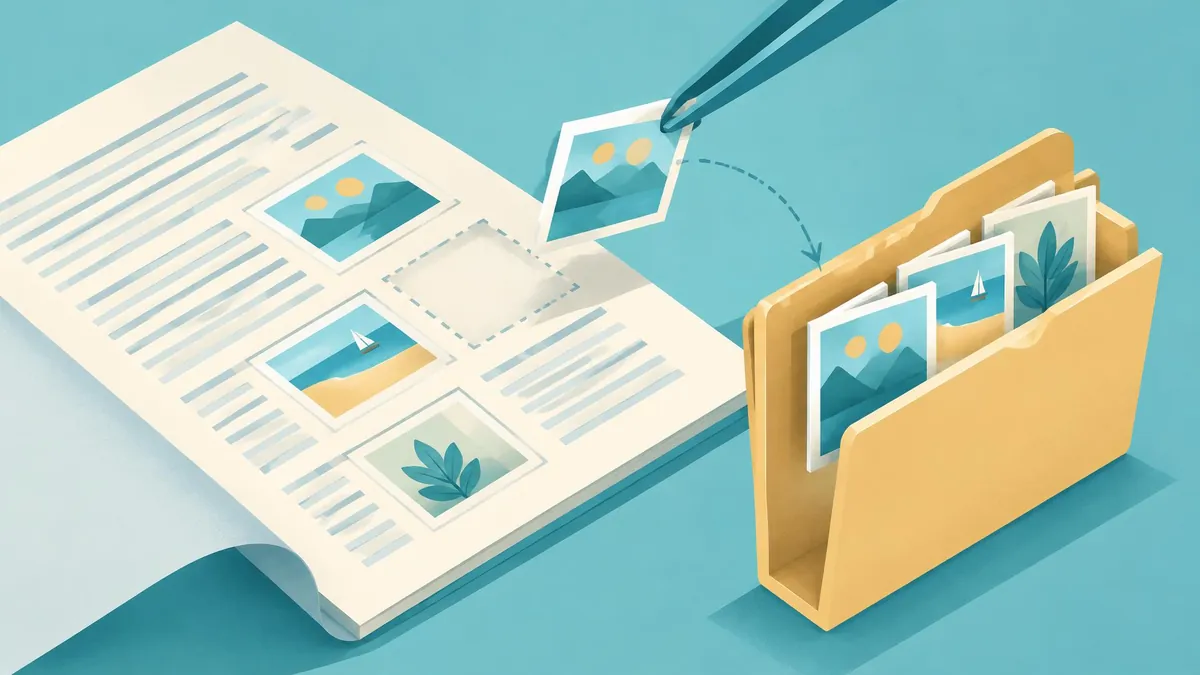
To extract individual images from a PDF in Adobe Acrobat, open Convert, choose an image format, and enable Export all Images before saving. Without that option, the workflow exports whole PDF pages instead of just the embedded pictures.
To extract individual images from a PDF in Adobe Acrobat, open Convert, choose an image format, and enable Export all Images before saving. Without that option, the workflow exports whole PDF pages instead of just the embedded pictures.
Know what you are trying to recover
A PDF page can contain text, raster pictures, vector artwork, or a combination of all three. Extraction targets embedded image content. It is not the same operation as rendering the entire page into a JPEG.
Adobe explicitly says its image export workflow can export raster images but not vector objects. A chart drawn as vector lines may therefore not appear among the extracted pictures. That does not necessarily indicate a failed export. (Adobe Help)
Decide what you need before choosing the workflow. For a photograph that should stand alone, extraction makes sense. For a complete poster with lettering and diagrams, page conversion may be the better choice. For editable vector artwork, ask the creator for the source file rather than expecting raster extraction to reconstruct it.
Extract embedded images in Acrobat
Adobe documents these desktop steps:
- Open the PDF in Acrobat.
- Select Convert, or use All tools > Export a PDF.
- Select Image format and choose the output format.
- Enable Export all Images.
- Open the associated Settings if you need to adjust extraction options.
- Confirm the settings and start the conversion.
- Choose a destination and save the exported files. (Adobe Help)
Use a new output folder, particularly for a long report. A document can include more image objects than a reader expects, and a crowded download folder makes it harder to determine which assets belong to which source.
This workflow requires access to Acrobat's export feature. Do not assume that a free reader installation includes all conversion commands. Check the account and product available to you without making purchase decisions based on an assumed entitlement.
Include small images when they matter
Acrobat's extraction settings include Exclude images smaller than. Adobe says choosing No Limit extracts all images. That matters if the asset you need is a small illustration or decorative element rather than a large photo. (Adobe Help)
For an initial recovery pass, decide whether completeness or a smaller output set is more important. If you exclude small objects to reduce clutter, record that choice so you do not later mistake the filtered set for a complete inventory.
The same settings area includes file, color-management, conversion, and extraction controls. Use the output format required by the next task, and inspect a representative export before committing to a large batch.
Why the result may not look like the visible page
Extraction recovers image content, not necessarily the complete arrangement a reader sees. Text, vector objects, and neighboring images may be separate page elements. A logo that includes vector lettering may not become a single complete image in this raster workflow.
A scanned PDF is another special case. Its page may effectively be a large picture of the entire sheet. Extracting that image can therefore produce something that looks like a page export. The difference is the document's internal structure, not the apparent similarity of the output.
If you need the complete page appearance, Adobe's separate JPEG conversion guidance says each PDF page can be saved as its own JPEG. Use that route intentionally rather than treating its output as a set of original embedded assets. (Adobe Help)
Check quality without inventing missing detail
Open the files you plan to reuse. Check dimensions, visible sharpness, color appearance, and whether the asset is complete. Compare against the PDF, but remember that a page's displayed size is not a reliable measure of an embedded image's available detail.
Do not describe an export as the original camera file or guaranteed bit-for-bit recovery. The PDF may already contain a resized or compressed version, and export settings can involve another format conversion. Request the original image from its owner if publication quality or provenance matters.
Avoid repeated lossy saves during cleanup. Keep the first export as a reference copy and create a separate delivery version for resizing or compression. For the underlying format tradeoffs, see the JPG, PNG, and WebP guide.
Prepare a smaller source when useful
For a long PDF, the PDF splitter can extract the relevant pages as another PDF. Run Acrobat's image extraction on that subset afterward. The PDF splitting guide explains page ranges and physical page positions.
This is page extraction followed by image extraction: two different operations. MayreDukaan does not provide the embedded-image extraction step. Its splitter prepares PDF pages only.
Reuse and privacy checks
Possessing a PDF does not automatically grant permission to republish its pictures. Confirm ownership, license terms, attribution requirements, and the intended use before placing an extracted image on a website or in marketing material.
Inspect exports for personal information or internal annotations that may be visible within a picture. Store confidential source documents and recovered assets in approved locations. Keep a clear record of which PDF supplied each selected image, especially when several reports use similar photographs.
Frequently asked questions
Why did Acrobat export full pages instead of pictures?
The Export all Images option may not have been selected. Adobe says leaving it unselected saves pages in the chosen image format.
Can this extract vector artwork?
Adobe says the documented image-export workflow exports raster images, not vector objects.
How do I include tiny embedded images?
In the extraction settings, Adobe says to choose No Limit under Exclude images smaller than to extract all images.
Frequently asked questions
Why did Acrobat export full pages instead of pictures?
The Export all Images option may not have been selected. Adobe says leaving it unselected saves pages in the chosen image format.
Can this extract vector artwork?
Adobe says the documented image-export workflow exports raster images, not vector objects.
How do I include tiny embedded images?
In the extraction settings, Adobe says to choose No Limit under Exclude images smaller than to extract all images.
Useful on MayreDukaan
Sources
- Adobe Help: Export images or selections
- Adobe Help: Convert PDF to JPEG
- Adobe Help: Organize PDF pages
Facts last checked against these sources on 16 Nov 2026, 07:00 Pakistan time.
Images: Illustration created for MayreDukaan (not a photo)
More trending articles
 PDF and Document ToolsPowerPoint to PDF: Export Slides or Handouts Safely16 Nov 2026 · 5 min read
 PDF and Document ToolsWord to PDF: Export Documents Ready for Sharing16 Nov 2026 · 5 min read
 PDF and Document ToolsExcel to PDF: Keep Columns and Pages Readable16 Nov 2026 · 5 min read
 PDF and Document ToolsPDF to Excel: Import Tables and Verify the Data16 Nov 2026 · 5 min read