
PowerPoint to PDF: Export Slides or Handouts Safely
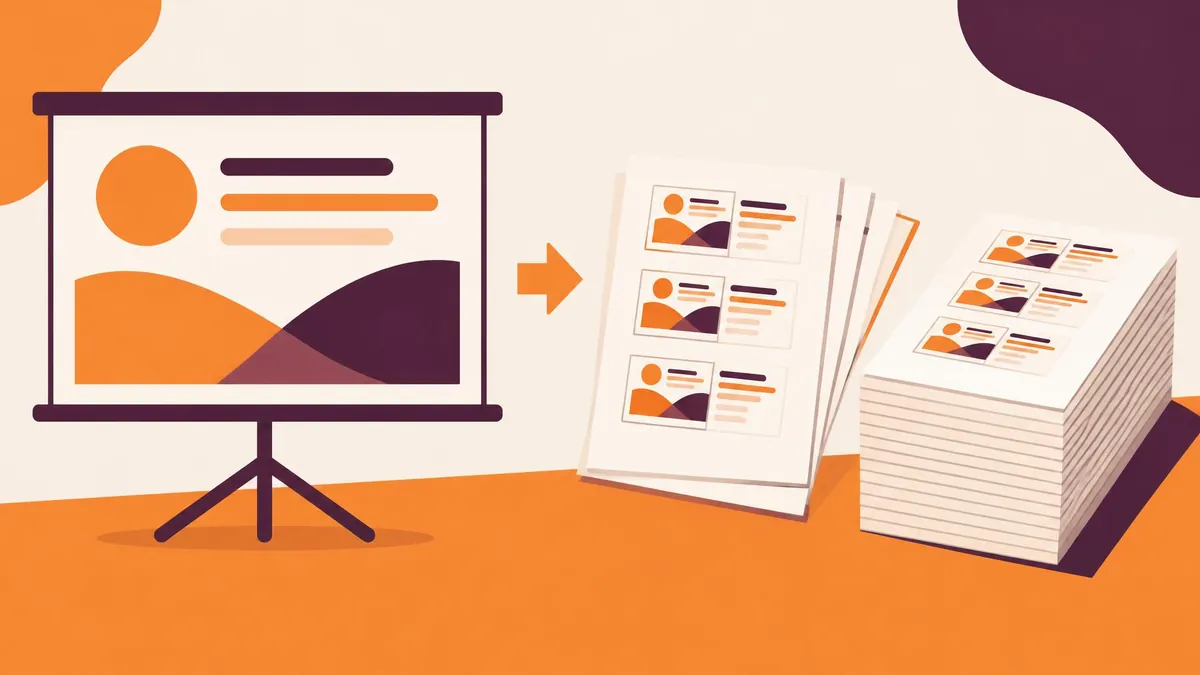
To convert PowerPoint to PDF on Windows, select File > Export > Create PDF/XPS Document, choose the output settings, and publish. Decide first whether the recipient needs full-size slides or a handout containing multiple slides per page.
To convert PowerPoint to PDF on Windows, select File > Export > Create PDF/XPS Document, choose the output settings, and publish. Decide first whether the recipient needs full-size slides or a handout containing multiple slides per page.
Pick the right output before exporting
A slide deck and a reading document serve different purposes. Full-page slides preserve the presentation's visual rhythm. Handouts use paper more efficiently and can make a live session easier to follow. Choose the format based on the recipient's task, not simply the first available export setting.
Microsoft describes PDF as freezing a presentation's formatting and layout so people can view the slides without PowerPoint. That makes it useful for distribution, but it should not be treated as a replacement for the editable PPTX master. (Microsoft Support)
Keep the source deck, and use a new filename for each distribution version. A slide-only copy and a review copy with additional material should not be indistinguishable attachments.
Export a PDF on Windows
- Open the presentation in PowerPoint.
- Select File > Export.
- Select Create PDF/XPS Document, then Create PDF/XPS.
- Choose a destination and filename.
- Select Standard for higher-quality output, or Minimum size when file size matters more.
- Open Options to choose the output scope and layout.
- Select OK, then Publish. (Microsoft Support)
Export directly from the presentation rather than taking screenshots of slides and assembling those pictures. The direct workflow gives you explicit control over the intended publication choices and avoids accidentally including the editor's interface.
Choose slides, handouts, or another layout
In the Windows PDF export options, Microsoft documents controls for the current slide, a slide range, and alternative publication layouts. Under Publish what, choose the appropriate output. For handouts, the available controls include slides per page and horizontal or vertical ordering. (Microsoft Support)
Check a sample page before distributing a large handout. A layout with many slides per page saves space but may make chart labels and small footnotes unreadable. A table that is comfortable on a projector can become too small when reduced to a fraction of a printed page.
Do not assume a notes or review layout is appropriate for external recipients. Preview the actual pages and confirm whether any speaker-only material is visible. If you need different outputs for presenters and attendees, create them as separate named files.
Review hidden slides and comments
Microsoft lists export options that can include hidden slides, comments, ink, document properties, and document structure tags. Treat these as publication choices that deserve inspection, not harmless defaults. (Microsoft Support)
Before exporting a public copy, work through the deck with these questions:
- Are backup slides intended for this audience?
- Do comments contain internal feedback or unresolved questions?
- Are all slide numbers and section references still correct?
- Does the document need accessibility structure tags?
- Are there draft figures that should be replaced or removed?
A PDF will not know that a slide was only meant for rehearsal. Review the output even if the original deck looks correct during normal presentation mode.
Understand what a static PDF is for
Use PDF when the main requirement is a stable sequence of readable pages. If the recipient needs timed builds, interactive presentation behavior, or a media-led experience, keep an appropriate presentation or video deliverable as well. Microsoft's export documentation distinguishes creating a PDF from creating a video. (Microsoft Support)
For a complicated slide, check which information is actually visible in the PDF page. If the meaning depends on a sequence of reveals or spoken explanation, consider adding a static explanatory slide to the source deck before exporting.
PDF is also not a security guarantee. Microsoft warns that PDFs can be opened and edited with various applications, so do not rely on the format alone to prevent modification or redistribution. (Microsoft Support)
Mac and other interfaces
Microsoft documents saving as PDF through File > Save As or exporting to PDF on Mac. The Windows Options dialog should not be assumed to exist unchanged on every platform. Follow the platform tab in Microsoft's help and inspect the output rather than guessing where an absent setting moved. (Microsoft Support)
If an institution requires a specific handout layout, use an installation that provides the needed controls. A basic PDF of slides may be perfectly useful, but it is not interchangeable with a prescribed notes or handout document.
Assemble the final distribution pack
Open the saved PDF outside the editing view. Check slide order, text clipping, chart legends, links, and the last page. Confirm that the page count makes sense for your selected layout; a six-slide-per-page handout will not have the same page count as the original deck.
The PDF merger can combine an exported slide PDF with an agenda or other finished PDFs. The merging guide helps verify document order. The splitting guide is useful when distributing only an approved section.
MayreDukaan does not convert PowerPoint files to PDF. Export through PowerPoint first; use related site tools only for the subsequent PDF bundling or page-selection task.
Frequently asked questions
Can I put several slides on one PDF page?
On Windows, PowerPoint PDF export options include handouts with controls for slides per page and ordering. Check that small text remains readable.
Should I delete my PPTX after exporting?
No. Keep the editable presentation as the master and treat the PDF as a distribution copy.
Can hidden slides appear in the PDF?
Yes, PowerPoint provides an option to include hidden slides. Review that setting and inspect the exported pages.
Frequently asked questions
Can I put several slides on one PDF page?
On Windows, PowerPoint PDF export options include handouts with controls for slides per page and ordering. Check that small text remains readable.
Should I delete my PPTX after exporting?
No. Keep the editable presentation as the master and treat the PDF as a distribution copy.
Can hidden slides appear in the PDF?
Yes, PowerPoint provides an option to include hidden slides. Review that setting and inspect the exported pages.
Useful on MayreDukaan
Sources
- Microsoft Support: Save PowerPoint as PDF
- Microsoft Support: Export a presentation
- Microsoft Support: Office PDF export
Facts last checked against these sources on 16 Nov 2026, 07:00 Pakistan time.
Images: Illustration created for MayreDukaan (not a photo)
More trending articles
 PDF and Document ToolsExtract Images from PDFs Without Saving Whole Pages16 Nov 2026 · 5 min read
 PDF and Document ToolsWord to PDF: Export Documents Ready for Sharing16 Nov 2026 · 5 min read
 PDF and Document ToolsExcel to PDF: Keep Columns and Pages Readable16 Nov 2026 · 5 min read
 PDF and Document ToolsPDF to Excel: Import Tables and Verify the Data16 Nov 2026 · 5 min read