
Word to PDF: Export Documents Ready for Sharing
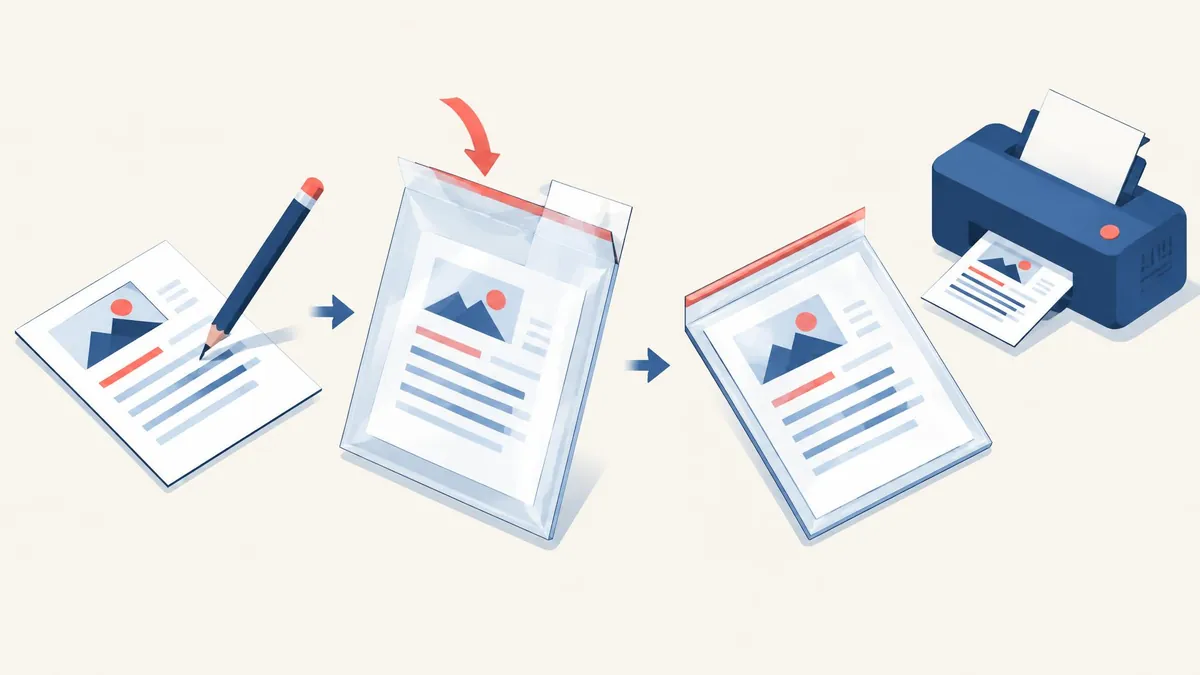
To convert a Word document to PDF, use Word’s Save As or Save a Copy command and select PDF as the file type. Review the export options before saving, especially if the document contains tracked changes, headings, or pages that should not be shared.
To convert a Word document to PDF, use Word’s Save As or Save a Copy command and select PDF as the file type. Review the export options before saving, especially if the document contains tracked changes, headings, or pages that should not be shared.
Use Word's own PDF export first
If the original document is available in Word, export from that file instead of printing screenshots or converting each page to an image. Microsoft's Office guidance documents PDF output without needing a separate converter or add-in. (Microsoft Support)
A PDF is a distribution copy, not your editable master. Keep the DOCX so you can revise the document later without trying to reconstruct paragraphs from the exported PDF. Give both files names that make their roles clear.
Before export, read the document in its intended final state. Resolve accidental blank pages, unfinished placeholders, outdated headers, and obvious table overflow in Word. A conversion is not a proofreading pass and will not know which comments or revisions you intended to keep.
Save as PDF on Windows
- Open the document in Word.
- Select File > Save As or Save a Copy, depending on your version and whether it is already saved.
- Browse to the intended destination.
- Choose PDF in the file-type list.
- Open More Options > Options when you need to customize the output.
- Confirm the page range and publication settings.
- Save the PDF and open it for inspection. (Microsoft Support)
Microsoft also documents the Export > Create PDF/XPS route. Use whichever supported command your desktop interface provides; both are different from simply renaming the document extension. (Microsoft Support)
Choose whether revisions appear
Word's PDF options distinguish Document from Document showing markup. The latter includes tracked changes in the published output. Select the ordinary document option when you do not intend to distribute markup, then check the PDF itself. (Microsoft Support)
Do not assume that a clean-looking editing view guarantees a clean export. For a client proposal or job application, deliberately review the final output for revision marks, editorial comments, and unwanted personal information before attaching it.
If a document requires a formal review record, the opposite choice may be correct: include markup intentionally, name that output accordingly, and keep it separate from the clean distribution version. The important point is to make the decision rather than accept a setting without looking.
Page ranges, bookmarks, and accessibility
The desktop options let you limit the page range and create bookmarks from headings or Word bookmarks. Word also provides document structure tags for accessibility. These settings are useful when a long report needs navigation rather than merely a printable appearance. (Microsoft Support)
Choose a subset only after confirming which pages belong together. A page containing a reference may depend on a preceding explanation or a later footnote. Review the exported section as a standalone document instead of assuming it will make sense out of context.
Structure tags are helpful, but selecting a checkbox is not a complete accessibility audit. Use meaningful headings in the source, keep reading order sensible, and inspect the resulting PDF with the tools appropriate to your publication requirements.
Mac, browser, and mobile methods
On Mac, Microsoft documents File > Save As or Save a Copy, followed by PDF in File Format. Its guidance notes that hyperlinks may not convert correctly with Best for printing in Word for Mac, so test important links in the actual PDF. (Microsoft Support)
For Word on the web, Microsoft's Office article describes File > Print and the browser's Save as PDF destination for basic output. The desktop application offers more control over features such as bookmarks. The exact menus differ, so use the instructions matching your platform.
On supported mobile interfaces, Microsoft documents saving through Print with Save as PDF, or through an Export > PDF command. Confirm the location and filename rather than assuming the PDF replaces the original document. (Microsoft Support)
Inspect the PDF, not just the Word preview
Open the saved PDF in a viewer and work through this checklist:
- Does the first page contain the correct title and date?
- Are tables and images inside the page edges?
- Are headings, page numbers, and footers consistent?
- Do links open the intended destination?
- Did the expected pages export, including the last one?
- Can you select normal text where text selection is expected?
If something is wrong, fix the Word source and export again. Repeatedly patching the PDF creates a second version that can drift away from the editable master.
Combine or separate pages afterward only when needed
When a finished Word PDF belongs with other PDFs, use the PDF merger. The merging guide explains how to check file order. Neither operation converts the original Word document; export it through Word first.
If you discover that a final PDF contains unnecessary pages, the PDF splitting guide can help prepare an appropriate subset. Re-exporting from Word is often clearer when you still have the source and need precise publication options.
PDF is not a guarantee that recipients cannot edit or copy content. Microsoft explicitly warns that many applications can open and edit PDFs. Use appropriate access controls and approved sharing methods for sensitive documents rather than relying on the format alone. (Microsoft Support)
Frequently asked questions
Do I need a separate Word-to-PDF converter?
Not when your Word version provides the documented PDF save or export feature. Microsoft says Office can create PDFs without another converter or add-in.
Can tracked changes appear in the PDF?
Yes. Word offers a Document showing markup publication option. Choose deliberately and inspect the exported file before sharing.
Does PDF prevent editing?
No. Microsoft warns that many programs can open and edit PDFs. Treat PDF as a distribution format, not an access-control guarantee.
Frequently asked questions
Do I need a separate Word-to-PDF converter?
Not when your Word version provides the documented PDF save or export feature. Microsoft says Office can create PDFs without another converter or add-in.
Can tracked changes appear in the PDF?
Yes. Word offers a Document showing markup publication option. Choose deliberately and inspect the exported file before sharing.
Does PDF prevent editing?
No. Microsoft warns that many programs can open and edit PDFs. Treat PDF as a distribution format, not an access-control guarantee.
Useful on MayreDukaan
Sources
- Microsoft Support: Save or convert to PDF or XPS in Office Desktop apps
- Microsoft Support: Edit a PDF
- Microsoft Support: Save a PDF of your file on your mobile device
Facts last checked against these sources on 16 Nov 2026, 07:00 Pakistan time.
Images: Illustration created for MayreDukaan (not a photo)
More trending articles
 PDF and Document ToolsAdd Page Numbers to a PDF Without Covering Content16 Nov 2026 · 5 min read
 PDF and Document ToolsExtract Images from PDFs Without Saving Whole Pages16 Nov 2026 · 5 min read
 PDF and Document ToolsPDF to Excel: Import Tables and Verify the Data16 Nov 2026 · 5 min read
 PDF and Document ToolsPowerPoint to PDF: Export Slides or Handouts Safely16 Nov 2026 · 5 min read