
Excel to PDF: Keep Columns and Pages Readable
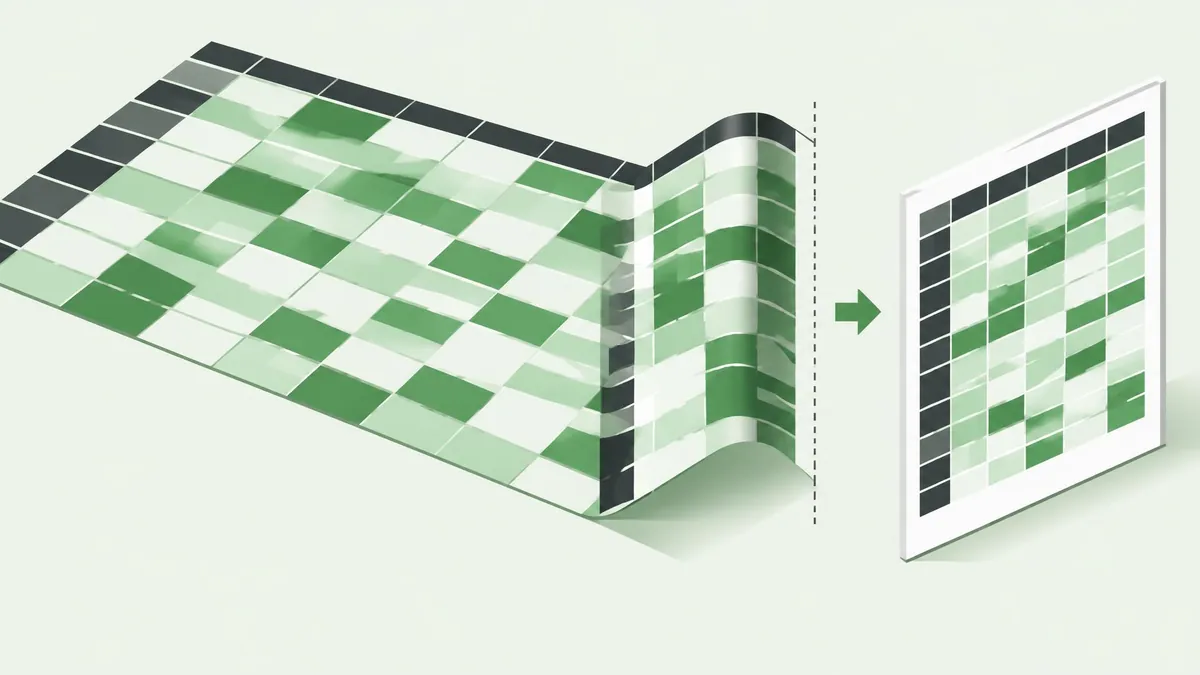
To convert Excel to PDF, prepare the worksheet for printing, then choose PDF in Excel’s Save As or Save a Copy dialog. For wide tables, set the width to one page and leave height automatic before reviewing whether the text remains readable.
To convert Excel to PDF, prepare the worksheet for printing, then choose PDF in Excel’s Save As or Save a Copy dialog. For wide tables, set the width to one page and leave height automatic before reviewing whether the text remains readable.
Treat this as page design, not just file conversion
A worksheet can extend far beyond a printable page. PDF export has to turn that grid into fixed pages, so a correct spreadsheet can still produce an awkward document. Start by deciding what the recipient needs to read, not by forcing the entire workbook onto a single sheet of paper.
Microsoft documents PDF export directly from Excel through Save As or Save a Copy. Separate converter software is not required for this built-in workflow. (Microsoft Support)
Keep the XLSX as the editable master. The PDF is a snapshot for review or distribution, not a replacement for the workbook's formulas and interactive features.
Define the print area
- Open the worksheet and select the cells that belong in the output.
- Go to Page Layout > Print Area > Set Print Area.
- Open the print preview and confirm the selected range is complete.
- If necessary, clear or adjust the print area before continuing. (Microsoft Support)
Microsoft notes that each separate print area prints on its own page. Selecting several disconnected blocks can therefore create more pages than expected. Use a continuous range when you intend to produce one coherent table.
Include headings and explanatory notes that make the numbers understandable. Excluding an unused calculation area can improve the PDF, but excluding the currency label or reporting period can make it ambiguous.
Stop columns from spilling onto separate pages
For a wide worksheet, Microsoft recommends the Scale to Fit controls:
- Select Page Layout.
- In Scale to Fit, set Width to 1 page.
- Leave Height set to Automatic.
- Review the preview to see whether all columns fit and text remains readable. (Microsoft Support)
This keeps columns together while allowing rows to continue across several pages. It is different from forcing both width and height to one page. Microsoft warns that fitting everything to a single page can make the output difficult to read.
If the result is too small, try landscape orientation, a more suitable paper size, or fewer nonessential columns. Do not solve a readability problem only by zooming in on your own monitor; consider the recipient's likely screen or printed copy.
Export the prepared worksheet
- Select File > Save As or Save a Copy.
- Choose the destination and enter a clear filename.
- Select PDF in the file-type list.
- Choose Standard when print quality is the priority, or Minimum size when a smaller distribution file matters more.
- Open Options to check the pages and output scope.
- Save the PDF and open the result. (Microsoft Support)
Check whether the export is intended to cover the selected content, active sheet, or a broader workbook scope in your version. Do not assume the currently visible tab is the only material that will be included. Inspect the page count immediately after saving.
Diagnose common export problems
The rightmost columns are missing
Return to the print area and preview. Confirm the cells are included, then review scaling and orientation. If a table spans several pages horizontally, the information may not be missing; it may be separated from the rows that give it meaning.
The PDF contains unexpected blank pages
Look for an oversized print area or separate ranges that create extra pages. Use the preview to locate the boundary before changing the source. Removing random PDF pages afterward can hide a recurring workbook setup problem.
All the data is technically present but unreadable
Release the one-page height constraint and let rows continue. Consider a summary report for readers who do not need the raw detail. One readable page of summary plus several readable detail pages is usually more useful than one miniature grid.
Links behave differently
Microsoft warns that internal spreadsheet links are lost during PDF conversion, while external links should still work. Test important destinations in the exported file rather than assuming workbook navigation survives. (Microsoft Support)
Review the final report
Compare the first and last data rows with the workbook. Check totals, units, dates, footnotes, clipped headings, and any cells displaying error values or placeholder symbols. Review a page in the middle as well as the first page, especially when the report runs across many pages.
If several exported reports need to become one attachment, the PDF merger can combine the finished PDFs. Use the merging guide to check the file order. It does not export Excel files or repair their print setup.
For a recipient who needs only a section, the PDF splitting guide explains extracting the necessary pages after export. Keep the original workbook and complete report for reference.
MayreDukaan does not offer Excel-to-PDF conversion. Perform the export in Excel, and use related PDF tools only for genuine follow-up document tasks.
Frequently asked questions
How do I keep Excel columns on one PDF page?
In Page Layout, set Scale to Fit width to one page and height to Automatic, then check readability in preview.
Why is my exported spreadsheet tiny?
Forcing both width and height to one page can shrink a large table excessively. Allow more vertical pages or redesign the output.
Do spreadsheet links survive PDF conversion?
Microsoft warns that internal workbook links are lost. It says external links should remain, but test important links in the saved PDF.
Frequently asked questions
How do I keep Excel columns on one PDF page?
In Page Layout, set Scale to Fit width to one page and height to Automatic, then check readability in preview.
Why is my exported spreadsheet tiny?
Forcing both width and height to one page can shrink a large table excessively. Allow more vertical pages or redesign the output.
Do spreadsheet links survive PDF conversion?
Microsoft warns that internal workbook links are lost. It says external links should remain, but test important links in the saved PDF.
Useful on MayreDukaan
Sources
- Microsoft Support: Office PDF export
- Microsoft Support: Scale a worksheet
- Microsoft Support: Print areas
Facts last checked against these sources on 16 Nov 2026, 07:00 Pakistan time.
Images: Illustration created for MayreDukaan (not a photo)
More trending articles
 PDF and Document ToolsExtract Images from PDFs Without Saving Whole Pages16 Nov 2026 · 5 min read
 PDF and Document ToolsWord to PDF: Export Documents Ready for Sharing16 Nov 2026 · 5 min read
 PDF and Document ToolsPDF to Excel: Import Tables and Verify the Data16 Nov 2026 · 5 min read
 PDF and Document ToolsPowerPoint to PDF: Export Slides or Handouts Safely16 Nov 2026 · 5 min read