
PDF to JPG: Convert Pages Without Losing Detail
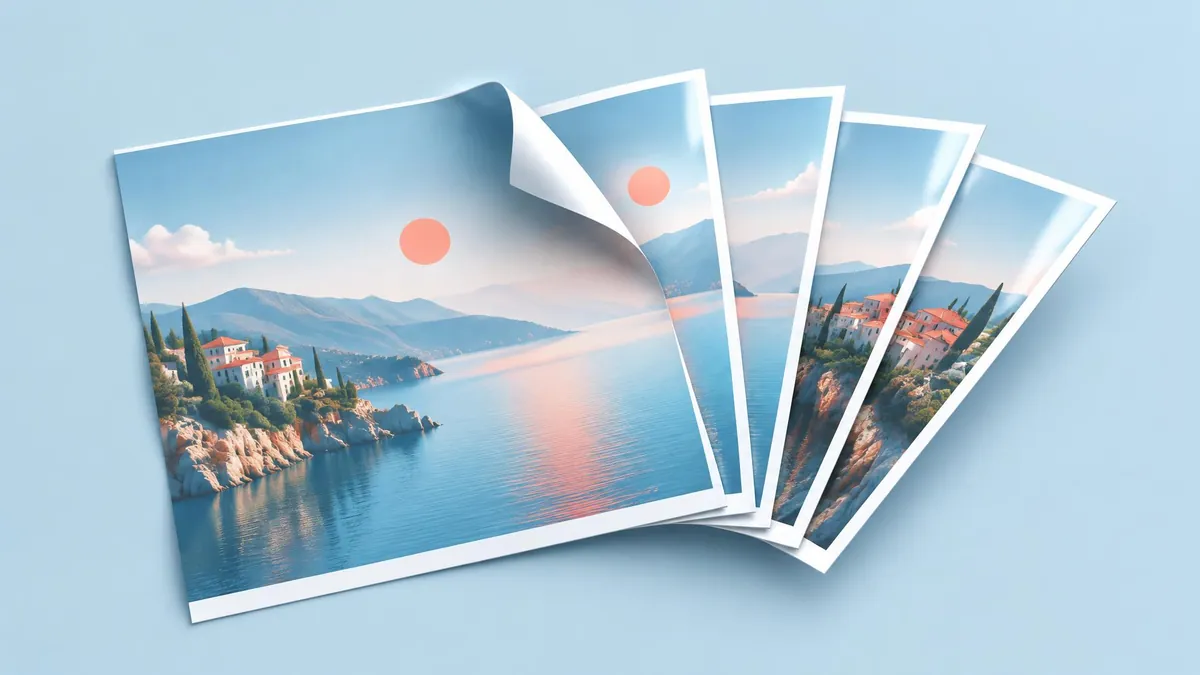
To convert PDF pages into JPG files, open the document in Adobe Acrobat and choose Convert, Image format, then JPEG. Save the output and check that every required page has become a separate image. This renders whole pages; it is not the same as extracting photographs embedded inside them.
To convert PDF pages into JPG files, open the document in Adobe Acrobat and choose Convert, Image format, then JPEG. Save the output and check that every required page has become a separate image. This renders whole pages; it is not the same as extracting photographs embedded inside them.
Choose page conversion, not image extraction
A page export creates a picture of the complete page, including its text, margins, charts, and photos. That is useful when an upload form accepts images rather than PDFs, or when a page needs to appear in a presentation. Adobe documents that each PDF page is saved as a separate JPEG file. (Adobe Help)
Image extraction has a different purpose: it saves individual raster pictures from within a page. If you want a product photo without the invoice around it, use extraction instead. In Acrobat's export workflow, leaving Export All Images unselected produces page images rather than separate embedded pictures. (Adobe Help)
Before starting, decide whether you need every page, a short selection, or just a photograph. That decision prevents exporting a hundred-page report when only its cover is needed.
Convert a PDF to JPEG in Acrobat
The following is Adobe's documented desktop workflow. Your account must have access to the conversion feature; do not assume that installing a PDF reader grants every editing or export function.
- Save an untouched copy of the source PDF.
- Open the working copy in Acrobat.
- Select Convert from the global bar.
- Select Image format in the Convert panel.
- Choose JPEG, not JPEG 2000, if the destination explicitly asks for JPG or JPEG.
- Select the conversion button, which may read Convert to JPEG or Convert to JPG.
- Choose a destination folder and save.
- Open the exported images and compare them with the PDF. (Adobe Help)
JPG and JPEG refer to the same everyday image format; the extension alone is not a quality setting. Keep the original PDF because the exported image no longer behaves like a structured document. A picture of text is not equivalent to selectable document text.
Use a new output folder for each document. Rename the files consistently, such as a shared descriptive stem followed by zero-padded page numbers. Check the content rather than trusting alphabetical order, especially if filenames contain a mix of one- and two-digit numbers.
Export only the pages you actually need
For a large document, first create a PDF containing the required pages. MayreDukaan's PDF splitter extracts pages or ranges as PDFs; it does not convert them to JPG. Export that smaller PDF through Acrobat afterward.
If ranges are unfamiliar, the PDF splitting guide explains how to identify the correct physical pages. A printed page label can differ from its position in the file when a document includes a cover or introductory pages.
For example, if the desired certificate is the sixth thumbnail but carries the printed number four, select its actual file position when preparing a subset. Verify the resulting PDF before doing the image conversion.
Balance detail against file size
A larger image is not automatically a better image. Increasing output resolution can preserve more detail from vector text or drawings, but it cannot reconstruct detail that was absent from a low-quality scan. Choose settings based on the final use, then inspect a sample at the size a recipient will actually view it.
- For a form upload, prioritize readable small text and compliance with its pixel and file-size limits.
- For a slide, check the image at presentation size, not only in a zoomed thumbnail.
- For printing, keep fine lines and small characters legible in a proof.
- For archiving, retain the PDF rather than treating JPG as a replacement master.
If you need a smaller image after conversion, make a separate delivery copy. Repeatedly opening and saving JPEG with lossy compression can introduce visible artifacts. The image compression guide explains how to assess visible changes rather than promising lossless reductions.
Check the result before sending it
Compare the page count with the number of intended outputs. Open the first page, last page, and any pages containing dense tables or small footnotes. Look for missing margins, softened signatures, faint stamps, and unexpected page rotation.
If the destination rejects the file, read its exact requirements. A file may exceed a byte limit even when its dimensions are correct. Conversely, a tiny file can still have unsuitable dimensions. Renaming a PDF extension to .jpg does not perform a conversion.
Do not use a screenshot as the default substitute for exporting. A screenshot captures the displayed view and can include interface elements or omit content outside the screen. Use it only when a rough visual reference, rather than a dependable page image, is acceptable.
Handle private documents carefully
Review where the chosen application stores its input and output before processing identity documents, health records, or confidential business files. A browser-based converter may involve an upload even if the conversion looks instantaneous. Use an approved workflow for restricted material and obtain permission before processing someone else's document.
MayreDukaan has no PDF-to-JPG converter. Its PDF splitter can help reduce the input to relevant pages, but the actual image export in this guide happens in Adobe software. Keep the two operations separate when explaining the workflow to colleagues.
Frequently asked questions
Does one PDF become one JPG?
Not normally for a multipage document: Adobe documents separate JPEG outputs for each page. Check that the output count matches the pages you intended to export.
Is extracting images the same as PDF to JPG?
No. Page conversion renders the whole page; image extraction targets individual raster pictures embedded in it.
Can MayreDukaan convert a PDF to JPG?
No. Its PDF splitter can prepare a smaller PDF, but use the official Adobe export workflow for the JPG conversion.
Frequently asked questions
Does one PDF become one JPG?
Not normally for a multipage document: Adobe documents separate JPEG outputs for each page. Check that the output count matches the pages you intended to export.
Is extracting images the same as PDF to JPG?
No. Page conversion renders the whole page; image extraction targets individual raster pictures embedded in it.
Can MayreDukaan convert a PDF to JPG?
No. Its PDF splitter can prepare a smaller PDF, but use the official Adobe export workflow for the JPG conversion.
Useful on MayreDukaan
Sources
- Adobe Help: Convert PDF to JPEG or JPEG 2000
- Adobe Help: Export images or selections from a PDF
- Adobe Help: Rotate, move, delete, and renumber PDF pages
Facts last checked against these sources on 16 Nov 2026, 07:00 Pakistan time.
Images: Illustration created for MayreDukaan (not a photo)
More trending articles
 PDF and Document ToolsAdd Page Numbers to a PDF Without Covering Content16 Nov 2026 · 5 min read
 PDF and Document ToolsExtract Images from PDFs Without Saving Whole Pages16 Nov 2026 · 5 min read
 PDF and Document ToolsPDF to Excel: Import Tables and Verify the Data16 Nov 2026 · 5 min read
 PDF and Document ToolsPowerPoint to PDF: Export Slides or Handouts Safely16 Nov 2026 · 5 min read