
Audio Sample Rate vs Bitrate: Fix Conversion Choices
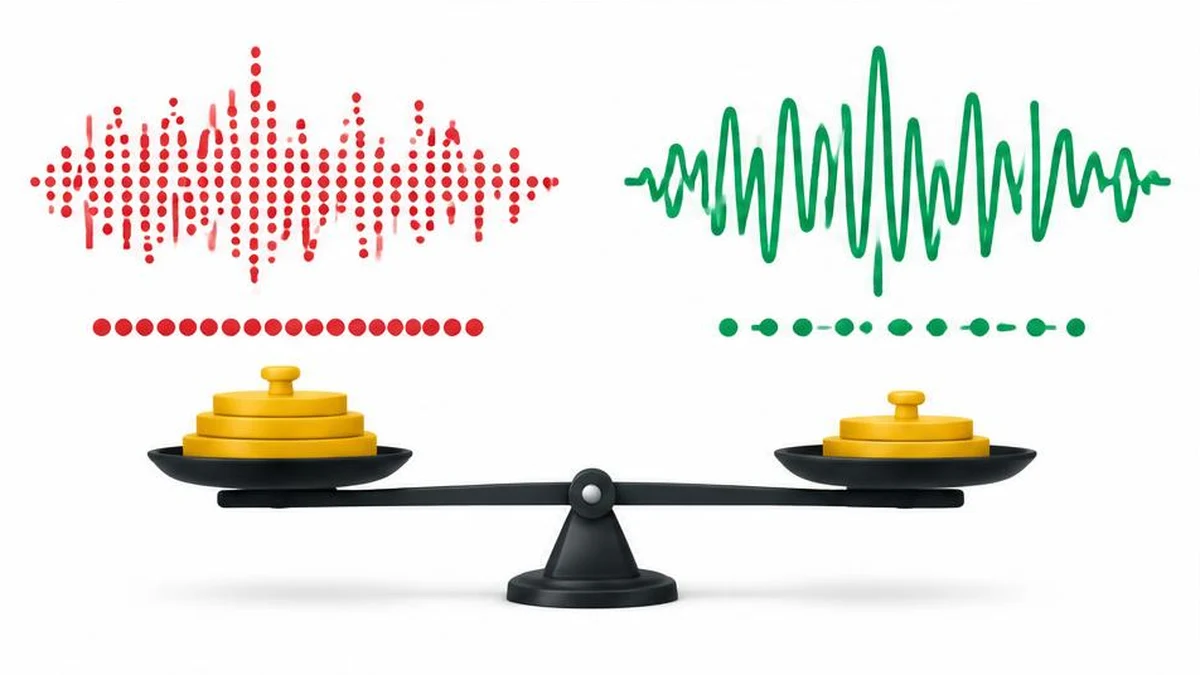
Audio quality settings describe different parts of the signal and codec. Learn which numbers affect sampling, compression and file size, and why converting a lossy source to WAV cannot recreate lost detail.
Three numbers describe different things
Sample rate is the number of samples per second per channel, usually expressed in hertz or kilohertz. Bit depth describes the precision of integer PCM samples. Bitrate describes bits per second in an encoded stream. They are related in uncompressed PCM, but they are not interchangeable quality controls.
A 48 kHz sample rate does not mean 48 kb/s. A 320 kb/s compressed file is not necessarily better than every file with a smaller number, because codec, content, channel count and source quality also matter. Begin by identifying the receiving application's requirements rather than selecting the largest available values.
Relate the numbers to file size carefully
For uncompressed PCM, the audio-data rate equals sample rate multiplied by bits per sample multiplied by channel count. At 48,000 samples per second, 16 bits and two channels, that is 1,536,000 bits per second. One minute of audio data is 11,520,000 bytes before container overhead.
For a constant 192,000-bit-per-second compressed audio stream, one minute is approximately 1,440,000 bytes before overhead. Variable-bitrate encoding and metadata mean a real file need not match that estimate exactly. Container size is not a direct quality score.
| Property | What changing it does | What it cannot promise |
|---|---|---|
| Sample rate | Changes the sampling grid and supported frequency range | Restoration of information absent from the source |
| PCM bit depth | Changes quantization precision | Repair of an already distorted recording |
| Compressed bitrate | Changes the codec's data budget | Identical quality across codecs and content |
| Channel layout | Changes channel representation or mixing | Lossless conversion of every spatial arrangement |
What resampling actually means
FFmpeg documents resampling, channel-layout rematrixing and sample-format conversion as distinct operations supported by libswresample. Resampling calculates a representation at another sample rate; it is not merely changing a filename or editing a label.
Do not confuse proper resampling with telling a player to interpret unchanged samples at the wrong rate. The latter can change playback speed and pitch. If a conversion sounds fast, slow or unusually pitched, inspect whether sample-rate interpretation was mishandled rather than assuming the bitrate is responsible.
Avoid unnecessary sample-rate changes. When a destination requires a particular rate, use an appropriate resampler and verify the output. FFmpeg's documentation describes options and available engines, but support for a particular option depends on the build; upstream documentation is not proof that every browser package includes every feature.
Know the local converter's controls
The audio converter exposes output-format choices, not user-selectable sample-rate, bitrate or bit-depth controls. Source inspection confirms format-specific FFmpeg arguments. Do not instruct readers to select a 48 kHz menu or a custom bitrate slider that this interface does not have.
The inspected presets include MP3 encoding at 192 kb/s and WAV output using signed 16-bit little-endian PCM. These settings describe the selected encoder arguments, not a guarantee that every possible input will convert successfully or satisfy every destination's requirements. Check the resulting file with an appropriate media-information tool when a specification is strict.
The MP3 to WAV converter is useful when an editor or device requires WAV. It decodes the MP3 and writes an uncompressed representation; it does not reconstruct detail discarded by the earlier lossy encoding. A much larger output can be entirely expected without representing a quality improvement.
Diagnose before converting again
- Listen to the original and confirm that the defect is not already present.
- Check duration, channels, sample rate, codec and bitrate with a suitable inspector.
- Read the destination's actual supported-format requirements.
- Make one conversion from the best available source.
- Compare duration, clipping, channel balance and difficult passages.
- Test playback in the destination application or device.
For rough storage planning, the MB to GB converter can help compare file-size units after you have measured the actual output. It is not an audio analyzer and cannot infer a recording's codec or sample rate.
Keep a clean master
Preserve the highest-quality source you legitimately have. Repeated lossy conversions can introduce additional degradation, even when a later file uses a higher bitrate. Use lossless or uncompressed intermediates where an editing workflow requires them, and make the delivery encode from the master. If precise settings are mandatory and the simple interface does not expose them, choose a tool that does rather than pretending a format name specifies every audio parameter.
References
Frequently asked questions
Is sample rate the same as bitrate?
No. Sample rate counts samples per second per channel; bitrate counts encoded bits per second.
Does MP3 to WAV restore quality?
No. It creates an uncompressed representation of the decoded audio, not missing source information.
Can I set a custom sample rate here?
The inspected interface exposes format choices rather than custom sample-rate controls.
Why is WAV much larger?
Uncompressed PCM stores samples directly; its data rate depends on sample rate, bit depth and channels.
Does a higher bitrate always sound better?
Not across different codecs, sources and channel layouts. Compare the actual content and delivery requirements.
What presets were verified?
The inspected command builder sets MP3 to 192 kb/s and WAV to pcm_s16le. Output acceptance still needs checking for the particular input and destination.
Useful on MayreDukaan
Sources
Facts last checked against these sources on 17 Nov 2026, 06:40 Pakistan time.
Images: Original AI-generated illustration by MayreDukaan; conceptual, not a product screenshot.
More trending articles
 Shopping and DealsUK Fake Online Shops: Check the Seller Before Paying17 Nov 2026 · 5 min read
 AI and SoftwareVerify an AI Summary Against the Original Document17 Nov 2026 · 5 min read
 Artificial IntelligenceGemini Activity Privacy: History, Training and Deletion17 Nov 2026 · 5 min read
 AI and SoftwarePrepare a Spreadsheet for Safer Gemini Analysis17 Nov 2026 · 4 min read