
Merchant Center Image Rejections: Diagnose Before Upload
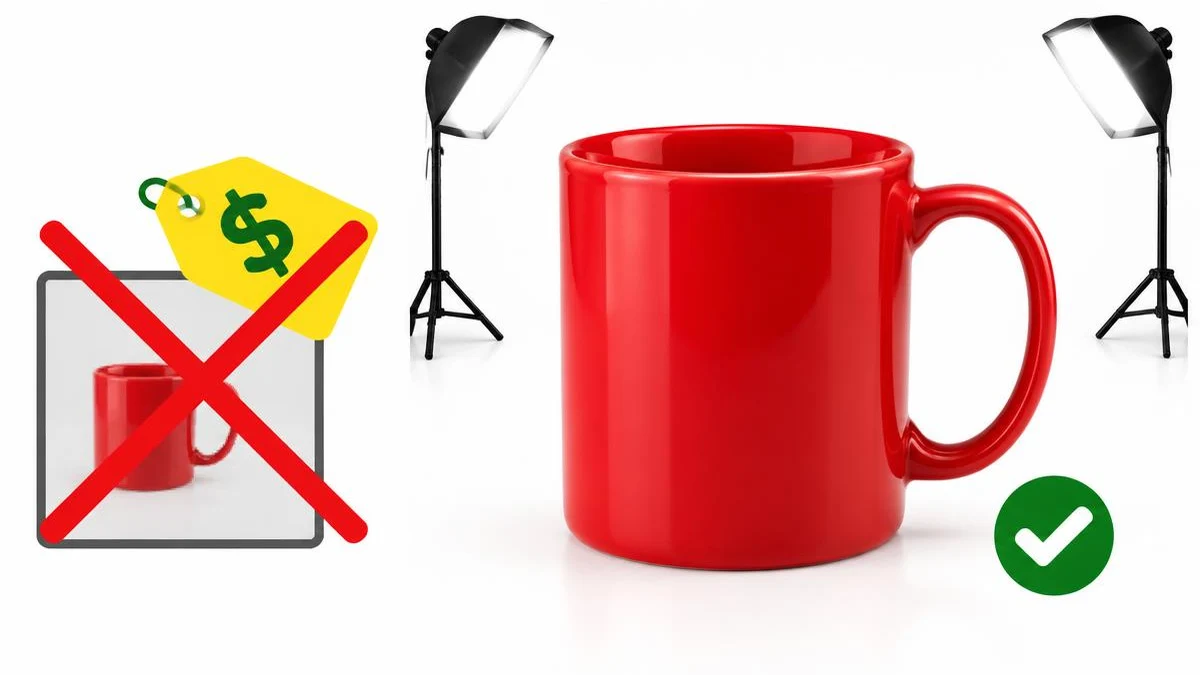
Save the exact Merchant Center message, affected item ID, image URL and the time you observed the issue. A product photo can fail because of the content, its technical properties or Google’s ability to retrieve it. Editing the background cannot repair an inaccessible server. Repeatedly uploading unrelated replacements makes it harder to identify which change helped. Keep one original file and a short revision log before attempting a repair.
Begin with the issue, not the editing tool
Save the exact Merchant Center message, affected item ID, image URL and the time you observed the issue. A product photo can fail because of the content, its technical properties or Google’s ability to retrieve it. Editing the background cannot repair an inaccessible server. Repeatedly uploading unrelated replacements makes it harder to identify which change helped. Keep one original file and a short revision log before attempting a repair.
Check the product and variant first
Compare the image with the product title, selected size or color, landing page and actual stock. A clear photo of a blue bag is not a satisfactory main image for an item presented as a red bag. Google’s product data specification requires accurate product information; visual accuracy belongs in that same review. Check included accessories and pack quantities, too. A lifestyle arrangement should not make shoppers believe that props or extra items are included in the purchase.
Distinguish requirements from recommendations
Google’s image best-practice guidance encourages high-quality images, useful alternate angles and a clear main view. It also distinguishes recommended presentation from technical rules and troubleshooting. Read the current linked requirements for the attribute and your item rather than treating every recommended dimension as a universal minimum. This guide deliberately avoids freezing a pixel threshold that may differ by program or change. A larger canvas does not create detail that was absent from the original photograph.
Inspect the file without overprocessing it
Use image info to check width, height, file size and format. If the source has enough detail but the export has unsuitable dimensions, use the image resizer while preserving proportions. Inspect labels, edges and texture after export. Upscaling a tiny thumbnail may satisfy a dimension setting while leaving a visibly poor product image. Request a better original or take a new photograph when the important details are already blurred.
Remove distractions without changing the goods
Google identifies promotional overlays as a common image problem. Keep sale slogans and added watermarks out of the main image asset where prohibited by the applicable image rules. A background removal tool may help isolate a product, but inspect transparent handles, fine threads, shadows and pale edges afterward. Do not erase a product’s own identifying features or alter its color to make the image look cleaner. Editing should improve presentation, not create a different product.
Review framing and retrieval separately
Use the image cropper only when its available framing preserves the whole relevant product. Cutting off a handle or showing one item from a multipack can mislead customers. Separately ask whoever manages the website to check public image access, the actual response, crawler restrictions and whether the feed points to the intended file. A URL that works in a signed-in browser may not demonstrate public crawlability. Image editing tools do not test Googlebot access or submit a review request.
Resubmit with an evidence trail
Update the correct item through your existing Merchant Center workflow, then monitor the issue status rather than promising an immediate approval. Keep the original message beside the revised file and note the one or two changes made. If the problem persists, investigate the remaining category instead of cycling through cosmetic edits. Additional angles can help customers understand a product, but they do not excuse an inaccurate main image or cure unrelated account and policy issues. Approval and serving remain Google’s decisions.
Final review checklist
- Save the exact issue and affected image URL.
- Compare the image with the offered variant.
- Separate file repair from server-access investigation.
Evidence and scope
Research checked on 17 November 2026. The linked primary guidance supports this workflow; illustrative scenarios are not measured market results. Recheck the current official requirements before a consequential decision. 1 2
Frequently asked questions
Should I resize every rejected image?
No. First identify whether the issue concerns dimensions, content, accuracy or retrieval.
Can a white background guarantee approval?
No. Background presentation is only one aspect of eligibility.
Must the image match the variant?
The image and other product data should accurately represent the offered variant.
Will removing a watermark fix crawl errors?
No. Server access and crawler restrictions require a separate investigation.
Can these tools submit a review?
No such integration is established by the tool inventory.
Useful on MayreDukaan
Sources
Facts last checked against these sources on 17 Nov 2026, 06:40 Pakistan time.
Images: Original AI-generated illustration by MayreDukaan; conceptual, not a product screenshot.
More trending articles
 Shopping and DealsUK Fake Online Shops: Check the Seller Before Paying17 Nov 2026 · 5 min read
 AI and SoftwareVerify an AI Summary Against the Original Document17 Nov 2026 · 5 min read
 Artificial IntelligenceGemini Activity Privacy: History, Training and Deletion17 Nov 2026 · 5 min read
 AI and SoftwarePrepare a Spreadsheet for Safer Gemini Analysis17 Nov 2026 · 4 min read