
Convert Multiple Images at Once and Download a ZIP
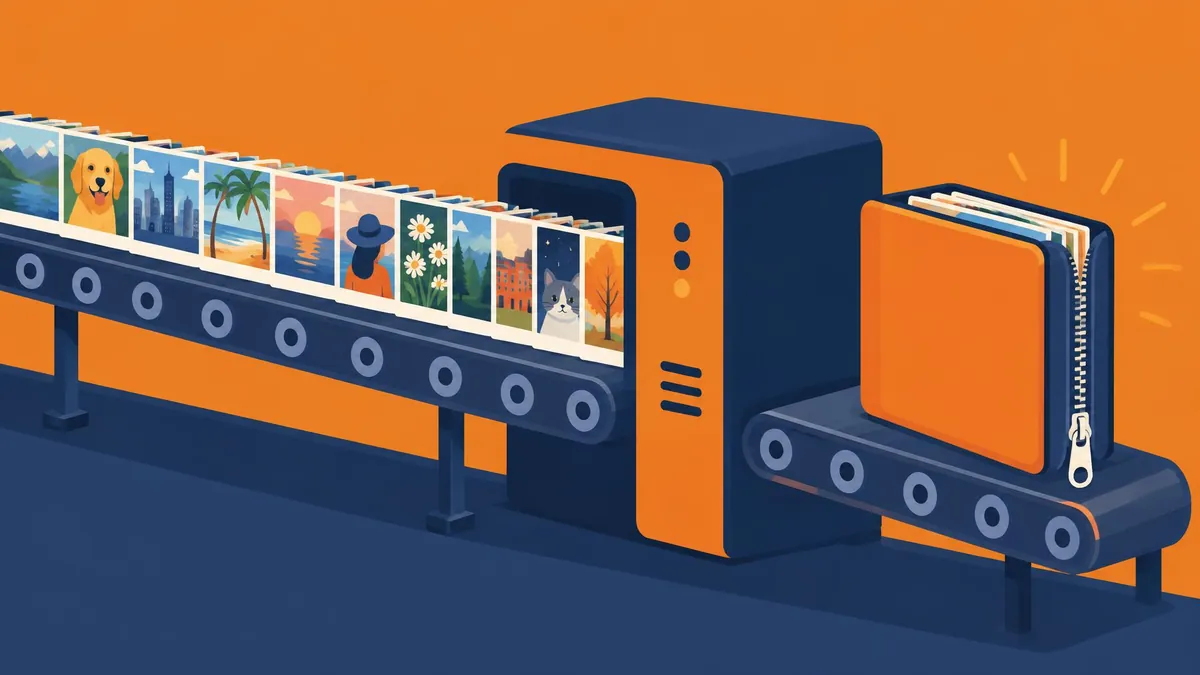
To convert multiple images at once, open the MayreDukaan converter for your format pair, select several matching source files, choose any available quality setting and press Convert. After at least two images finish successfully, Download ZIP appears. This capability is confirmed in the shared image-converter code: it accepts multiple files and builds ZIP downloads from converted results.
To convert multiple images at once, open the MayreDukaan converter for your format pair, select several matching source files, choose any available quality setting and press Convert. After at least two images finish successfully, Download ZIP appears. This capability is confirmed in the shared image-converter code: it accepts multiple files and builds ZIP downloads from converted results.
“At once” means one batch workflow, not that every picture is encoded simultaneously. The queue runs sequentially, which makes it important to wait for every expected result before downloading the archive.
Pick the correct batch converter
The batch interface is shared by JPG to PNG, PNG to JPG, WebP to JPG, AVIF to JPG, HEIC to JPG, SVG to PNG, JPG to WebP, PNG to WebP and BMP to PNG. Each route still has a specific input format and output format.
For website photo derivatives, use JPG to WebP. For already transparent graphics, use PNG to WebP. If an upload requires JPG and your originals are PNGs, use PNG to JPG, remembering that transparent areas become white.
Do not treat the drop area as a universal mixed-format processor. Although it can receive several dropped files, the page's conversion rules and error messages are designed around its declared source format. Organize your source folder by format and process each group on the matching page.
For help choosing the destination format, use the existing image-format comparison. Batch automation saves clicks, but it cannot decide whether a receiving website actually accepts WebP or requires JPG.
Prepare filenames before converting
The output name is the original name with its extension replaced. This is convenient, but it creates an important archive risk: photo.jpg and photo.jpeg both become photo.webp on a JPG-to-WebP page.
The ZIP code adds entries by output filename. Duplicate names can replace earlier entries, leaving fewer archive files than successful rows. Rename conflicting originals before uploading them into the local converter interface. Distinct product names or sequence numbers are safer than several files called image.
Keep an untouched source folder and a separate output folder. If you are preparing pictures for a client or catalog, write down the expected number of results before starting. That gives you something concrete to compare with the extracted archive rather than relying on the ZIP's existence as proof of completeness.
Run the batch step by step
- Open the converter matching your source and destination formats.
- Select several supported files in the picker, or drag them into the drop area.
- Review the filenames in the queue for duplicates or mistakes.
- Set the shared quality if the page exports JPG or WebP. PNG output has no quality slider.
- On SVG-to-PNG only, choose 1x, 2x or 4x scale if needed.
- Press Convert and let the sequential queue run.
- Review the status of every row and download any individual result you want to inspect.
- Use Download ZIP after two or more successful results exist.
- Extract the archive and compare its file count and contents with your source list.
The ZIP packages the encoded output files. It is not a substitute for image compression, and it does not make the pictures inside meet a website's byte limit. Each extracted image still has its own format, dimensions and size.
Understand the shared quality control
JPG and WebP exports have a 40–100% quality slider, initially at 90%. That value applies to conversions when they run; there are no individual per-row sliders.
A percentage is an encoder setting, not a guaranteed size reduction. A group of visually different photos may produce very different output sizes at the same setting. MDN explains that the canvas quality argument is used for formats supporting lossy compression.
Try a small representative group first. Inspect fine text, faces, gradients and edges, then decide whether the chosen setting suits the rest. If your goal is a specific upload allowance, read reducing image size in KB; the batch converters do not have a target-size field.
Changing settings does not redo completed rows
The conversion loop skips items already marked done. If you move the quality slider after a batch finishes, pressing Convert again will not create fresh versions of those completed outputs.
For a consistent second pass, download what you need, press Clear, re-add the original files, choose the new quality and run conversion again. Clear removes the queue and its result links, so save the first comparison before using it.
The same caution applies when you add new files after some have already finished. The new files can use your current settings while old results remain unchanged. Avoid accidentally delivering an archive with inconsistent settings by starting a clean batch when consistency matters.
Handle partial failures honestly
One corrupt or unsupported image may fail while others succeed. A ZIP can still become available when enough other rows have completed. Check the failed filename rather than assuming Download ZIP means the entire source selection converted.
Try opening the failed original in a compatible application. Confirm its real format, not just its extension. A browser must be able to decode ordinary sources; HEIC follows a separate local decoding path. Unusual source variants and damaged files may still need a fresh export from their originating application.
There is no fixed numeric batch limit in this component. Practical capacity depends on image dimensions, available memory and the device. Start with manageable groups on a phone, especially for very large photos. The code retains results for download and builds an archive in memory, so an enormous batch can be less reliable than several smaller ones.
Final archive checklist
Check that the extracted files have unique names, that the expected count is present, and that representative pictures open correctly. For transparent sources, inspect the background as well as visible detail. For uploads, test a file in the destination before committing to the entire batch.
The image conversion runs locally in your browser rather than posting the pictures to the site's conversion server. That does not mean the webpage itself works without any network requests. Keep original files backed up, verify the downloaded archive, and only then clean up temporary derivatives.
Frequently asked questions
Do these converters really offer ZIP download?
Yes. The shared image converter shows Download ZIP after at least two successful conversions.
Are all images processed simultaneously?
No. The tool processes a sequential queue within one batch workflow.
Why are files missing from my ZIP?
Check failed rows and duplicate output filenames; name collisions can replace archive entries.
Useful on MayreDukaan
Sources
Facts last checked against these sources on 16 Nov 2026, 06:47 Pakistan time.
Images: Illustration created for MayreDukaan (not a photo)
More trending articles
 International EntertainmentWhere to Watch TV Series: Find Legal Platforms16 Nov 2026 · 3 min read
 PDF and Document ToolsPowerPoint to PDF: Export Slides or Handouts Safely16 Nov 2026 · 5 min read
 Android and SmartphonesGalaxy S27 Ultra: What Is and Is Not Confirmed16 Nov 2026 · 5 min read
 PDF and Document ToolsWord to PDF: Export Documents Ready for Sharing16 Nov 2026 · 5 min read