
Replace Claimed YouTube Music Without Rights Shortcuts
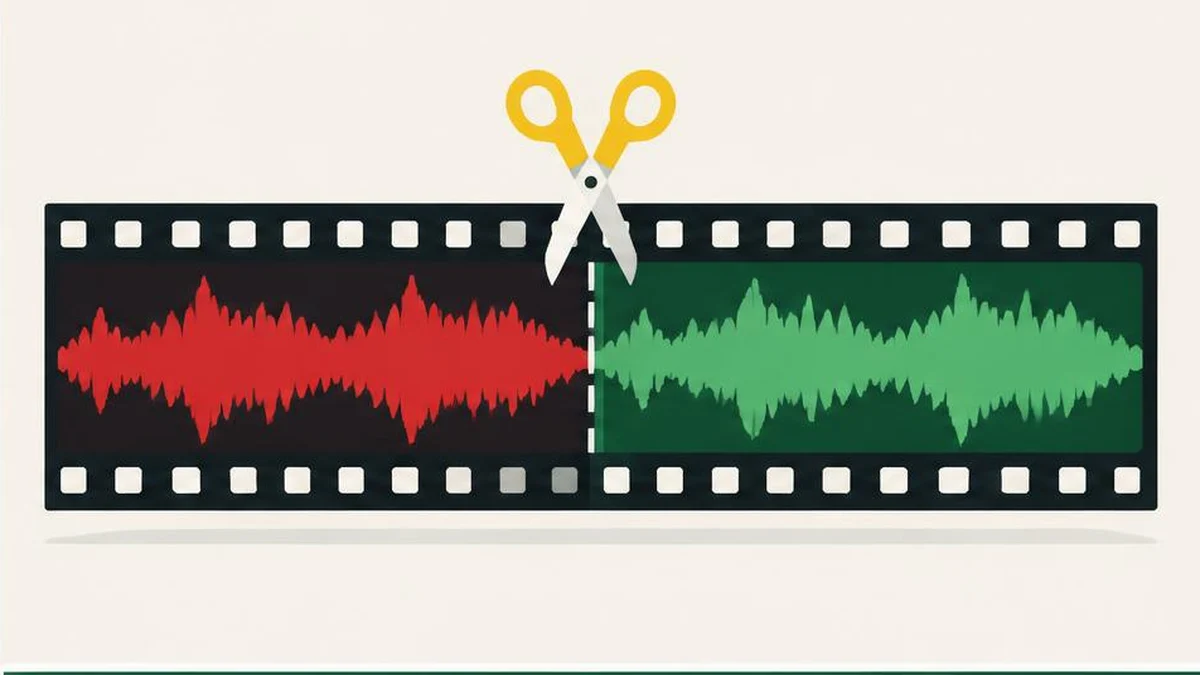
YouTube offers editing options that can remove claimed audio from an existing upload. They are tools for changing the content, not tricks for bypassing rights. Before saving, understand the claim, the replacement’s license, and the current limits on undoing Studio edits.
YouTube offers editing options that can remove claimed audio from an existing upload. They are tools for changing the content, not tricks for bypassing rights. Before saving, understand the claim, the replacement’s license, and the current limits on undoing Studio edits.
Begin with the actual audio claim
Open Studio and inspect the copyright notice for the affected video. Identify the claimed audio and its segment before opening an editor. A claim can affect monetization or viewing availability; the claims guide explains those effects. Changing one track does not necessarily resolve unrelated claims elsewhere in the video.
The current claimed-content editing guide lists Trim out segment, Replace song, and Erase song. Options depend on the claim and available workflow. Replacing audio is relevant to audio claims, not an automatic remedy for claimed visual footage.
Choose replacement rather than mere overlay
For the claim workflow, open Content, find the video’s notice, choose View details, and find the relevant claim under Take Action. If Replace song is offered, select a suitable track from the YouTube Audio Library workflow and preview it. Position the replacement and adjust its duration to cover the claimed material as required.
Simply adding another song on top of the original is not a reliable rights remedy. The official guide says that if claimed audio remains, the claim will not be removed. Review the displayed original-audio controls and coverage warnings carefully; do not assume all editor modes replace the same sounds.
There is also a general Studio Editor audio workflow documented in Add an audio track: Content, video, Editor, Audio, preview, Add, position, then Save. That general ability to add licensed music is not proof that an existing claim has been cleared.
Understand tool and eligibility limits
Use a computer for the documented audio replacement workflow; current help says the YouTube mobile app no longer changes a video’s audio track. The general audio-editor help limits the feature to videos shorter than six hours. It also warns that channels outside the YouTube Partner Program may be unable to save changes on videos with over 100,000 views.
The claim-removal guide additionally documents a generated instrumental replacement option available in most countries outside the European Economic Area. “Most countries” is not a complete worldwide availability list, so do not promise that option to every creator outside the EEA. This guide’s basic recommendation is to use the Audio Library option actually offered to the account, not to depend on a region-sensitive generated feature.
Read the selected track’s licensing information and any attribution conditions. YouTube permits Audio Library songs in monetized videos, but you should not generalize that into unrestricted permission for every song found elsewhere or every off-platform use.
Preview the whole consequence before saving
| Option | Main consequence to review |
|---|---|
| Replace song | Coverage of claimed audio and effect on dialogue |
| Erase song | Music separation may not succeed |
| Mute all sound in a claimed segment | Dialogue and other sounds also disappear |
| Trim out segment | Visual sequence and timing change |
Listen across the beginning and end of each edit, including narration, sound effects, and transitions. If music cannot be cleanly separated, choose only an alternative that leaves the video understandable. A claim-free segment with missing safety instructions is not a good publishing outcome.
The current pages state that since June 2025, saved Studio Editor changes cannot be undone using Revert to original. Retain your own original project and authorized source files before editing. Do not rely on a temporary preview as a backup or assume the old restoration button will return.
Keep format work separate from rights work
Use the audio converter only when your own authorized source audio needs a different format for production. The video converter similarly changes a file format; neither tool grants a license, checks Content ID, or removes a claim in Studio. No downloading of someone else’s video or audio is needed for this workflow.
Use text compare to review replacement-track attribution against the license record. YouTube’s copyright guidance remains relevant: credit alone does not supply permission.
After saving, wait for processing and reload the notice to confirm the resulting claim status. Processing time varies; there is no universal instant-clearance promise. If the claim remains, inspect coverage and other claims before taking another action. Do not change speed or pitch to evade matching, and do not file an unsupported dispute just because an edit failed.
Sources and verification
Official documentation read on November 17, 2026. This is a documentation-based guide, not a device test, channel experiment, or guarantee of availability.
- YouTube: Remove copyright-claimed content from videos
- 94316 — official YouTube Help
- 2797466 — official YouTube Help
- 6013276 — official YouTube Help
Frequently asked questions
Does adding music automatically clear a claim?
No. Claimed audio must be successfully removed or replaced and the resulting status checked.
Can I use the mobile app for this?
Current audio help directs creators to a computer and YouTube Studio.
Can I undo a saved Studio edit?
Current help says Revert to original cannot undo saved Editor changes as of June 2025.
Does converting MP3 to WAV create permission?
No. File conversion has no effect on licensing rights.
Will erase-song always preserve dialogue?
The song-only option aims to leave other audio, but music removal may fail. Preview carefully.
Is generated replacement music worldwide?
The official page says most countries outside the EEA, not universal availability.
Useful on MayreDukaan
Sources
- YouTube: Remove copyright-claimed content from videos
- 94316 — official YouTube Help
- 2797466 — official YouTube Help
- 6013276 — official YouTube Help
Facts last checked against these sources on 17 Nov 2026, 06:44 Pakistan time.
Images: Original AI-generated illustration by MayreDukaan; conceptual, not a product screenshot.
More trending articles
 YouTube Creator GuidesYouTube Copyright Claim vs Strike: Read the Notice17 Nov 2026 · 4 min read
 YouTube Creator GuidesYouTube AI Disclosure: Realistic Edits and Minor Changes17 Nov 2026 · 4 min read
 YouTube Creator GuidesYouTube Chapters Not Showing: A Troubleshooting Guide17 Nov 2026 · 4 min read
 YouTube Creator GuidesYouTube Title and Thumbnail Tests: Read the Results17 Nov 2026 · 4 min read