
SVG to PNG: Export Logos Without Clipping or Blur
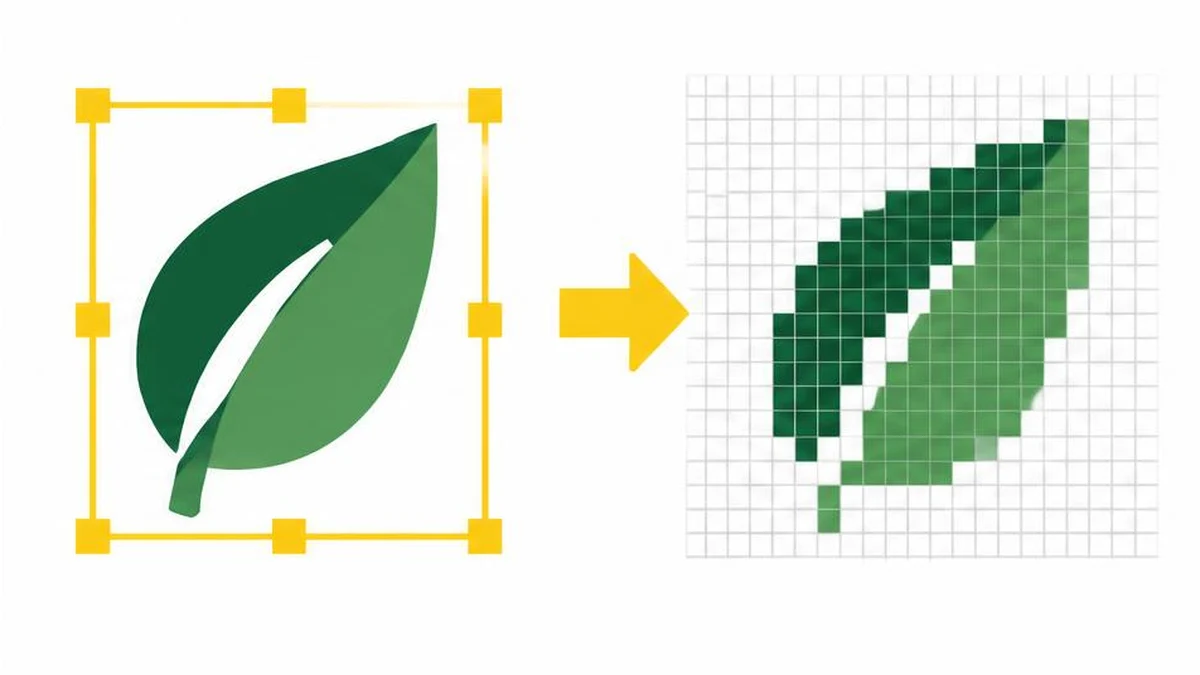
A sharp PNG export depends on the SVG viewport, its dependencies and the number of pixels rendered. Use this guide to separate source clipping from insufficient output resolution and inspect the actual result.
Solve the right export problem
A PNG is a raster image with a fixed pixel grid. SVG describes a graphic that a renderer draws into a viewport. When an exported logo looks wrong, identify whether content was clipped, a dependency failed to render, transparency changed the appearance, or the output simply has too few pixels for its display size.
These problems need different fixes. Increasing export scale cannot restore artwork outside a clipped source viewport. Resizing an already small PNG cannot reconstruct the original vector geometry. Keep the SVG master and produce fresh raster exports for the sizes you need.
Check the SVG viewport first
MDN documents the SVG element's width, height and viewBox attributes. The viewBox defines a user-coordinate rectangle that maps into the viewport. It is not a promise that every visible stroke, shadow or filter effect fits inside that rectangle.
Inspect the source artwork for objects extending beyond its intended bounds. Thick strokes and shadows may need additional room. Filter regions and clipping paths can also affect what appears. Repair those in the SVG or the authoring application before trying to compensate by adding blank pixels to a damaged raster export.
| Symptom | Likely area to investigate | Useful next check |
|---|---|---|
| One edge is cut off | Source bounds, clipping or filter region | Inspect SVG on a contrasting canvas |
| Text changes shape | Font availability or font dependency | Compare with the intended typography |
| Small output looks soft when enlarged | Insufficient raster dimensions | Render again from SVG at a larger scale |
| Part of the image is missing | Unsupported or external dependency | Make a self-contained export and test it |
What this converter renders
The SVG to PNG converter loads the file as an image, decodes it in the browser, draws it on a canvas and exports PNG. Source inspection confirms 1x, 2x and 4x scale choices for SVG. Output dimensions are calculated from the decoded image's natural dimensions multiplied by the selected scale, rounded to whole pixels.
This is not a full vector editing application. There is no source-code logic that repairs a viewBox, embeds missing fonts, expands filter regions or reconstructs external images. Rendering behavior depends on the browser's handling of the SVG as an image, which can differ from opening the document as an interactive SVG page.
If an SVG lacks useful intrinsic dimensions, do not assume a scale label corresponds to a particular width. Inspect the actual exported pixel size. A 2x setting describes a multiplier, not a guaranteed 2,000-pixel or print-ready output.
Choose pixels for the intended placement
Start from the display box. A logo shown at 300 CSS pixels wide may need a 600-pixel raster version for a 2x-density placement. This is a planning example, not a universal requirement for every platform. Check the destination's size limits, responsive behavior and any automatic recompression.
Use image information to inspect the PNG's width, height, file size and format. Do not judge readiness by a filename containing large or retina. Verify the dimensions in the actual output and compare them with the space where the logo will appear.
When a destination needs a smaller derivative, the image resizer can be part of the preparation workflow. Prefer generating enough pixels from the SVG first; repeated resizing of raster derivatives is not a substitute for keeping the vector master.
Inspect transparency and edges
PNG supports transparency. In the inspected SVG conversion path, the canvas is not filled with the white background used for JPEG output. Transparent areas can therefore remain transparent in the PNG, subject to what the SVG itself draws.
Check the logo over both a light and a dark background. Pale artwork can appear absent on white, while a built-in white rectangle can hide the transparency you expected. These are source or presentation issues, not necessarily a failed PNG encoder.
Final export checklist
- Confirm that all intended artwork fits the source bounds.
- Remove or embed dependencies needed for reliable image rendering.
- Choose a scale that supplies enough output pixels for the placement.
- Verify the exported dimensions and transparency.
- Inspect at normal display size as well as zoomed in.
- Test the file in the actual destination, especially around fine strokes and small text.
Keep separate exports for small icons and larger branding where necessary. Some logos need design simplification at tiny sizes; additional pixels alone cannot make every detail legible.
References
Frequently asked questions
Does 4x guarantee a sharp logo everywhere?
No. It multiplies decoded dimensions; clipping, missing dependencies and tiny design details can still cause problems.
Can this converter repair a viewBox?
No repair stage exists in the inspected implementation. Adjust the SVG source or authoring document.
Why does exported text look different?
Font availability or image-context rendering can differ. Compare dependencies and use a self-contained source where appropriate.
Does PNG retain transparency?
PNG supports transparency, and the inspected SVG-to-PNG canvas path does not add a white JPEG-style fill.
Should I enlarge a small PNG or re-export SVG?
Re-export from SVG when available so the renderer can draw the vector geometry at the target resolution.
How can I confirm the real export size?
Inspect the downloaded PNG’s pixel dimensions rather than relying on the scale label or filename.
Useful on MayreDukaan
Sources
Facts last checked against these sources on 17 Nov 2026, 06:40 Pakistan time.
Images: Original AI-generated illustration by MayreDukaan; conceptual, not a product screenshot.
More trending articles
 Shopping and DealsUK Fake Online Shops: Check the Seller Before Paying17 Nov 2026 · 5 min read
 AI and SoftwareVerify an AI Summary Against the Original Document17 Nov 2026 · 5 min read
 Artificial IntelligenceGemini Activity Privacy: History, Training and Deletion17 Nov 2026 · 5 min read
 AI and SoftwarePrepare a Spreadsheet for Safer Gemini Analysis17 Nov 2026 · 4 min read