
Image resolution and DPI explained
By MayreDukaan Research · Researched 2026-11-17
Image resolution becomes easier to understand when you separate the pixel grid from its physical output size. Pixel dimensions describe how many pixels the image contains across and down. PPI, or pixels per inch, describes how densely those pixels are assigned to a printed image. At a fixed pixel count, changing that density changes the physical print dimensions rather than inventing more image information. [1](https://helpx.adobe.com/photoshop/desktop/crop-resize-transform/resize-adjust-resolution/image-size-resolution-and-resampling.html)
DPI means dots per inch and is an output-resolution unit, not another name for the total number of pixels in an image. The graphic keeps the terms separate and then explains resampling, the operation that actually adds or removes pixels. CSS also defines resolution units, but screen CSS units should not be read as literal physical measurements. [2](https://developer.mozilla.org/en-US/docs/Web/CSS/Reference/Values/resolution)
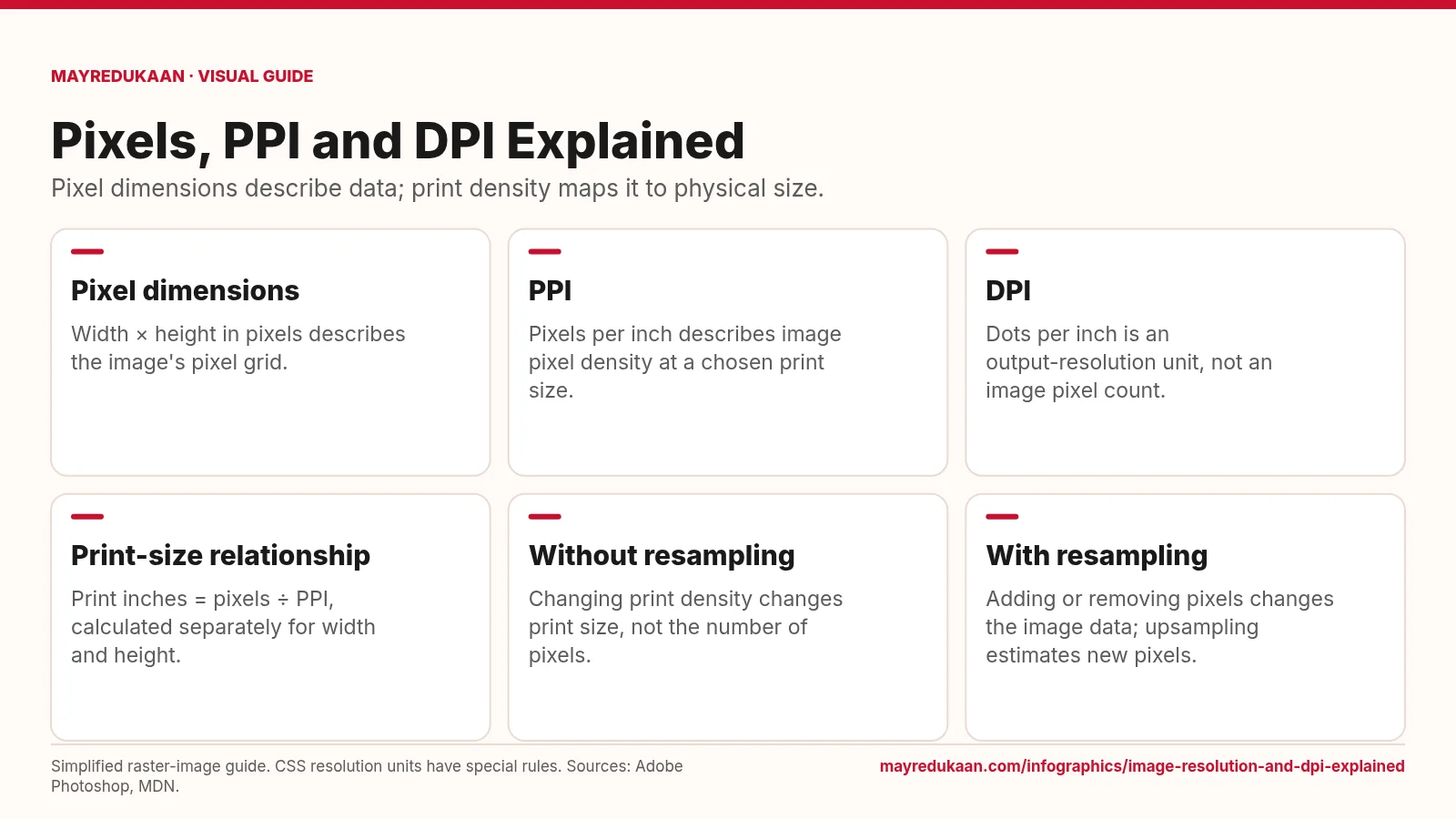
What the diagram shows
- Pixel dimensions: Width × height in pixels describes the image's pixel grid.
- PPI: Pixels per inch describes image pixel density at a chosen print size.
- DPI: Dots per inch is an output-resolution unit, not an image pixel count.
- Print-size relationship: Print inches = pixels ÷ PPI, calculated separately for width and height.
- Without resampling: Changing print density changes print size, not the number of pixels.
- With resampling: Adding or removing pixels changes the image data; upsampling estimates new pixels.
Simplified raster-image guide. CSS resolution units have special rules. Sources: Adobe Photoshop, MDN.
Distinguish dimensions from density
The first card describes the pixel grid using width multiplied by height. Those dimensions identify the image data rather than a paper size. The next two cards name different density units: PPI counts image pixels per inch at the chosen print size, while DPI means dots per inch for output resolution. Do not substitute either density number for the image's pixel count. Adobe treats pixel dimensions, resolution and physical size as linked properties. MDN additionally notes that CSS resolution units on screens relate to CSS inches, centimeters or pixels, so they are not reliable statements of literal physical screen measurements. [1](https://helpx.adobe.com/photoshop/desktop/crop-resize-transform/resize-adjust-resolution/image-size-resolution-and-resampling.html) [2](https://developer.mozilla.org/en-US/docs/Web/CSS/Reference/Values/resolution)
Use the print-size relationship
The fourth card gives the relationship as print inches equals pixels divided by PPI. Apply it separately to the image's width and height rather than dividing a total pixel count by a density. The fifth card explains what happens when resampling is disabled: the same pixels are redistributed over a different physical size. Increasing the print density reduces that size, while decreasing the density increases it. Adobe's example uses a 400 by 400 pixel image: it prints at 4 by 4 inches at 100 PPI or 2 by 2 inches at 200 PPI, without changing its pixel dimensions. [1](https://helpx.adobe.com/photoshop/desktop/crop-resize-transform/resize-adjust-resolution/image-size-resolution-and-resampling.html)
Recognize what resampling changes
The last card describes a different operation: resampling adds or removes pixels, changing the image data itself. Upsampling estimates new pixel values when dimensions increase; it cannot recreate detail that was absent from the original. This is why raising a resolution setting must not be confused with recovering a sharper original capture. Without resampling, changing the print density only adjusts its relationship with physical size. With resampling, inspect the resulting image because the operation can affect sharpness and introduce artifacts. Decide whether you need a different print size, different pixel dimensions, or both before changing the controls in an image editor. [1](https://helpx.adobe.com/photoshop/desktop/crop-resize-transform/resize-adjust-resolution/image-size-resolution-and-resampling.html)
Key facts
- Pixel dimensions express image width and height in pixels.
- PPI stands for pixels per inch.
- DPI stands for dots per inch.
- Without resampling, changing print resolution preserves the image's pixel dimensions.
- Upsampling estimates additional pixels rather than recovering absent original detail.
Frequently asked questions
Does changing PPI always change the pixel count?
No; with resampling disabled, pixel dimensions remain unchanged and physical print size adjusts.
How do I calculate print width?
Divide the image width in pixels by the intended PPI to obtain width in inches.
Does upsampling restore missing detail?
No; upsampling estimates new pixels and cannot add detail that was not in the original image.
Related free tools
Related comparisons
Sources
- Adobe: Image size, resolution, and resampling — accessed 2026-11-17
- Adobe: Printed image resolution — accessed 2026-11-17
- MDN: CSS resolution data type — accessed 2026-11-17
More visual guides
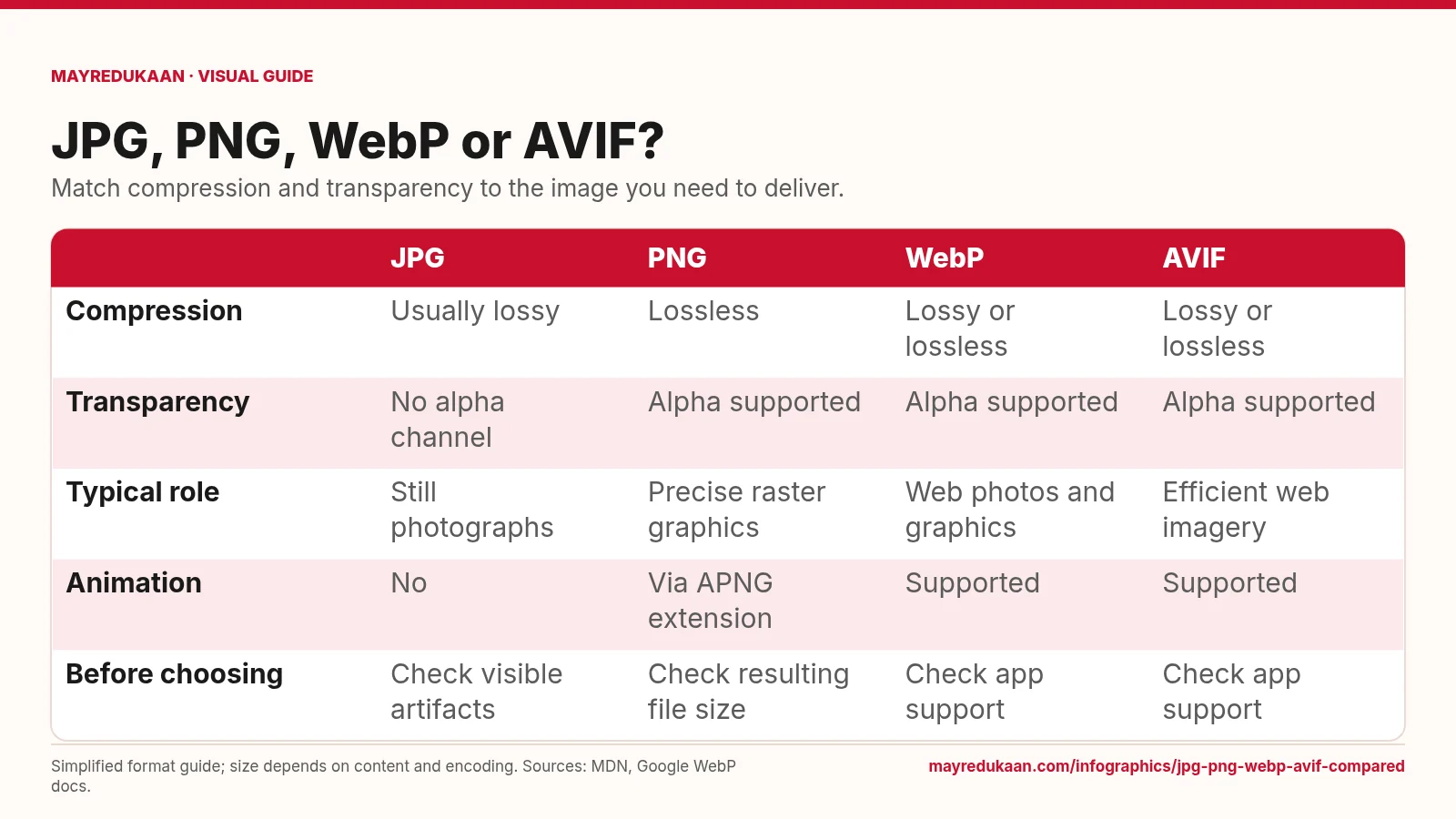
JPG, PNG, WebP and AVIF compared
Choose a format by the features your image needs, not by an assumed file-size ranking.
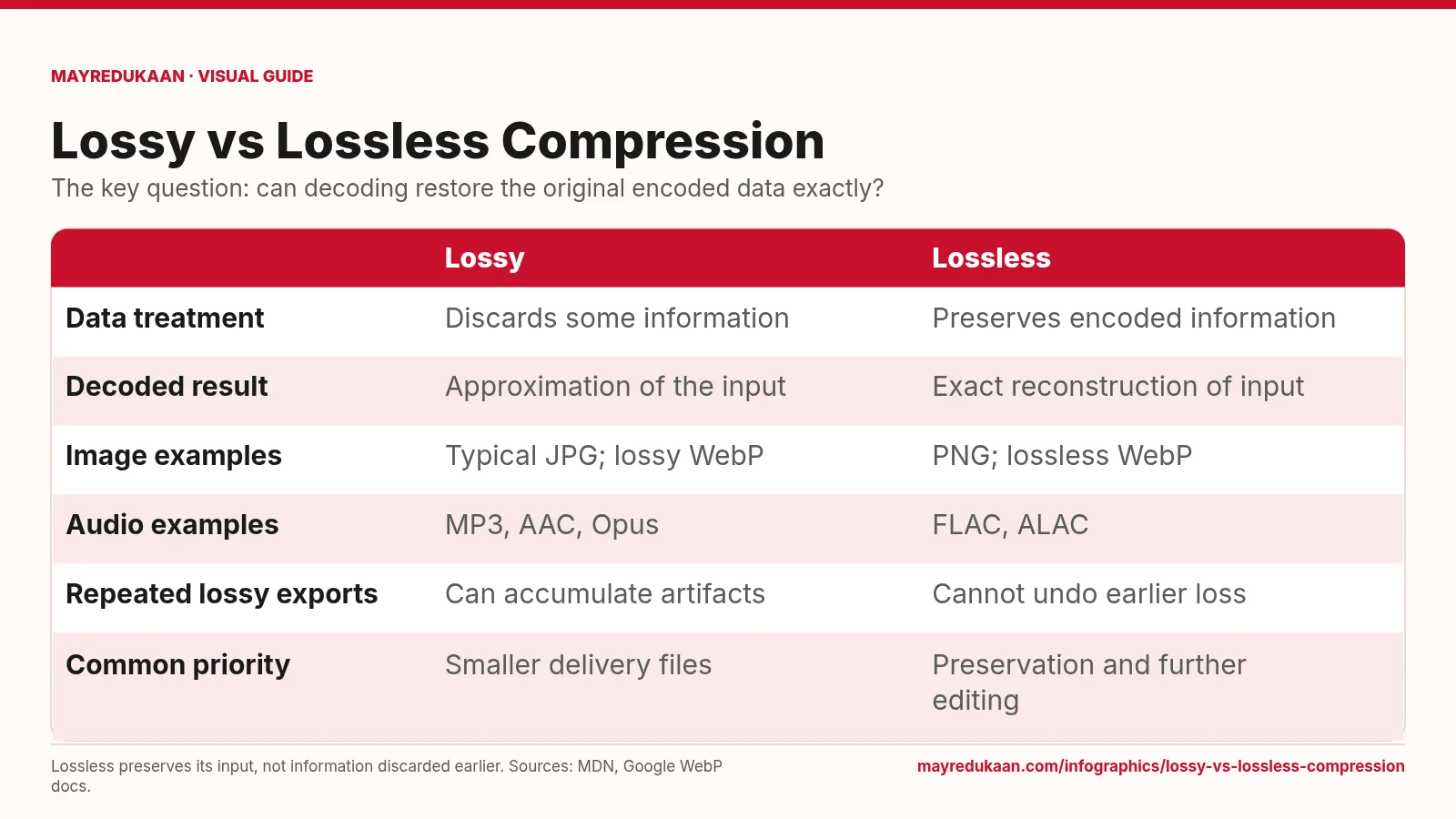
Lossy versus lossless compression
Lossless compression reconstructs its input exactly, but cannot repair information that was already discarded.
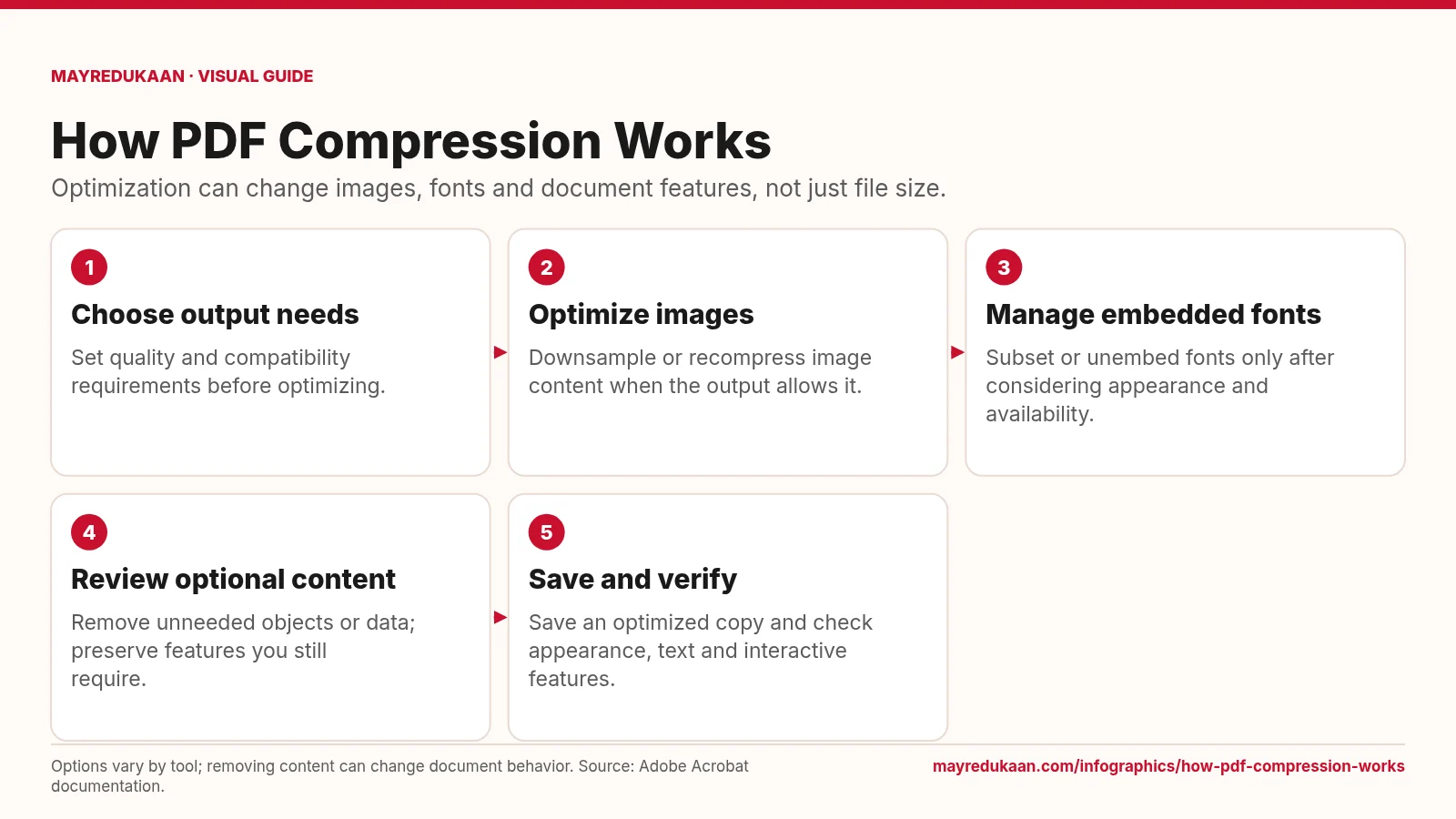
How PDF compression works
PDF optimization combines several operations whose effects depend on the document and selected settings.