
How PDF compression works
By MayreDukaan Research · Researched 2026-11-17
PDF compression is not a single operation with a predictable saving. Acrobat's optimization controls address images, fonts, transparency, objects and user data separately. Reducing image resolution is different from changing image compression, and removing comments or flattening form fields changes more than the number of bytes in the file. The right combination depends on what the document needs to preserve. [1](https://helpx.adobe.com/acrobat/using/optimizing-pdfs-acrobat-pro.html)
The flow presents a cautious workflow rather than a promise that every compressor uses the same sequence. Start with the intended output and compatibility requirements, adjust only suitable content, then save an optimized copy for inspection. A document intended for print may need different settings from one intended for smaller-screen distribution, and interactive features deserve checks as well as visual appearance. [2](https://helpx.adobe.com/acrobat/desktop/create-documents/optimize-pdfs/pdf-optimizer-settings.html)
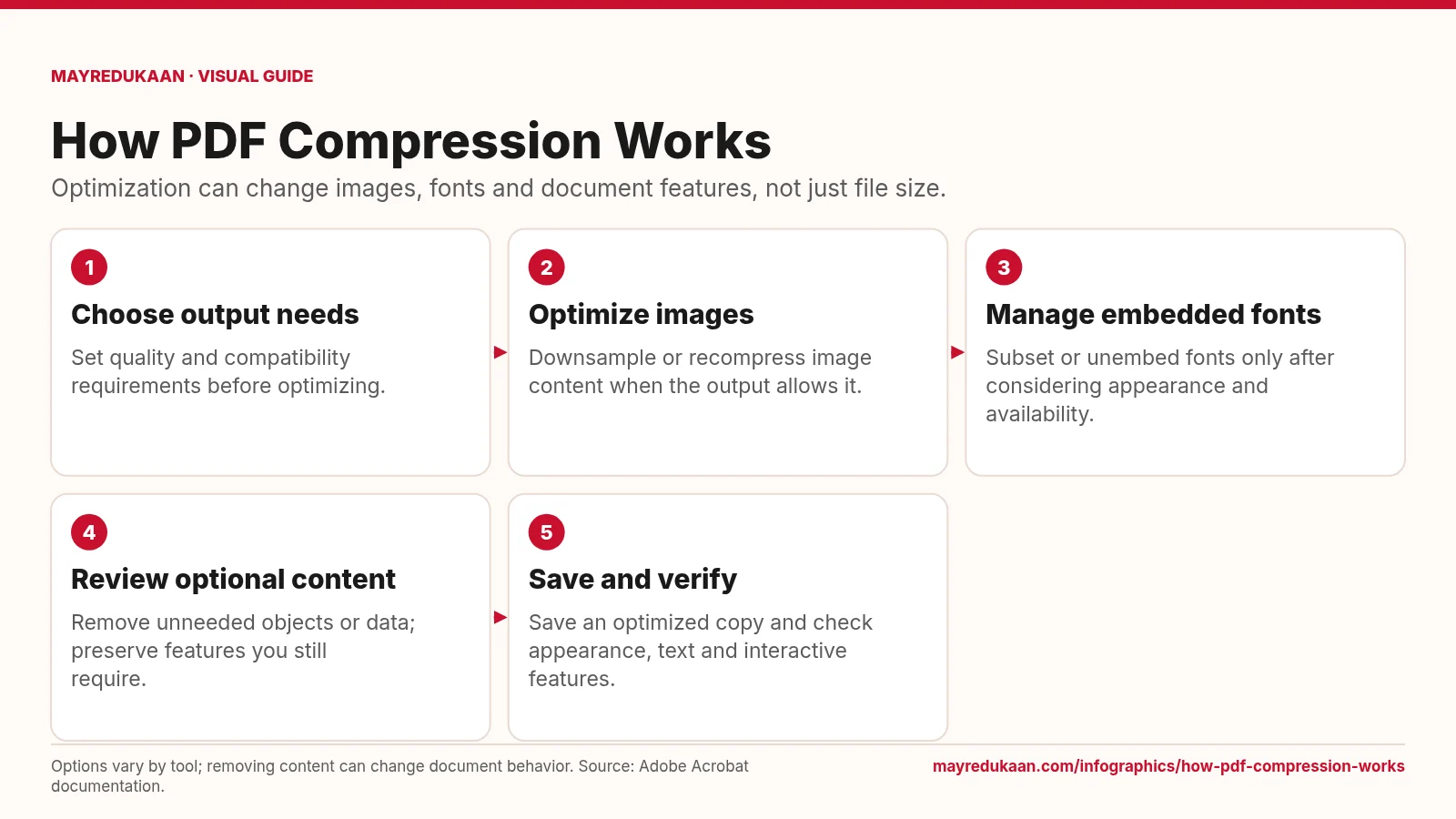
What the diagram shows
- Choose output needs: Set quality and compatibility requirements before optimizing.
- Optimize images: Downsample or recompress image content when the output allows it.
- Manage embedded fonts: Subset or unembed fonts only after considering appearance and availability.
- Review optional content: Remove unneeded objects or data; preserve features you still require.
- Save and verify: Save an optimized copy and check appearance, text and interactive features.
Options vary by tool; removing content can change document behavior. Source: Adobe Acrobat documentation.
Choose the target before changing images
The first step establishes the output requirements because optimization is a balance between file size and document quality. Acrobat provides compatibility controls, and choosing an older compatible version can limit available compression features. The second step focuses on images. Downsampling reduces image resolution, while compression changes how the image data is represented. They are separate settings, not interchangeable names for the same action. Adobe recommends different compression approaches for different image content, including photographs and flat-color graphics. Set these choices according to the intended output instead of assuming that the strongest reduction will be appropriate for every PDF page. [1](https://helpx.adobe.com/acrobat/using/optimizing-pdfs-acrobat-pro.html) [2](https://helpx.adobe.com/acrobat/desktop/create-documents/optimize-pdfs/pdf-optimizer-settings.html)
Treat fonts and removable content carefully
The third step covers embedded fonts, which Acrobat can subset or unembed. Subsetting and removing an embedded font are different choices, so font handling should not be treated as an automatic cleanup with no consequences. The fourth step reviews optional content. Adobe lists embedded thumbnails, search indexes, comments, forms, multimedia and private data among items addressed by optimization settings. Flattening form fields or transparency can also change how a document works. The diagram therefore says to remove only what is unneeded: a feature that looks dispensable for one distribution copy may be essential to another recipient's workflow. [1](https://helpx.adobe.com/acrobat/using/optimizing-pdfs-acrobat-pro.html) [2](https://helpx.adobe.com/acrobat/desktop/create-documents/optimize-pdfs/pdf-optimizer-settings.html)
Verify the saved result
The last step asks you to save an optimized copy and inspect it before replacing the version you rely on. This is a practical check derived from the changes available in the preceding steps: image settings can affect visual quality, font settings can affect text appearance, and discarded content can remove interactive features. Look at representative pages, examine small text and detailed images, and try any links or forms you expect recipients to use. Adobe's advanced workflow explicitly saves the optimized file to a chosen location with a filename. Keep the inspection tied to your document's requirements rather than judging success by file size alone. [1](https://helpx.adobe.com/acrobat/desktop/create-documents/optimize-pdfs/advance-size-reduction.html)
Key facts
- Acrobat PDF optimization includes separate controls for images, fonts and objects.
- Downsampling reduces the resolution of images in a PDF.
- Acrobat can reduce embedded font data through font subsetting or unembedding.
- Optimization settings can remove comments and other user data.
- Selecting compatibility with an older Acrobat version can limit compression features.
Frequently asked questions
Does PDF compression only affect pictures?
No; optimization can also manage fonts, transparency, objects and user data.
Is downsampling the same as image compression?
No; downsampling reduces resolution, while compression changes the encoded image representation.
Can optimization remove useful features?
Yes; selected settings can remove comments or multimedia and flatten form fields, so review them before saving.
Related free tools
Related comparisons
Sources
- Adobe: Optimize PDFs in Acrobat Pro — accessed 2026-11-17
- Adobe: PDF optimizer settings — accessed 2026-11-17
- Adobe: Reduce PDF file size with advanced options — accessed 2026-11-17
More visual guides
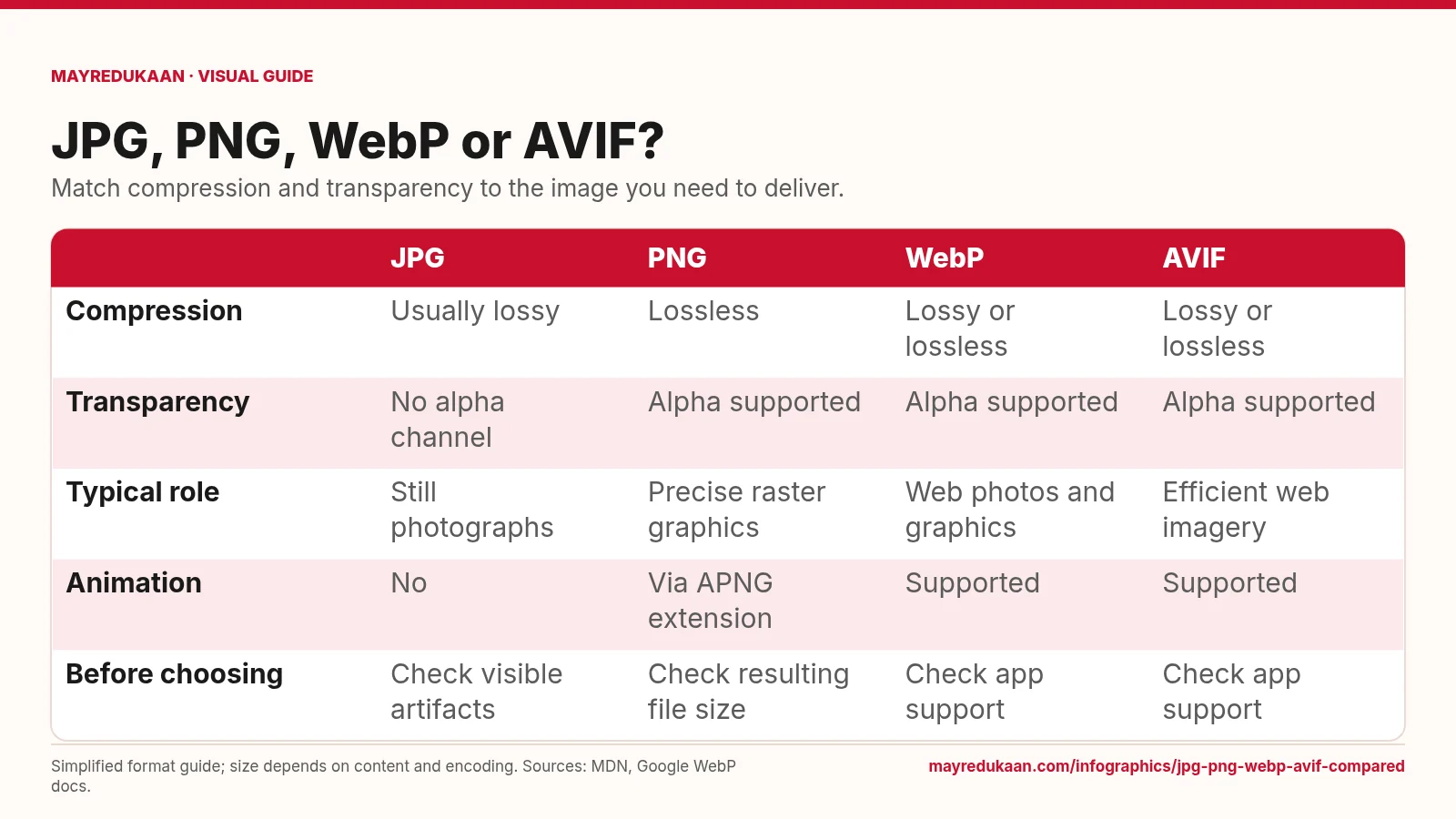
JPG, PNG, WebP and AVIF compared
Choose a format by the features your image needs, not by an assumed file-size ranking.
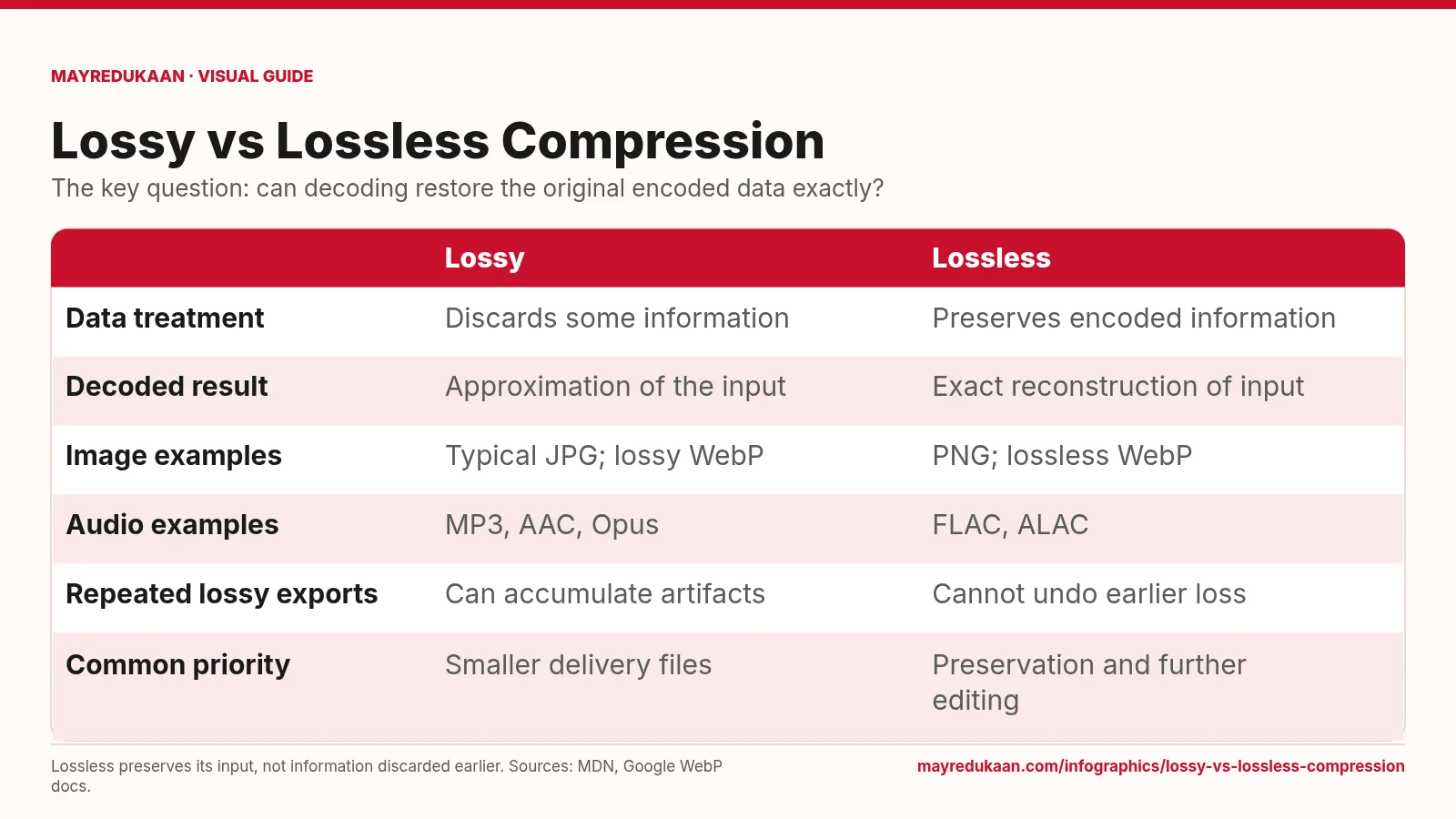
Lossy versus lossless compression
Lossless compression reconstructs its input exactly, but cannot repair information that was already discarded.
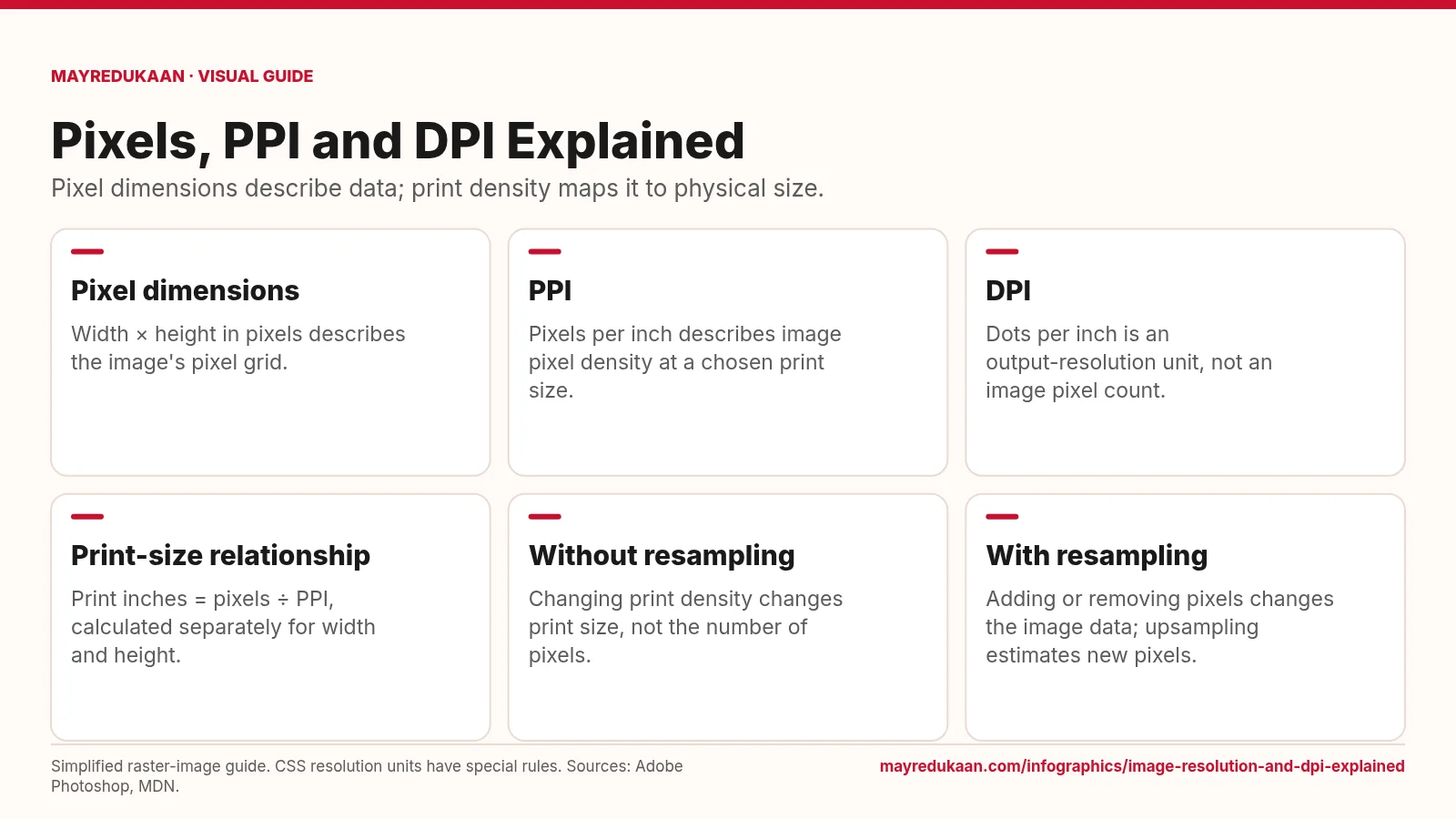
Image resolution and DPI explained
Changing a print-resolution setting is different from changing the image's pixel dimensions.