
Free Online Image Converter: Choose the Right Tool
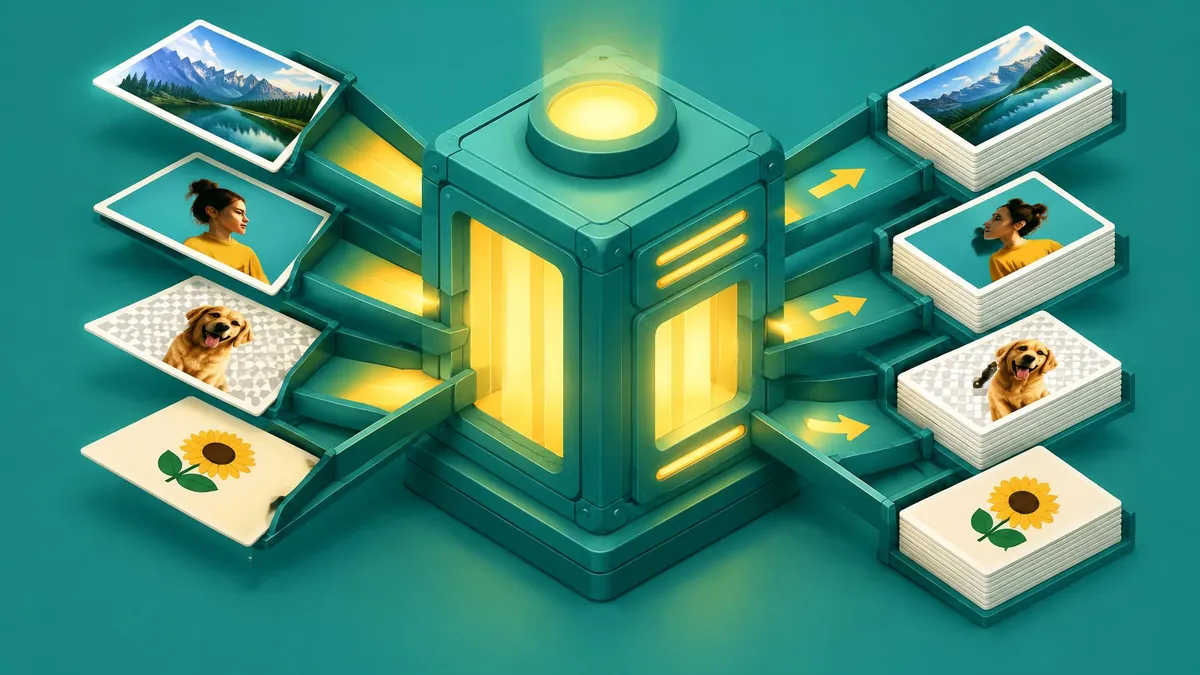
Choose a converter by your starting format and the file type your destination accepts. This hub maps the available image conversion routes without promising unsupported conversions.
A free online image converter is useful only if it supports the format you have and the format you need. MayreDukaan provides dedicated converters for nine image-format pairs, including JPG to PNG, PNG to JPG, JPG to WebP and PNG to WebP. Pick the matching route below, add your images, convert them in your browser, and download individual results or a ZIP containing multiple successful conversions.
This is a tool-selection guide, not a promise that every image can become every other format. There is no universal output selector on these image-converter pages: each page has a specific input and output.
Choose a converter for your exact format pair
| Starting file | Required result | Converter | Main consideration |
|---|---|---|---|
| JPG or JPEG | PNG | [JPG to PNG](/jpg-to-png) | Keeps the existing picture, but does not restore lost detail |
| PNG | JPG | [PNG to JPG](/png-to-jpg) | Transparent areas become white |
| WebP | JPG | [WebP to JPG](/webp-to-jpg) | Transparency becomes white; treat animated sources as still-image input |
| AVIF | JPG | [AVIF to JPG](/avif-to-jpg) | Your browser must decode the source |
| HEIC or HEIF | JPG | [HEIC to JPG](/heic-to-jpg) | A local decoder runs before conversion |
| SVG | PNG | [SVG to PNG](/svg-to-png) | Offers 1x, 2x and 4x raster output |
| JPG or JPEG | WebP | [JPG to WebP](/jpg-to-webp) | Offers a quality slider |
| PNG | WebP | [PNG to WebP](/png-to-webp) | Keeps transparent areas through the canvas workflow |
| BMP | PNG | [BMP to PNG](/bmp-to-png) | Browser decoding support matters for unusual files |
These routes are confirmed in the site's image-tool registry and shared converter component. Do not use a similarly named page for the reverse direction unless that reverse route is actually listed.
For a deeper explanation of the formats themselves, use the existing JPG, PNG and WebP comparison. The decision here is narrower: which available converter should you open?
Start with the destination's rules
Before converting, check the upload form, website editor or recipient's requirements. Write down the accepted extensions, maximum file size and any pixel-dimension requirement. Those are three separate checks.
Changing PNG to JPG addresses the extension. It may reduce bytes, but it does not guarantee a particular size. Changing JPG to PNG does not automatically make a small photo larger in pixel dimensions. A destination that asks for a specific width needs a resizing step, not merely a new filename.
If your real problem is a strict upload allowance, the existing guide to reducing photo size in KB covers that workflow. Avoid repeatedly switching formats when the actual issue is image dimensions.
Which conversions preserve transparency?
JPG output does not retain transparent areas. MayreDukaan explicitly paints a white canvas background before drawing images for JPG export. That matters for cut-out product photos, icons and logos: the new JPG will have white behind the subject.
PNG and WebP exports do not receive that white fill. In particular, the PNG-to-WebP route draws onto a transparent canvas and requests WebP output. WebP itself supports alpha transparency in both lossy and lossless forms, as Google explains.
Preserving transparency is not the same as guaranteeing identical color pixels. The WebP converter exposes quality control, not a dedicated lossless mode. If exact graphic reproduction matters more than a smaller download, retain your PNG master and inspect any WebP derivative carefully.
How to convert an image
- Open the page that matches your input and desired output.
- Select one or several supported files, or drag them into the drop area.
- If shown, choose an output quality setting. JPG and WebP output use a 40–100% slider, initially set to 90%.
- For SVG to PNG only, choose the available scale when needed.
- Press the page's Convert button and wait for the result beside each filename.
- Download each successful result, or use Download ZIP once at least two files have completed.
Keep the original file until you have checked the downloaded copy in its destination. A file that opens in your browser still needs to satisfy the receiving application's format and size rules.
Batch conversion: what is actually supported?
All nine listed image converters share a multiple-file input, a conversion queue and ZIP creation. Files are processed sequentially rather than all being encoded simultaneously. One failed image does not mean every other file has failed; review each row.
Group files by input format. A PNG-to-WebP page is not a universal mixed-format batch tool just because drag-and-drop can receive several files. Rename duplicate base filenames before creating a ZIP, because output names are derived from the originals and collisions can replace entries inside the archive.
The code has no fixed numeric batch cap. That is not unlimited practical capacity: large image dimensions, many decoded pictures and archive generation all consume device memory. Use smaller groups if a phone becomes slow.
Avoid unnecessary conversion chains
Convert from the original to the final format whenever possible. Turning a JPG into PNG and then into WebP creates extra files without recovering the JPG's discarded information. Converting a transparent PNG to JPG first also removes transparency before a later WebP step can use it.
WebP can make useful website derivatives, but no fixed percentage saving applies to every image. Google's published comparisons describe controlled comparisons, not a guarantee for your individual download. Compare actual file sizes and visible detail.
For the reverse compatibility problem, follow the existing WebP-to-JPG tutorial, rather than using a JPG-to-WebP page backwards.
Troubleshooting and final checks
A read error can mean the wrong input format, a damaged file or a source format the browser cannot decode. Renaming an extension does not convert the underlying image. Update your browser or return to the application that created the source and export a supported copy.
Canvas export also has a browser-level caveat: if the requested format is unsupported, browsers can fall back to PNG. MDN documents this behavior. Use a current browser and verify the actual output when a destination rejects an apparently correct extension.
Before deleting anything, check the picture, background, dimensions, filename and destination upload. These converters work locally in the browser; that describes the conversion path, not a claim that the surrounding webpage makes no network requests. Keep a separate original for future editing, and use converted copies for the specific site or recipient that needs them.
Frequently asked questions
Can I convert several images at once?
Yes. The listed image converters accept multiple files and show ZIP download after at least two successful results.
Does converting JPG to PNG restore quality?
No. It cannot recover detail already lost in the JPG.
Which route keeps a transparent PNG background?
PNG to WebP keeps alpha through the transparent canvas workflow; PNG to JPG fills it white.
Useful on MayreDukaan
Sources
- Google: WebP format overview
- Google: WebP frequently asked questions
- MDN: Canvas toBlob()
- MDN: Image file type and format guide
Facts last checked against these sources on 16 Nov 2026, 06:47 Pakistan time.
Images: Illustration created for MayreDukaan (not a photo)
More trending articles
 International EntertainmentWhere to Watch TV Series: Find Legal Platforms16 Nov 2026 · 3 min read
 PDF and Document ToolsPowerPoint to PDF: Export Slides or Handouts Safely16 Nov 2026 · 5 min read
 Android and SmartphonesGalaxy S27 Ultra: What Is and Is Not Confirmed16 Nov 2026 · 5 min read
 PDF and Document ToolsWord to PDF: Export Documents Ready for Sharing16 Nov 2026 · 5 min read