
Convert PDF to Word and Fix Common Layout Changes
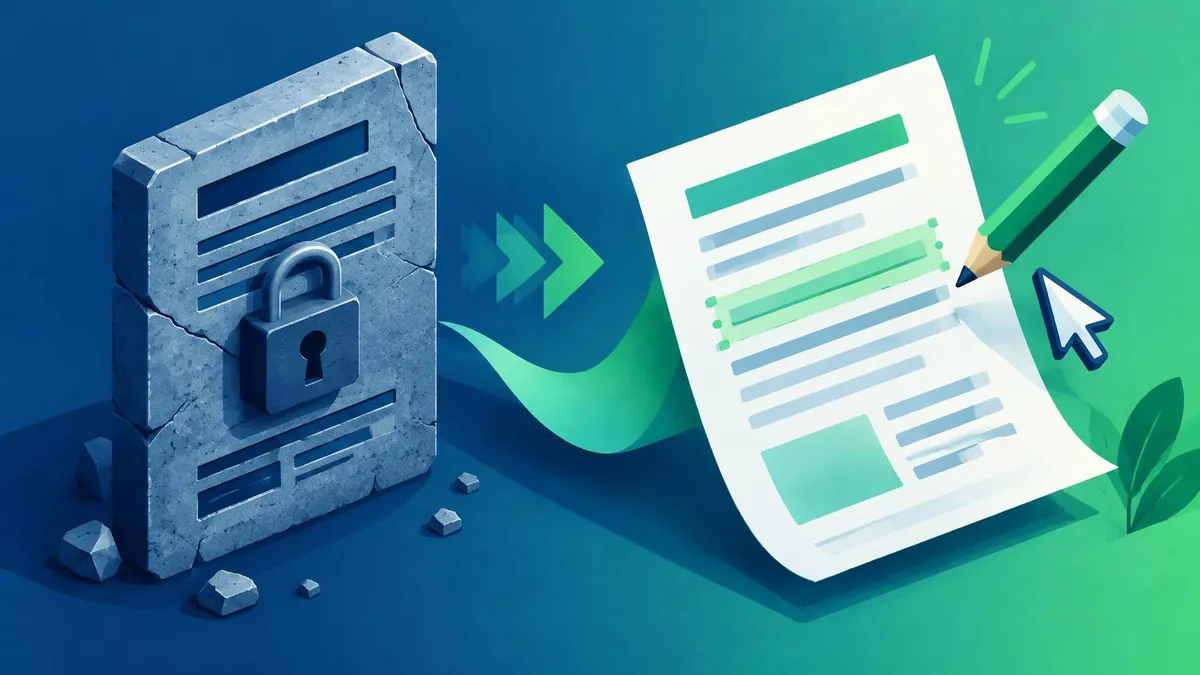
To convert a PDF to Word, open it in the desktop version of Microsoft Word, accept the conversion prompt, and save the new document as a Word file. This works best for PDFs that are mostly text; complex layouts and scanned pages need closer review.
To convert a PDF to Word, open it in the desktop version of Microsoft Word, accept the conversion prompt, and save the new document as a Word file. This works best for PDFs that are mostly text; complex layouts and scanned pages need closer review.
Start by identifying the PDF you have
Try selecting a sentence in the PDF. If you can select individual words, the document likely contains a usable text layer. If clicking only selects a whole page image, it may be a scan. This is a useful first check, not proof that every page has the same structure.
Microsoft explicitly recommends Word's PDF-opening workflow for mostly text-based files and warns that copier-like documents will not format well. Word creates a converted copy and leaves the source PDF unchanged. (Microsoft Support)
Ask for the original DOCX if it exists. Converting a final PDF back into an editing format is a recovery step, not a better substitute for using the original document. Headers, notes, and page breaks are easier to maintain in their source format.
Convert the file in desktop Word
- Launch Word and select File > Open.
- Browse to the PDF you want to convert.
- Open it and read the prompt explaining that Word will create an editable copy.
- Select OK to continue.
- Review the converted document before making substantial edits.
- Save it using a Word document format, normally DOCX, under a new filename. (Microsoft Support)
Do not overwrite your only usable source. Keep the PDF beside the converted file so that you can compare ambiguous paragraphs, tables, and page endings. Record which version contains your subsequent edits.
This is a desktop Word method, not a claim that every mobile or web interface opens PDFs the same way. If your edition does not present the documented command, consult its platform-specific help instead of repeatedly changing the file extension.
Why the Word layout may change
A PDF describes a finished page. An editable Word document needs paragraphs, styles, tables, and other structures that can flow when text changes. Conversion has to infer those structures from the PDF. Microsoft warns that lines and pages may break at different places after conversion. (Microsoft Support)
Review the areas most likely to create practical problems:
- Multicolumn pages: confirm the reading sequence is correct.
- Tables: check whether values still belong to the right headings.
- Headers and footers: look for repeated text that became ordinary body paragraphs.
- Footnotes: verify that markers still point to the right note.
- Forms: inspect boxes, signature spaces, and field labels.
- Images: check captions and their relationship to nearby paragraphs.
Fix one representative page before editing the entire document. If the layout is badly fragmented, rebuilding a clean Word document from the recovered text may be more manageable than preserving every inferred text box.
What to do with scanned PDFs
A scanned page contains an image of words rather than necessarily containing editable characters. Optical character recognition, or OCR, is the relevant first step when there is no usable text layer. Do not assume that opening a scan will produce a clean, faithful Word file.
Google Drive provides an official OCR route: on a computer, open a supported image or PDF using Google Docs. Its guidance recommends files of 2 MB or less, upright pages, and text at least 10 pixels high. It also warns that tables, columns, lists, and notes may not transfer reliably. (Google Drive Help)
For a scan, recover the text first, compare it against the image, and then rebuild the document structure. Names, dates, account numbers, and punctuation deserve manual checking. OCR is transcription assistance, not validation of the content.
Convert only the necessary section
If you need a few pages from a long manual, use the PDF splitter to prepare a smaller PDF first. It extracts pages as PDFs; it does not create a Word file or run OCR. Then open that subset in Word.
The page-range guide is useful when printed numbering does not match the file's thumbnail positions. Confirm the subset includes any footnotes or supporting pages needed to understand the passage.
For documents assembled from several PDFs, decide which material truly belongs in the editable version. A signed appendix may be better retained separately rather than being converted into an approximate editable reconstruction.
Review, edit, and export deliberately
Compare the converted document with the source before you begin rewriting. Otherwise, it becomes difficult to tell whether a missing sentence came from conversion or from an editorial change. Work from beginning to end and note any sections that need reconstruction.
If the final deliverable must be PDF again, Word supports PDF export through its own save and export options. Choose the output settings intentionally and inspect that second PDF as a new deliverable. (Microsoft Support)
When the aim is only to distribute several finished PDFs together, avoid converting them to Word unnecessarily. The PDF merging guide explains a more direct document-bundling workflow.
Privacy and access boundaries
Use only documents you are authorized to edit. If a PDF restricts changes, obtain an editable source or permission from the owner rather than treating conversion as a way around those restrictions. For confidential material, use an organization-approved application and storage location.
MayreDukaan does not provide PDF-to-Word conversion. Its related page-splitting tool only helps prepare an input file; Word or another documented official service performs the conversion.
Frequently asked questions
Will the Word file look exactly like the PDF?
Not necessarily. Microsoft warns that lines and pages may break differently, so review tables, columns, headers, and notes before using the result.
Does the conversion change my original PDF?
Microsoft says Word makes a copy for conversion and leaves the original PDF unchanged. Save your editable result under a clear new filename.
Can I convert a scanned PDF straight into clean Word text?
Do not count on it. Scans may need OCR first, followed by proofreading and rebuilding of document structure.
Frequently asked questions
Will the Word file look exactly like the PDF?
Not necessarily. Microsoft warns that lines and pages may break differently, so review tables, columns, headers, and notes before using the result.
Does the conversion change my original PDF?
Microsoft says Word makes a copy for conversion and leaves the original PDF unchanged. Save your editable result under a clear new filename.
Can I convert a scanned PDF straight into clean Word text?
Do not count on it. Scans may need OCR first, followed by proofreading and rebuilding of document structure.
Useful on MayreDukaan
Sources
- Microsoft Support: Edit a PDF
- Microsoft Support: Save or convert to PDF or XPS in Office Desktop apps
- Google Drive Help: Convert PDF and photo files to text
Facts last checked against these sources on 16 Nov 2026, 07:00 Pakistan time.
Images: Illustration created for MayreDukaan (not a photo)
More trending articles
 PDF and Document ToolsAdd Page Numbers to a PDF Without Covering Content16 Nov 2026 · 5 min read
 PDF and Document ToolsExtract Images from PDFs Without Saving Whole Pages16 Nov 2026 · 5 min read
 PDF and Document ToolsPDF to Excel: Import Tables and Verify the Data16 Nov 2026 · 5 min read
 PDF and Document ToolsPowerPoint to PDF: Export Slides or Handouts Safely16 Nov 2026 · 5 min read