
Secure file sharing basics
By MayreDukaan Research · Researched 2026-11-17
Secure file sharing is not just a choice of storage provider. It also depends on who can reach the file, what they are allowed to do, and whether those permissions remain appropriate after the work ends. CISA recommends checking a cloud provider's encryption protections and securing your own account with a strong password and MFA. Those protections complement sharing controls rather than replacing them.
This guide uses Google Drive's documented roles and access settings as concrete examples. Restricted access and anyone-with-the-link access serve different purposes: the latter lets anyone who obtains the link open the file without signing in to a Google Account. A private collaboration therefore needs an intentional audience, the minimum useful role, and a review of folder-level permissions that may already grant access.
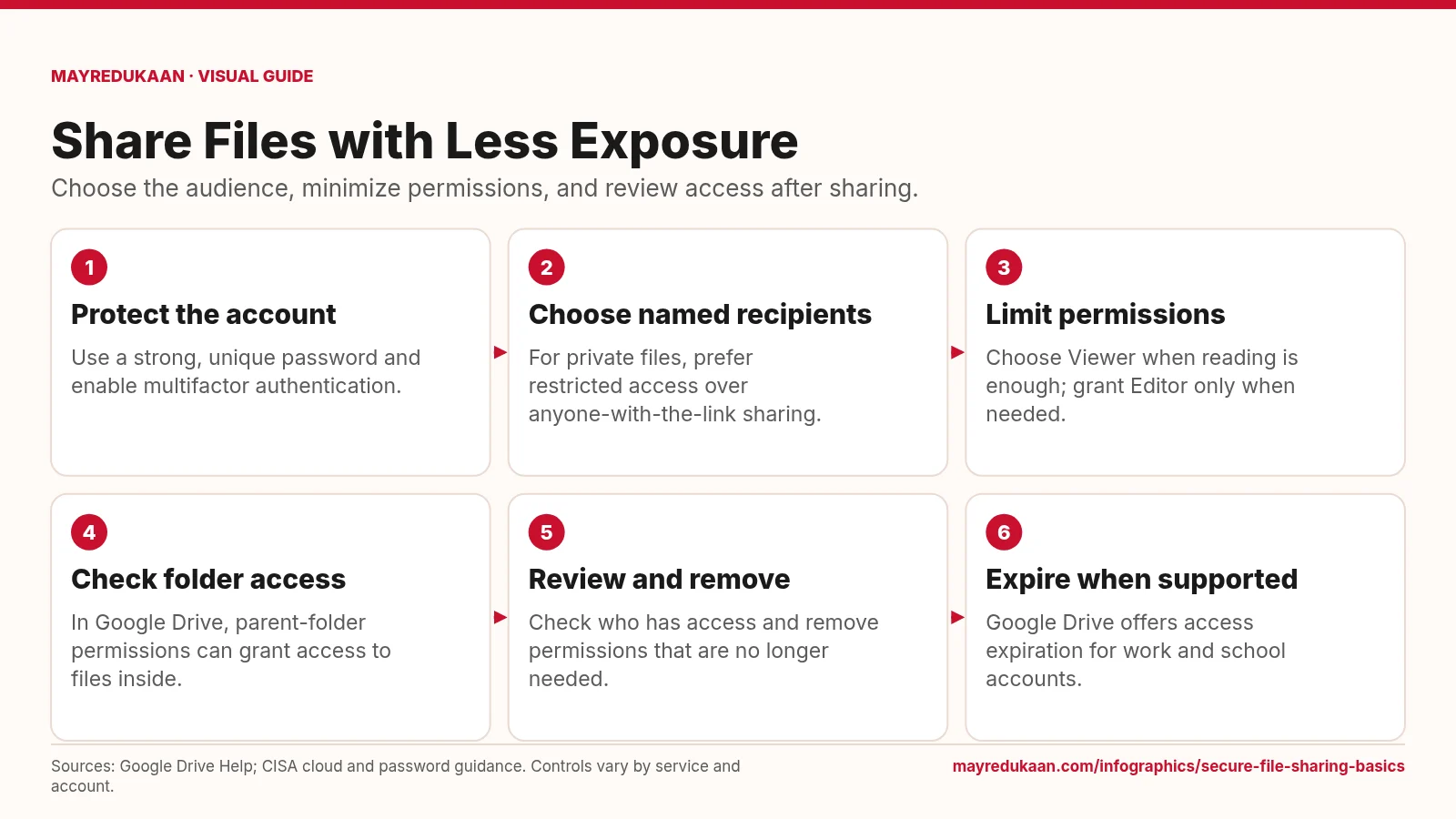
What the diagram shows
- Protect the account: Use a strong, unique password and enable multifactor authentication.
- Choose named recipients: For private files, prefer restricted access over anyone-with-the-link sharing.
- Limit permissions: Choose Viewer when reading is enough; grant Editor only when needed.
- Check folder access: In Google Drive, parent-folder permissions can grant access to files inside.
- Review and remove: Check who has access and remove permissions that are no longer needed.
- Expire when supported: Google Drive offers access expiration for work and school accounts.
Sources: Google Drive Help; CISA cloud and password guidance. Controls vary by service and account.
Secure the account and deliberately choose the audience
The first two steps address the account and the sharing boundary. CISA recommends protecting cloud accounts with strong passwords and MFA, because compromised collaborators' accounts can expose shared data. Next, choose who should receive access. Google Drive distinguishes Restricted, which limits opening to people who have been given access, from Anyone with the link, which permits opening without signing in to a Google Account. For private material, use the restricted model and add the intended people. Copying a link does not itself establish that the audience is appropriate; the access setting behind that link determines who can use it.
Use the smallest role and check the containing folder
The third step asks whether a recipient needs to read, comment, or edit. Google Drive documents Viewer, Commenter, and Editor roles, with editors having broader powers, including sharing by default. Do not grant editing solely because it is convenient during setup. The fourth step addresses inherited access: Google says you cannot give someone less access to an individual file than they have through its parent folder. An editor of the containing folder cannot simply be reduced to a viewer for one file inside it. Review the folder or use an appropriate limited-access arrangement when the audience needs to be narrower.
Review access and use expiration where available
The fifth step is an ongoing review, not a one-time setup check. Google Drive provides a way to see who has access and remove a person's access when it is no longer appropriate. Review the actual access list and relevant folder permissions instead of assuming that an old message containing a link is the only route to the file. The last step adds expiration where supported. Google's documentation makes this an account-dependent feature for work and school accounts and limits folder expiration to Viewer roles. Do not promise the same controls on every personal account, cloud provider, or sharing plan.
Key facts
- CISA recommends strong passwords and MFA for cloud-storage accounts.
- Google Drive Restricted access allows only people who have been given access to open the file.
- Google Drive anyone-with-the-link sharing allows opening without signing in to a Google Account.
- Google Drive does not allow a file permission to reduce access already granted by its parent folder.
- Google Drive documents access expiration for work and school accounts, with folder expiration limited to Viewer roles.
Frequently asked questions
Is anyone-with-the-link sharing private?
It is not restricted to named recipients; Google says anyone who has that link can open the file without signing in to a Google Account.
Why can someone still edit a file after I change its direct role?
They may have Editor access through the parent folder; Google Drive does not let a file-level role reduce that inherited access.
Can every Google Drive user set access expiration?
No; Google's documentation identifies expiration as available for work and school accounts, and folder expiration applies only to Viewer roles.
Related comparisons
Sources
- Google Drive Help: Share and Manage Access to Files and Folders — accessed 2026-11-17
- CISA: Get the Most out of Cloud Storage and Services while Minimizing the Risk — accessed 2026-11-17
- CISA: Use Strong Passwords — accessed 2026-11-17
More visual guides
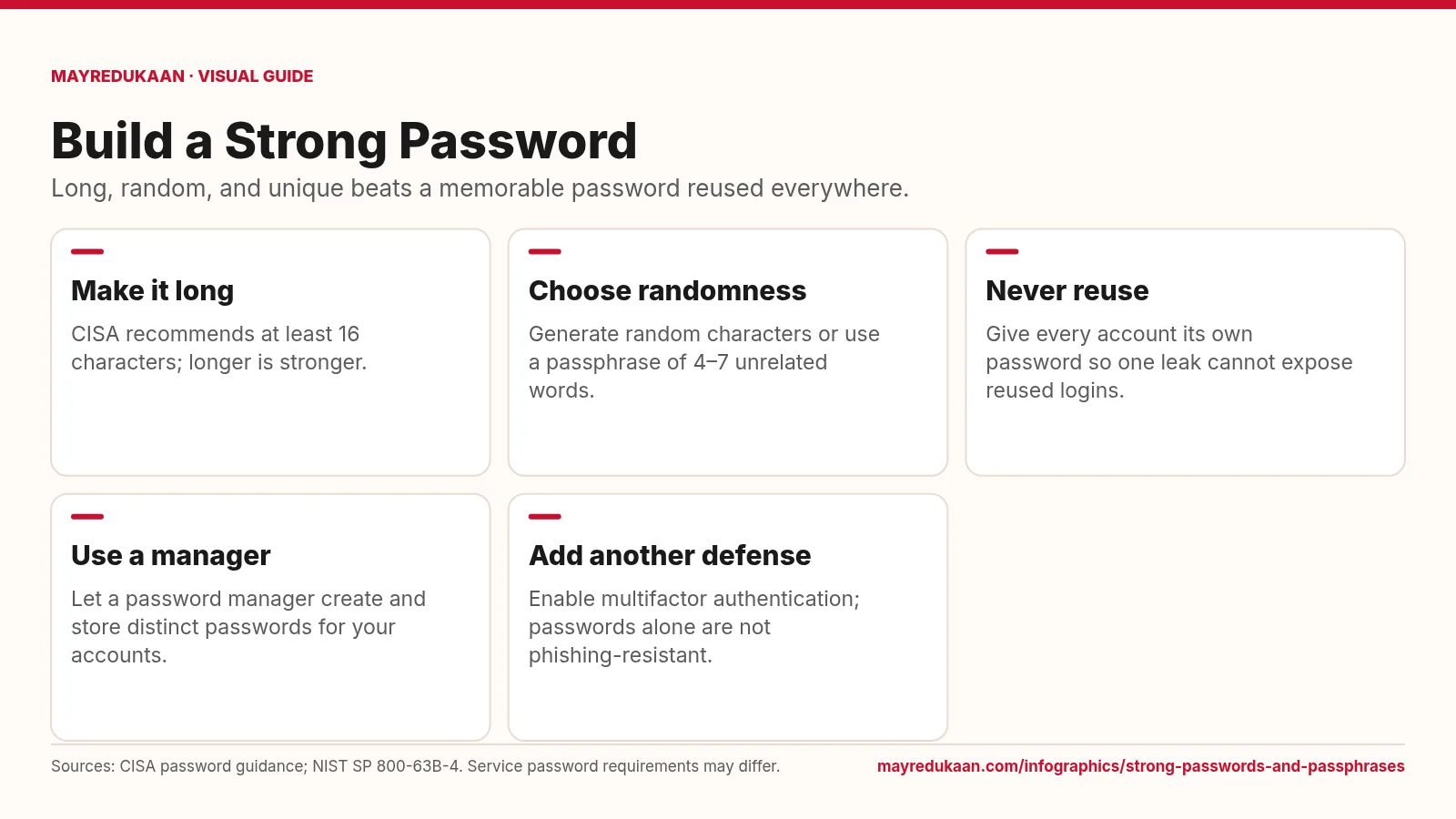
Strong passwords and passphrases
A strong password combines length, unpredictable selection, and exclusive use on one account.
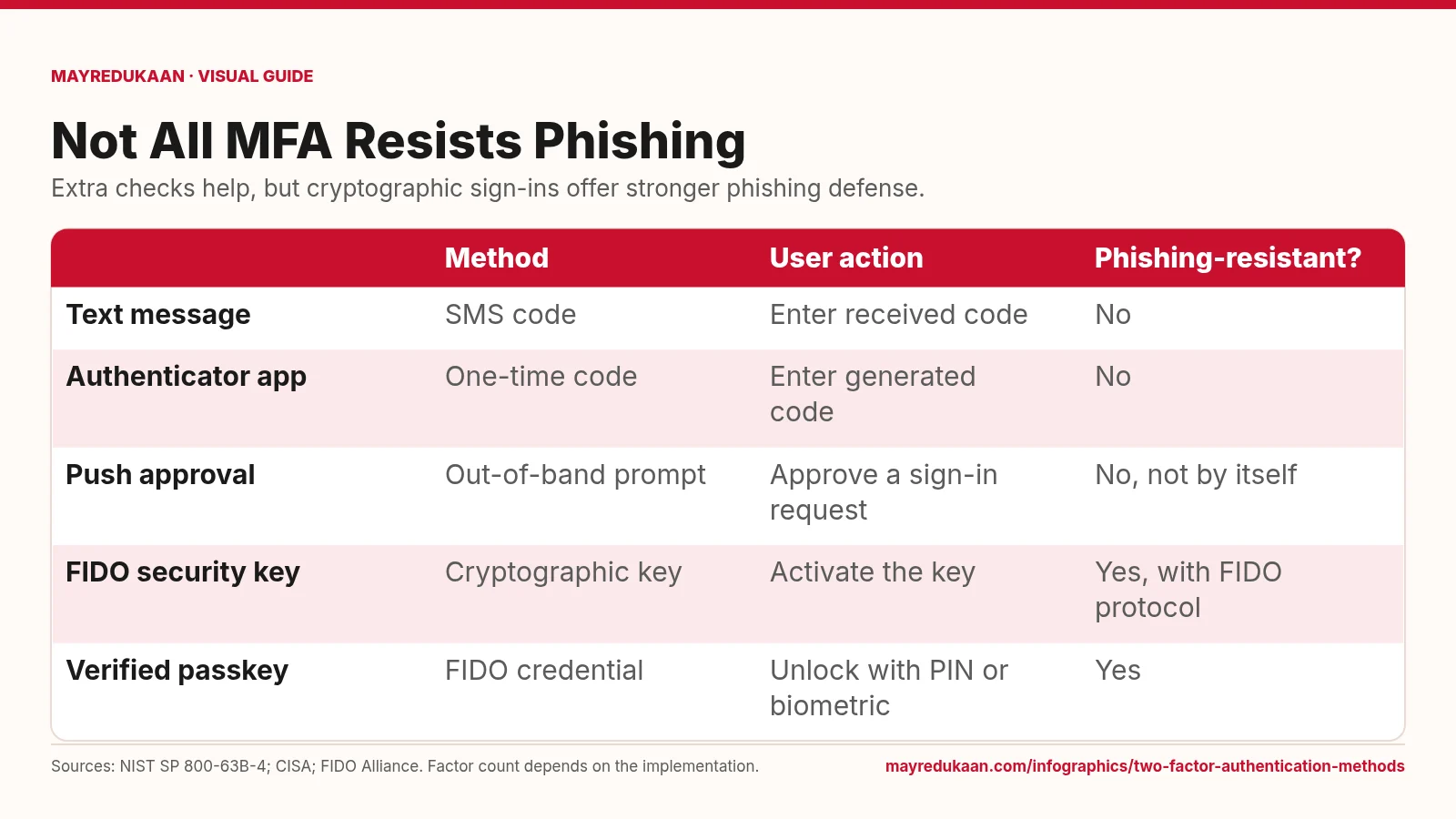
Two-factor authentication methods
Codes add a hurdle, while FIDO authentication binds the sign-in to the legitimate service.
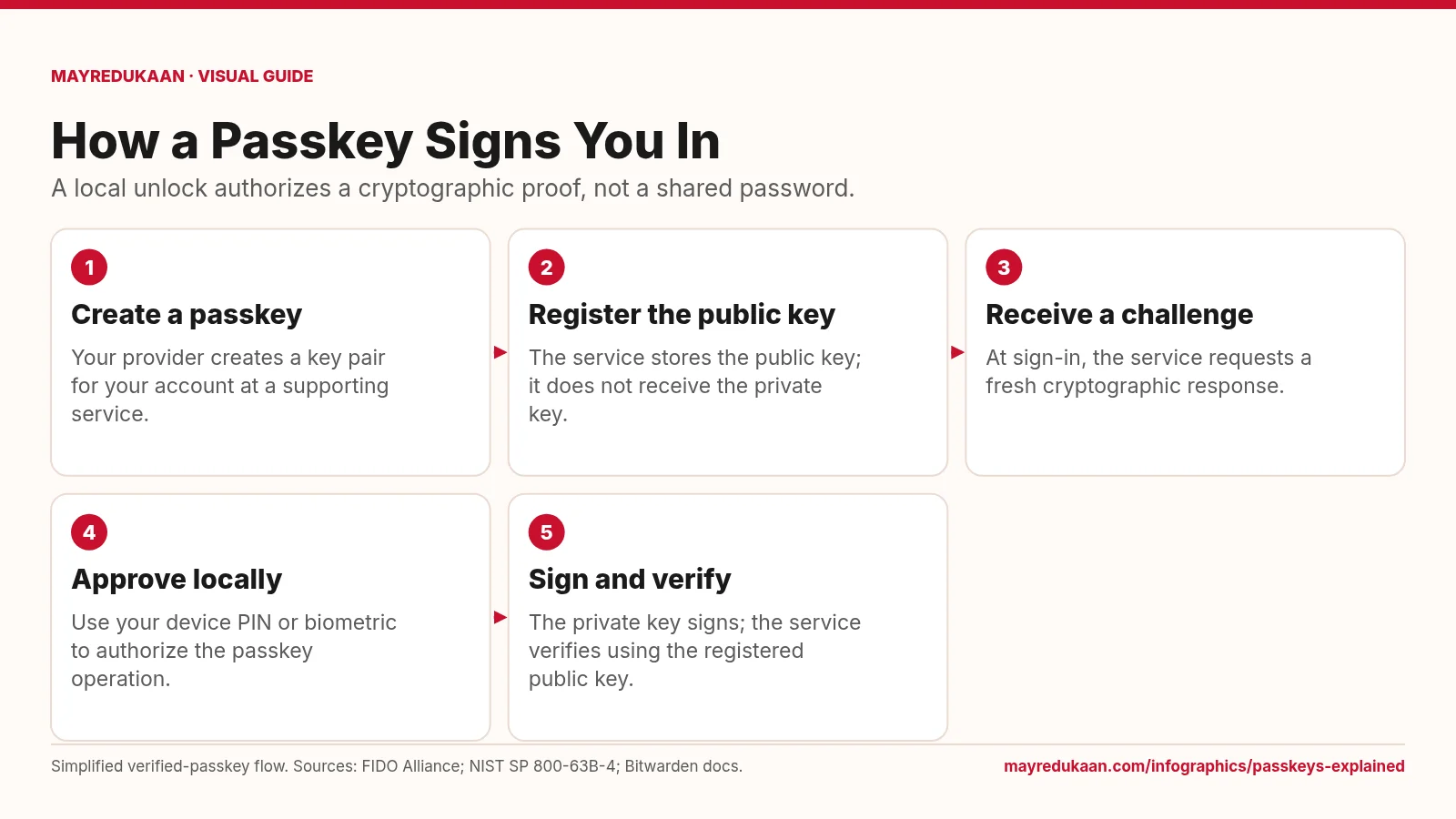
Passkeys explained
The service checks a cryptographic response while the private key remains with the user's passkey system.