
Convert PNG to WebP While Keeping Transparency

The PNG-to-WebP implementation preserves a transparent canvas rather than adding white. Learn how to verify the background and avoid confusing transparency with lossless color.
You can convert PNG to WebP and keep transparent backgrounds with MayreDukaan's PNG-to-WebP converter. Add a transparent PNG, choose the WebP quality, press Convert to WebP and download the result. The code draws the source onto a transparent canvas and requests WebP output without painting a solid background first.
That is an implementation-level check, not a claim that every image has been visually tested. The tool preserves the transparency workflow, while your downloaded file still deserves an edge and background inspection before publication.
What the code does with alpha
Alpha describes how opaque each image pixel is. It allows a cut-out product to appear against a colored page, or a soft shadow to blend into the background rather than ending in a rectangular white box.
In the shared converter, a new canvas is created at the source image's decoded dimensions. A white rectangle is painted only when the selected output is JPEG. For WebP output, that step is skipped. The PNG is drawn onto the canvas, and the browser is asked to encode it as image/webp.
This matches WebP's capabilities: Google documents transparency support with both lossy and lossless WebP. It is therefore reasonable to say this route preserves alpha, but not to promise a bit-for-bit identical PNG replacement or a particular reduction in bytes.
Check that the original really is transparent
A checkerboard is a common transparency indicator in image editors. However, some downloaded graphics contain an actual checkerboard baked into the picture. A white background can also be real image content rather than a viewer's display background.
Place the PNG over two visibly different backgrounds in an editor or design document. If the area around the subject changes with the background, it is transparent. If a white rectangle or checkerboard remains fixed, converting the format will preserve that rectangle, not remove it.
Background removal and format conversion are separate tasks. For the first task, consult the existing background-removal guide. This tutorial starts with an image whose transparency is already correct.
Convert PNG to WebP step by step
- Open PNG to WebP.
- Choose a PNG file or drag it into the drop area.
- Leave the initial WebP quality at 90% for a first comparison, or adjust the slider before converting.
- Press Convert to WebP and wait for the file's Download link.
- Save the result without deleting the PNG original.
- Open the WebP in an application that supports transparency and compare it over light and dark backgrounds.
- Check the final website or document where the image will appear.
The slider ranges from 40% to 100%. There is no separate alpha setting and no switch labelled lossless. The converter keeps the source dimensions for this route; it does not automatically resize a large logo or cut-out to fit a particular page layout.
Transparency does not mean lossless image quality
A WebP can have transparent areas while using lossy compression for its visible colors. A correctly see-through background therefore does not prove that tiny lettering, gradients or product details are unchanged.
Use the image compression guide if the quality trade-off is your main concern. For this conversion, pay particular attention to fine type, thin lines, hair, translucent fabric and shadows.
Do not treat a 100% setting as an explicit lossless guarantee. The tool passes a quality value to the browser encoder; it does not offer a dedicated lossless WebP command. MDN's canvas documentation describes the quality parameter for formats with lossy compression.
For pixel-critical artwork, keep the PNG as the master. Make a WebP derivative only when the receiving site supports it and the visual comparison is acceptable. A smaller file is not an improvement if it makes essential text hard to read.
Check the edges, not only the empty background
Inspect the subject against both a pale and a dark surface. A faint white outline can come from the source artwork itself, where nearly opaque edge pixels were prepared for a white background. Keeping alpha does not automatically repair those colors.
Likewise, a dark halo is not proof that transparency disappeared. Look at whether the background actually changes through the empty regions. If it does, investigate the original edge treatment and compare with the PNG before blaming the new format.
A viewer that displays transparency on white can make a correct WebP look as if it has a white background. Test in another compatible application or the actual webpage before making that judgment. Avoid converting to JPG as a diagnostic step: that format cannot retain the alpha channel.
Convert multiple transparent PNGs
The converter accepts several PNGs in one selection. All queued images use the chosen quality, and conversion proceeds one at a time. Individual Download links appear for successful results; Download ZIP appears once at least two have completed.
Before archiving, use unique source base names and review every row. Duplicate output names can overwrite one another in the ZIP builder, and failed rows do not become valid merely because other images completed.
For a new quality comparison, press Clear and re-add the original PNGs. Already completed rows are skipped on another conversion run. Use a small representative batch first, especially if the source files have very large dimensions.
When to keep PNG instead
Keep PNG when the destination requires PNG, when visible WebP artifacts are unacceptable, or when you need an untouched master for later editing. Compare bytes rather than assuming every PNG-to-WebP conversion must be smaller.
If the real problem is meeting a specific KB limit, follow how to reduce photo size in KB rather than relying only on the extension. For an overall format choice, see JPG, PNG and WebP compared.
Use a current browser for the export. Canvas implementations can fall back to PNG when an output type is unsupported, so investigate the actual file encoding if a destination rejects a .webp download. The final checks are simple: correct format, suitable size, clean edges, transparent background and an original safely retained.
Frequently asked questions
Is alpha preserved by this converter?
The implementation leaves the canvas transparent for WebP output and does not add the white fill used for JPG.
Will PNG-to-WebP remove a white background?
No. A white rectangle already present in the PNG remains image content.
Is transparent WebP necessarily lossless?
No. WebP supports alpha with lossy color compression; the tool has no dedicated lossless switch.
Why does my WebP look white behind the subject?
The viewer may display transparent regions on white; test over contrasting backgrounds.
Useful on MayreDukaan
Sources
- Google: WebP format overview
- Google: WebP frequently asked questions
- MDN: Canvas toBlob()
- MDN: Image file type and format guide
Facts last checked against these sources on 16 Nov 2026, 06:47 Pakistan time.
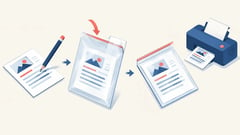
Images: Illustration created for MayreDukaan (not a photo)
More trending articles
 International EntertainmentWhere to Watch TV Series: Find Legal Platforms16 Nov 2026 · 3 min read
 PDF and Document ToolsPowerPoint to PDF: Export Slides or Handouts Safely16 Nov 2026 · 5 min read
 Android and SmartphonesGalaxy S27 Ultra: What Is and Is Not Confirmed16 Nov 2026 · 5 min read
 PDF and Document ToolsWord to PDF: Export Documents Ready for Sharing16 Nov 2026 · 5 min read