
Passkeys for Google Accounts: A Safe Setup and Recovery Guide
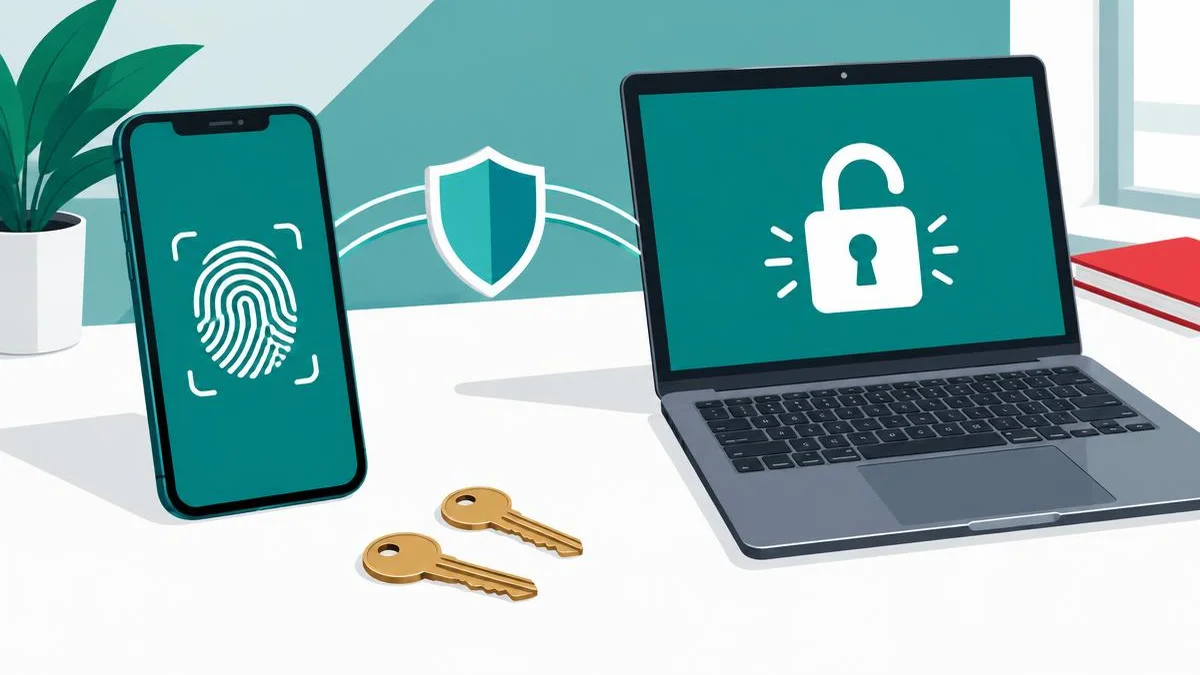
A passkey lets you approve a supported account sign-in with your device unlock instead of typing a reusable password. Start on a device you own, keep recovery options available, and never create one on a shared shop computer.
What a passkey actually changes
A passkey is an account credential based on FIDO standards. Instead of typing a reusable password into a website, you approve the sign-in with a supported device or security key. Depending on your device, that approval may use a fingerprint, face recognition, a screen-lock PIN, or another supported unlock method.
The important distinction is that your fingerprint is not your website password. Google says the biometric information used for device unlock stays on your device and is not shared with Google. FIDO describes passkeys as cryptographic credentials associated with a particular account and service.
That design helps resist phishing: a convincing copy of a sign-in page cannot simply collect a password that you type and reuse it elsewhere. It does not make every activity on your account safe. Someone who can unlock your device may still be able to use a passkey stored there, and scams can still persuade people to approve payments or disclose personal information.
Before creating your first passkey
Start with an account you already control, on a device you personally own. Do not experiment on the shop's shared counter computer or a borrowed phone. Google explicitly warns that someone who can unlock a device with your passkey can access your Google Account, even after you sign out.
- Update your operating system and browser.
- Enable a strong screen lock and keep its PIN private.
- Check that your recovery email and phone number are current.
- Keep an existing independent recovery method available while testing.
- Review the account's official passkey support page rather than instructions sent in an unexpected message.
For Google Accounts, the official help page lists Android 9 or newer and iOS 16 or newer among supported phones. Browser and operating-system support also matters; a compatible phone alone does not guarantee every browser or managed account can use every passkey feature. Google Workspace administrators may restrict passwordless sign-in.
For accounts that still require a password, use the password generator and our strong-password guide. Do not paste passwords, recovery codes, or passkey information into an unrelated online tool.
Create a Google Account passkey safely
These steps describe Google's documented flow, not a MayreDukaan sign-in feature. Open the account settings by navigating yourself to the official passkey settings page.
- Confirm that you are signed into the intended Google Account, especially if the browser has several accounts.
- Choose Create a passkey.
- Follow the device's unlock prompt.
- Check the new credential in the account's passkey list.
- Test a sign-in while your existing recovery options remain available.
A hardware security key requires FIDO2 support. Google's flow offers Use another device when creating a passkey on a security key. Follow its instructions for insertion, the key's PIN, or its touch sensor.
Google says a newly created passkey may sometimes take time to become available for sign-in. If an expected prompt is missing, check its current official instructions before deleting working recovery factors or repeatedly creating credentials.
Sign in on a computer using your phone
If your passkey is on your phone and the computer supports the flow, Google's sign-in page can offer Try another way, followed by Use your passkey. The computer then shows a QR code for the phone to scan.
Keep Bluetooth enabled as Google's instructions require. Approve the sign-in on your own phone after checking that you initiated it on the correct computer and account. A QR code seen in a message or on an unknown website is not automatically trustworthy because it resembles a sign-in prompt.
Our QR-code safety guide explains the separate problem of evaluating unfamiliar QR links. The QR code generator creates ordinary codes; it does not create account passkeys or validate a login request.
Passkey, password, or security key?
| Option | What you use | What to check |
|---|---|---|
| Password | A secret you enter into a service | Unique value, safe storage, and additional authentication where supported |
| Passkey on a device | A supported credential approved through device unlock | Private device, screen lock, support, and recovery plan |
| Passkey on a security key | A FIDO2-compatible physical key | Service compatibility, safe custody, and a fallback key or recovery method |
This is a comparison of sign-in methods, not a ranking that applies to every organization. Some providers synchronize passkeys through a credential manager; other credentials remain device-bound. Check the provider before assuming a passkey will appear on a replacement phone. Support at one website does not establish support at another.
What to do if a device is lost or shared
Use the account's official recovery process from another trusted device. For a manually created Google passkey, Google documents removal through Security & sign-in, then Passkeys and security keys. Automatically created Android passkeys have a different removal process tied to the device; follow Google's current device instructions.
If you accidentally created a passkey on a shared device, remove it from the account rather than relying on browser sign-out alone. Review other signed-in devices and recovery settings as part of the same cleanup. Do not give recovery codes or remote-control access to someone claiming they can restore the account instantly.
For a small shop, keep a simple account-ownership record: which person owns the account, which devices are authorized, who can recover it, and how to remove access when staff leave. Record that information securely, not in a public spreadsheet or a customer-facing page. The shop-management overview is a place to review the product's actual features; this guide does not claim its app supports passkeys.
Troubleshooting without weakening security
If passkey sign-in fails, update the browser, confirm the intended account, check the screen lock, and verify Bluetooth for phone-to-computer sign-in. Google's help page notes that some operating systems and browsers do not support creation or use in Incognito mode.
For a work or school account, ask the account administrator whether passwordless sign-in is permitted. Use another authentication method through the genuine sign-in page if needed. Do not turn off protections simply because an unsolicited support message tells you to.
A sensible next step
Create one passkey on a private supported device, test it, and verify recovery before extending the setup to other accounts. Passkeys reduce a major password-related risk, but good device custody and careful account recovery remain essential. Recheck the Google instructions and FIDO explanation when changing devices or credential managers.
Frequently asked questions
Is a passkey the same thing as my fingerprint?
No. A passkey is a cryptographic account credential. A fingerprint or face check can unlock its use on a device; Google says that biometric data stays on the device rather than being shared with Google.
Can I still use my Google password after creating a passkey?
Yes. Google says creating a passkey does not remove existing authentication or recovery factors. Its Skip password when possible setting controls whether passwordless sign-in is preferred.
Should I create a passkey on a shared shop computer?
No. Create it only on a device you personally own and use. Google warns that someone who can unlock a device with your passkey can access your account even after you sign out.
Do I need Bluetooth to sign in on a computer with my phone?
For Google's phone-to-computer passkey flow, its instructions say to turn on Bluetooth. Follow the QR prompt on the genuine sign-in page and approve only a sign-in you initiated.
What happens if I lose my phone?
Use the account provider's recovery process from a trusted device, then review and remove the lost device's access. Recovery depends on your provider and existing factors; do not assume every passkey is synchronized.
Does every website support passkeys?
No. Support depends on the service, device, browser and sometimes an organization's administrator. Check the provider's official documentation before creating or changing a credential.
Can a passkey protect me against every scam?
No. Passkeys resist password phishing, but scams may still persuade you to send money, reveal personal information, or give someone control of your device. Verify requests independently.
Useful on MayreDukaan
Sources
Facts last checked against these sources on 17 Nov 2026, 06:30 Pakistan time.
Images: Original AI-generated illustration by MayreDukaan; conceptual, not a product screenshot.
More trending articles
 Shopping and DealsUK Fake Online Shops: Check the Seller Before Paying17 Nov 2026 · 5 min read
 AI and SoftwareVerify an AI Summary Against the Original Document17 Nov 2026 · 5 min read
 Artificial IntelligenceGemini Activity Privacy: History, Training and Deletion17 Nov 2026 · 5 min read
 AI and SoftwarePrepare a Spreadsheet for Safer Gemini Analysis17 Nov 2026 · 4 min read