
How to Compress a PDF Below 1MB Without Guesswork
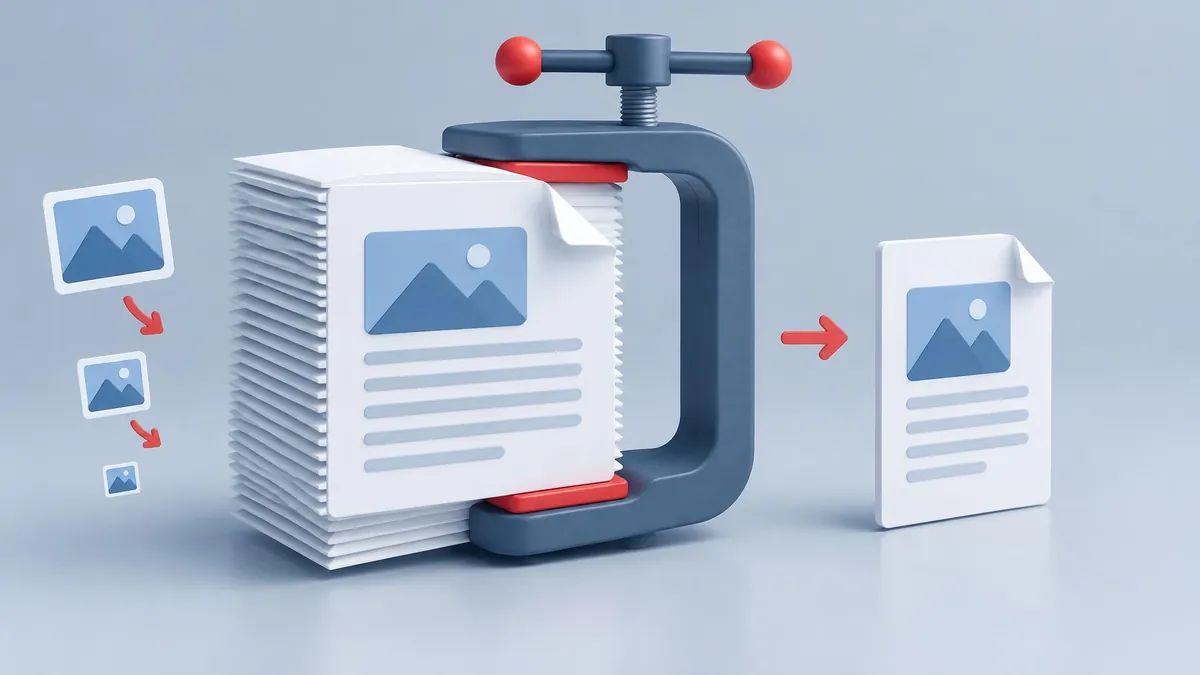
To compress a PDF below 1MB, make a copy, reduce it with Adobe Acrobat online or macOS Preview, and check the downloaded file's actual size. If it remains too large, return to the source document or scan and reduce image-heavy content before exporting again. No method can guarantee every readable multipage PDF will fit below 1MB.
To compress a PDF below 1MB, make a copy, reduce it with Adobe Acrobat online or macOS Preview, and check the downloaded file's actual size. If it remains too large, return to the source document or scan and reduce image-heavy content before exporting again. No method can guarantee every readable multipage PDF will fit below 1MB.
MayreDukaan does not currently provide a PDF compressor. Its image tools and PDF organization tools should not be presented as one. The methods below come from Adobe, Apple and Microsoft documentation rather than an invented on-site compression feature.
Start with the upload requirement
Check whether the form says less than 1MB, up to 1MB, or a byte count. Those wordings are not necessarily interchangeable at the boundary. A rounded file-size label can hide a result that remains slightly over the server's threshold.
Use the file's properties or information panel to inspect its size rather than relying only on a rounded thumbnail label. Aim comfortably below the stated limit instead of producing a result that appears to be exactly 1.0MB. See the existing MB and GB explanation if decimal and binary displays are causing confusion.
Keep the original. Save each attempt under a different name so that a smaller but unreadable export never becomes your only copy of an important document. If the form requires every page, deleting required pages is not a valid compression solution.
Method 1: Adobe Acrobat online
Adobe provides an official online PDF compressor. Its current instructions describe selecting a file, choosing a compression level, allowing Acrobat to reduce the upload, and downloading the result.
- Open Adobe's official compressor page.
- Choose the PDF or drag it into the file area.
- Select an available compression level appropriate to your quality needs.
- Wait for processing and download the new PDF.
- Inspect the actual downloaded size.
- Open every page and check small text, stamps, signatures and image detail.
- If the file is still above the limit, consider a stronger setting or return to the source workflow below.
This is an upload-based method, unlike a local browser image converter. For identification, health, legal or confidential business documents, check your organization's rules before uploading to an online service. Do not assume that a convenient web tool is an approved destination for sensitive files.
Avoid interpreting the compression selector as an exact-size control. The final size depends on the document's contents and prior optimization. A mostly text-based file may offer fewer easy savings than a PDF full of large scans.
Method 2: macOS Preview
Apple's Preview guide documents a built-in route for reducing PDF size. Apple also warns that resulting quality and size vary.
- Open a copy of the PDF in Preview on your Mac.
- Choose File, then Export.
- In the Quartz Filter menu, choose Reduce File Size.
- Save with a new filename rather than overwriting the original.
- Check the exported size and inspect the complete document.
Apple's current guide also lists export options including Optimize images for screen and Save images as JPEG. Availability depends on the version and export interface in front of you. Follow the options actually offered rather than assuming every Mac displays the same layout.
Create Linearized PDF is described as an optimization for loading and viewing in browsers. Do not mistake that option for a promise to reach a particular byte target. The job is finished only when the saved PDF passes both the size and readability checks.
For a local workflow involving sensitive files, Preview avoids the upload step involved in an online compressor. You still need to store and share the resulting copy appropriately.
Method 3: Export again from the original document
If you have the original Word document, presentation or design file, a new export can be more controllable than repeatedly squeezing an already compressed PDF. Start with the editable source rather than converting the PDF back and forth without a reason.
Microsoft's Office PDF guidance documents PDF saving from desktop applications and describes Minimum size publishing options in supported export workflows. Controls differ by application and version; do not promise that every Word interface shows the same selector.
In Word, open the source, use File and the available Save As or Save a Copy workflow, choose PDF, and inspect the options offered by your version. Where a Minimum size option is available, it favors smaller output over print quality. Export a separate copy and compare it with the original.
If the source contains enormous inserted pictures, prepare more appropriate image copies before rebuilding the document. The existing image-size-in-KB guide can help with those source images. It is not a method for feeding an existing PDF into an image compressor.
Keep accessibility and navigation in mind. Microsoft's documentation includes document-structure tags and bookmarks among export options. Do not discard useful document features casually just to reduce a number in a file-information panel.
When scans are the main problem
A scanned page is largely an image, even when it looks like ordinary text. If the original scan contains unnecessary color, oversized margins or far more detail than the receiving task needs, revisit the scan settings or source images where possible.
Choose the lowest settings that still keep the required information clearly readable. There is no single universal scan resolution that guarantees a readable PDF below 1MB for every page count. A long document may require a different submission route rather than aggressive compression that destroys evidence.
Do not repeatedly screenshot pages and rebuild the PDF as a default shortcut. That can remove searchable text and make small characters harder to read. Compare any reconstructed file carefully with the original before submission.
Do not confuse splitting or merging with compression
Splitting can reduce the size of each individual part, but it changes the submission structure. Use it only if the receiving service explicitly accepts multiple files or separate page groups. The existing PDF splitting guide explains the organization task.
Merging files is also not compression. It combines content and can produce a larger result. If the destination requires one complete document, preserve the correct order and all required pages rather than optimizing only for a tiny file count or size.
Final checks before submitting
Open the exact copy you plan to upload. Confirm that every page is present, orientation is correct, small text remains legible and necessary marks or signatures are visible. For interactive or signed documents, check that the features the recipient requires still work after processing.
If no readable version fits, ask the receiving organization whether it accepts separate uploads, a higher limit or another submission channel. “Below 1MB” is a delivery condition, not permission to remove required content. A rejected but legible draft can still be improved; an accepted file missing essential information can create a more serious problem.
Frequently asked questions
Can MayreDukaan compress a PDF?
No PDF compressor is currently provided; use the official external or local methods described.
Can every PDF fit below 1MB?
No. Required page count and readable image detail may make that target impractical.
Does Preview reduce PDF size?
Yes. Apple documents File, Export, Quartz Filter, Reduce File Size, with variable results.
Is splitting the same as compression?
No. Splitting changes the document into parts and only helps if the recipient accepts separate uploads.
Useful on MayreDukaan
Sources
Facts last checked against these sources on 16 Nov 2026, 06:47 Pakistan time.
Images: Illustration created for MayreDukaan (not a photo)
More trending articles
 PDF and Document ToolsPowerPoint to PDF: Export Slides or Handouts Safely16 Nov 2026 · 5 min read
 PDF and Document ToolsWord to PDF: Export Documents Ready for Sharing16 Nov 2026 · 5 min read
 PDF and Document ToolsExcel to PDF: Keep Columns and Pages Readable16 Nov 2026 · 5 min read
 PDF and Document ToolsPDF to Excel: Import Tables and Verify the Data16 Nov 2026 · 5 min read